Brand: YAMAHA
Category: Audio/Video
Document Type: Manual
Language: EN
Brand: YAMAHA
Category: Audio/Video
Document Type: Manual
Language: EN
Uploaded: Nov. 21, 2025, 8:03 p.m.
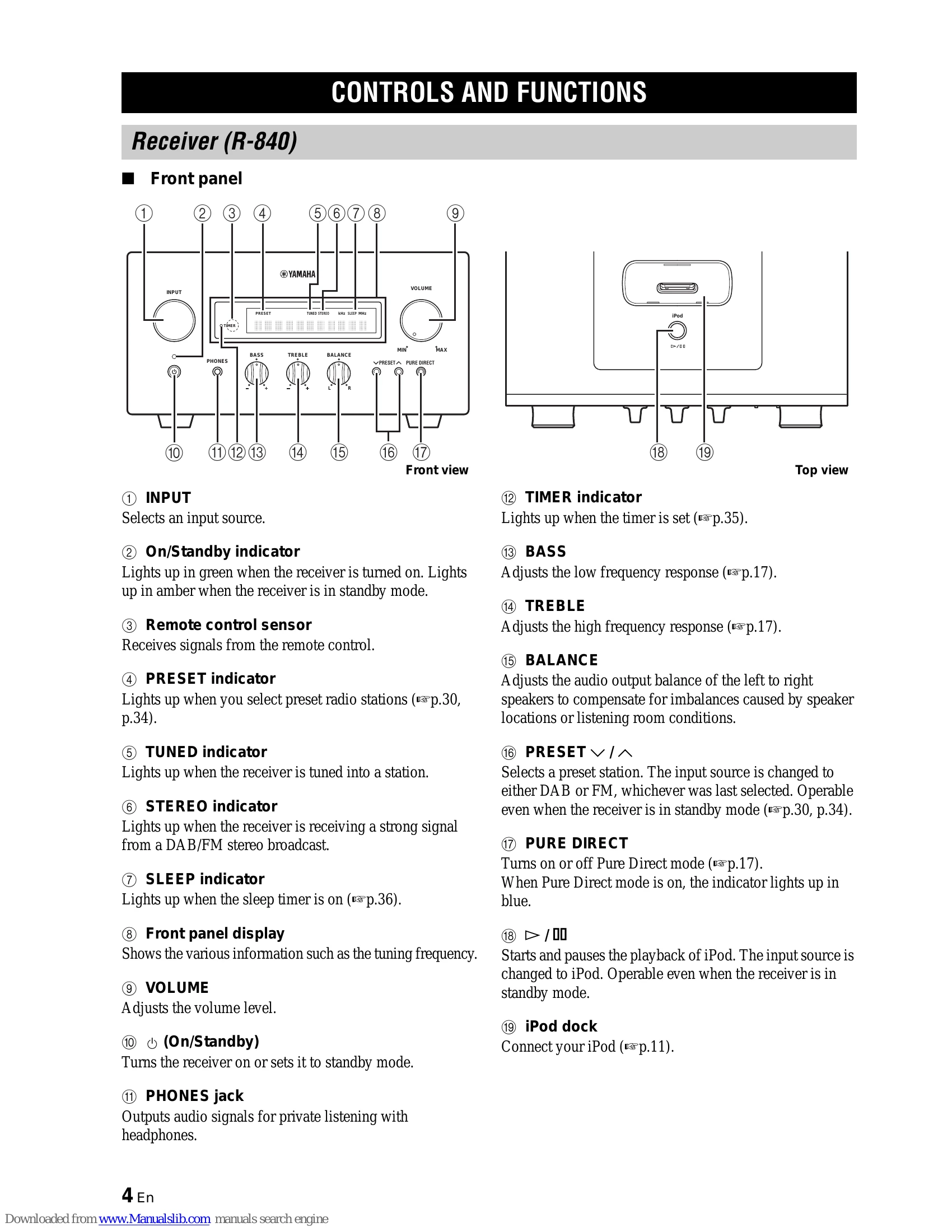
Press PURE DIRECT to turn on Pure Direct mode. This bypasses the tone control circuit and turns off the front panel display for pure high-fidelity sound.
Press MUTE to reduce the current volume level by approximately 20dB. Press MUTE again to restore the volume.
Press DIMMER to choose the desired brightness (normal, mid dim, and dim).
Connect headphones to the PHONES jack on the front panel of the receiver. The sound from the speakers and subwoofer stops.
| Problem | Cause | Remedy | See page |
|---|---|---|---|
| Cannot tune into any DAB stations. | The initial scan operations were not performed. | Perform the initial scan operations. | 31 |
| There is no DAB coverage in your area. | Check with your dealer or WorldDMB online at http://www.worlddab.org for a listing of the DAB coverage in your area. | — | |
| The initial scan operations are not successful and "Not found" appears on the front panel display. | The DAB signals are too weak. | Use the TUNE AID feature to locate the best positioning of the indoor DAB antenna. | 32 |
| The DAB station reception is weak. | There is no DAB coverage in your area. | Check with your dealer or WorldDMB online at http://www.worlddab.org for a listing of the DAB coverage in your area. | — |
| The DAB signals are too weak. | Use the TUNE AID feature to locate the best positioning of the indoor DAB antenna. | 32 | |
| There is noise interference (e.g. hiss, crackle or jitter). | The indoor DAB antenna needs to be repositioned. | Readjust the position of the indoor DAB antenna. | 8 |
| The DAB station information does not appear or is inaccurate. | The DAB signals are too weak. | Use the TUNE AID feature to locate the best positioning of the indoor DAB antenna. | 32 |
| The DAB station may be temporarily out of service, or the DAB station information is not provided by the DAB broadcaster. | Contact the DAB broadcaster. | — | |
| FM stereo reception is noisy. | The characteristics of FM stereo broadcasts may cause this problem when the transmitter is too far away or the antenna input is poor. | Check the antenna connections. | 8 |
| There is distortion, and clear reception cannot be obtained even with a good FM antenna. | There is multi-path interference. | Adjust the antenna position to eliminate multi-path interference. | — |
| The desired station cannot be tuned into with the automatic tuning method. | The signal is too weak. | Use a high-quality directional FM antenna. | 33 |
| Previously preset stations can no longer be tuned into. | The receiver has been disconnected for a long period. | Set preset stations. | 33 |
| iPod | |||
| Status message | Cause | Remedy | See page |
| CONNECT ERR | There is a problem with the signal path from your iPod to the receiver. | Turn off the receiver and try resetting your iPod. | 11 |
| UNKNOWN TYP | The iPod being used is not supported by the receiver. | Only iPod (Click and Wheel), iPod nano, iPod Classic, iPod mini and iPod touch are supported. | — |
| CONNECTED | Your iPod is properly stationed in the iPod dock, and the connection between your iPod and the receiver is complete. | 11 | |
| NOT CONNECT | Your iPod was removed from the iPod dock of the receiver. | Station your iPod back to the iPod dock of the receiver. | 11 |
| CAN'T PLAY | The receiver cannot play back the songs currently stored on your iPod. | Check that the songs currently stored on your iPod are playable. Store some other playable music files on your iPod. | — |
| Remote control | |||
| Problem | Cause | Remedy | See page |
| The remote control does not work nor function properly. | The remote control may be operated outside its operation range. | For information on the remote control operation range, see "Using the remote control". | 12 |
| The remote control sensor on this system may be exposed to direct sunlight or lightening (invented fluorescent lamps). | Change the lighting or orientation of this system. | 12 | |
| The battery may be worn out. | Replace the battery with new one. | 12 | |
| There are obstacles between the sensor of this system and the remote control. | Remove the obstacles. | 12 | |
| The system control cable is disconnected from the system connector jack of the receiver and/or the DVD player. | Connect the receiver and the DVD player securely with the system control cable. | 8 | |
| DVD player (DVD-840) | |||
| Problem | Cause | Remedy | See page |
| Power does not turn on. | The plug is not completely inserted. | Connect the power cable firmly. | — |
| The receiver and the DVD player are connected incorrectly. | Connect the system control cable properly between the receiver and the DVD player. | 8 | |
| The receiver is set incorrectly. | Check the setting (INPUT/Volume/MUTE/ Headphone) of the receiver. | — | |
| Power suddenly shuts off during playback. | The auto-standby function of the receiver works when the receiver does not receive a playing signal transmitted from the DVD player via the system control cable for 30 minutes. | Check the connection of the system control cable between the receiver and the DVD player. | 8 |
| No sound or distorted sound | The sampling rate of a MP3, WMA or MPEG-4 AAC file may not be compatible with the DVD player. | Check the sampling rate and bit rate of the MP3, WMA or MPEG-4 AAC file are compatible with the DVD player. | 3 |
| Disc playback does not start. | You may use a recordable media that is not finalized. | Finalize the recordable media. | — |
| The disc label may not be facing up. | Place the disc in the disc tray with the label facing up. | — | |
| The disc may be defective. | Try to play back another disc. If the same problem does not occur, the disc you want to play back is defective. | — | |
| MP3/WMA/MPEG-4 AAC disc may not contain sufficient music tracks to be played back. | Check that your disc contains at least 5 MP3/WMA/ MPEG-4 AAC music files. | — | |
| The message "HDMI ERROR" is displayed or there's no picture on the HDMI TV. | The sampling rate of a MP3, WMA or MPEG-4 AAC file may not be compatible with the DVD player. | Check the sampling rate and bit rate of an MP3, WMA or MPEG-4 AAC file are compatible with the DVD player. | 3 |
| The wrong HDMI resolution is selected or an HDMI error has occurred. | Check the HDMI Resolution setting and correct as necessary. Reset the HDMI settings. | 41 42 | |
| The USB device cannot be recognized. | The USB device is not connected correctly. | Connect the USB device correctly. | 11 |
| The DVD player is not linked with the receiver. | The system control cable is disconnected from the system connector jacks of the receiver and/or the DVD player. | Connect the system control cable properly to the system connector jacks of the receiver and the DVD player. | 8 |
| USB | |||
| Status message | Cause | Remedy | See page |
| NO USB | The USB device is not connected. | Connect a playable USB device. | 11 |
| OVER CURRENT | The USB device is either unplayable on this system or connected at an incorrect angle. | Disconnect the USB device. Change the input source to a device other than USB and back to USB. Then, correctly connect a playable USB device to the DVD player. | — |