Brand: TOSHIBA
Category: Other
Document Type: Manual
Language: EN
Brand: TOSHIBA
Category: Other
Document Type: Manual
Language: EN
Uploaded: Nov. 21, 2025, 7:09 p.m.
Manual Publish Date: 2013-08-01
Information about warranty is not explicitly stated as a period in the provided pages.
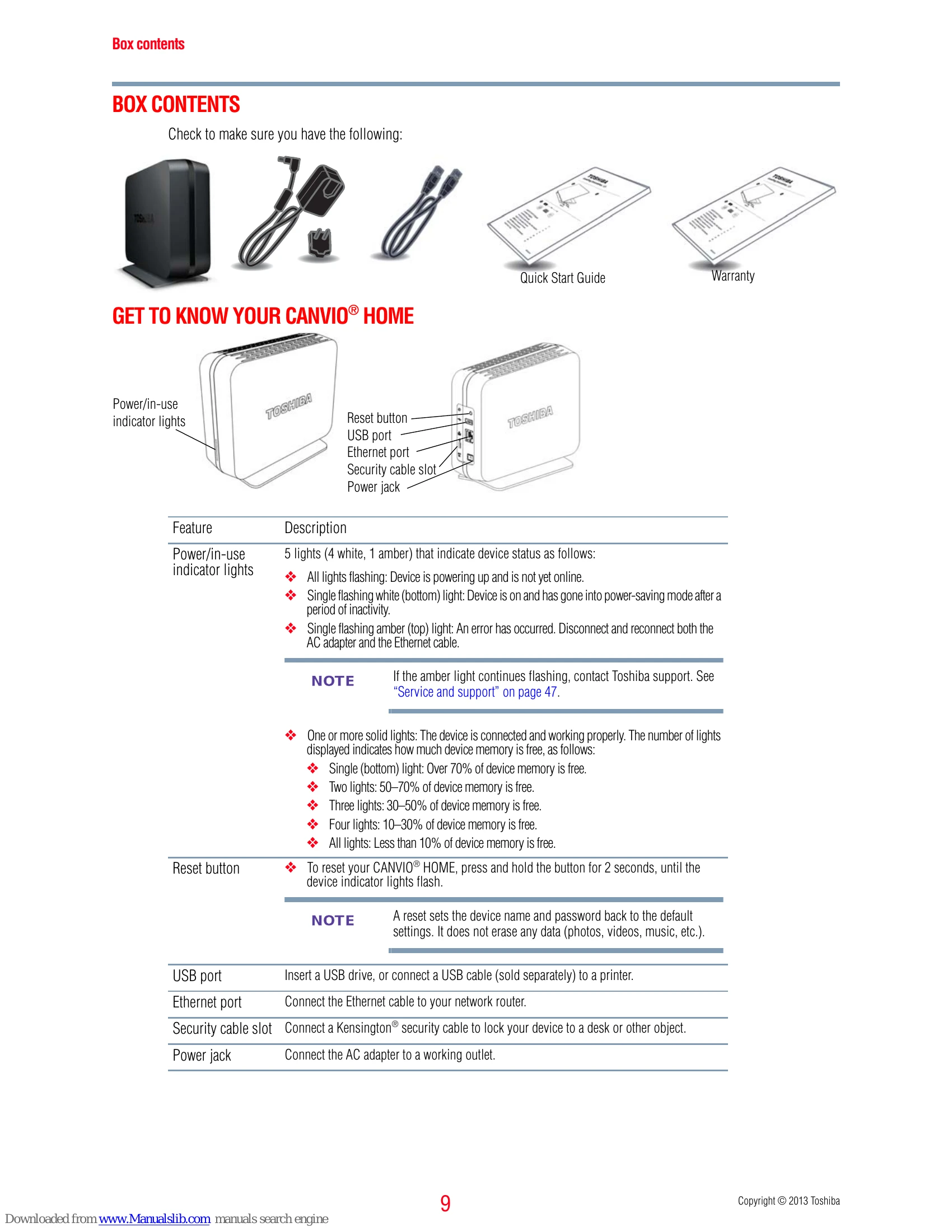
The CANVIO HOME allows you to upload, manage, and share music, videos, photos, and files with family and friends. It can be accessed from anywhere over the internet. Features include user/group access control, remote file access, reduced computer storage usage, music/video streaming on smart TVs, and system backups.
To set up, connect the device to a power outlet and your network router. Install the Canvio Launcher application on your computer. Follow the initial setup wizard to create a username and password. The main menu provides access to file uploads, backups, music, video, photo viewing, and settings.
You can upload files to a public or private share. The device also supports remote access and can be used as a print server.
| Issue | Possible Solutions |
|---|---|
| The network cannot find the CANVIO® HOME device | Verify Ethernet connection, router power, same network subnet, DHCP server enabled, and computer system requirements. |
| The network router or switch failed | Verify cable connections, router/switch AC adapter, and reboot both the CANVIO HOME and router/switch. |
| The indicator lights are not lit | Verify the AC adapter is plugged into a working outlet and the power jack. |
| The amber indicator light is on | Indicates less than 10% capacity remaining. Delete files or backups. Consider purchasing additional storage. |