To use the buttons in the Operation Guide
Click the buttons located at the upper right of the pages of this manual to jump to "Table of Contents,” “About the HOME menu” or “Index.”
- Jumps to the table of contents
- Jumps to the home menu list
- Jumps to the index
- You can jump to the indicated page by clicking a page number in the table of contents or in the index.
- You can jump to the indicated page by clicking a page reference indication (e.g., page 3) on each page.
- To search for a reference page by keyword, enter the keyword into the find text field on the Adobe Reader window.
- Operation procedures may differ, depending on your Adobe Reader version.
To change the page layout
The buttons on the Adobe Reader window enable you to select how pages are displayed.
- Continuous: Pages are displayed as a continuous roll of pages, fitting the page width inside the window. When you scroll, the previous or next pages scroll up or down continuously.
- Single Page: Pages are displayed one at a time, fitting the page into the window. When you scroll, the display changes to a previous or succeeding page.
Basic Operations and Screens
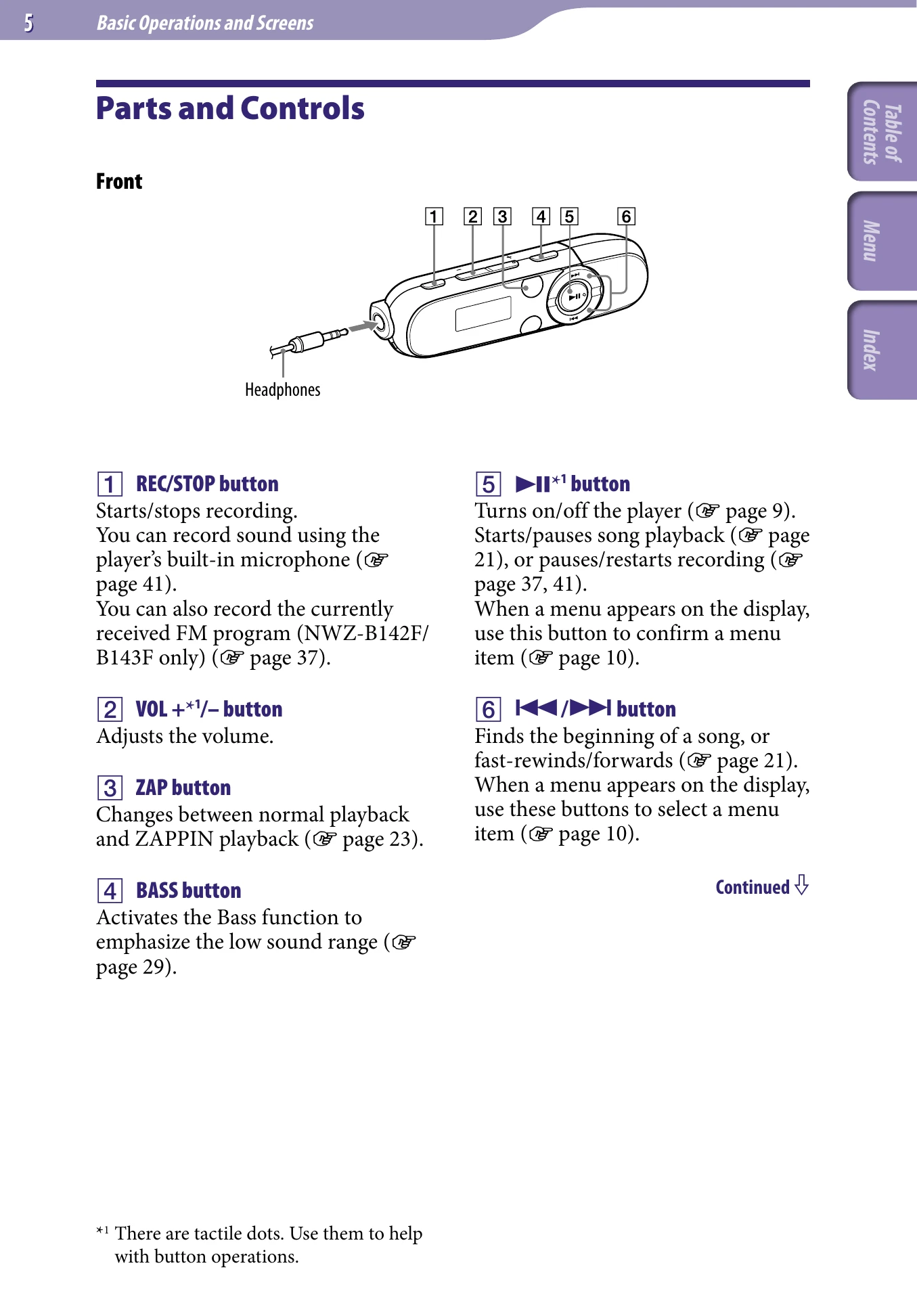
Front
Starts/stops recording: You can record sound using the player's built-in microphone (page 41). You can also record the currently received FM program (NWZ-B142F/B143F only) (page 37).
Adjusts the volume.
Changes between normal playback and ZAPPIN playback (page 23).
Activates the Bass function to emphasize the low sound range (page 29).
Turns on/off the player (page 9). Starts/pauses song playback (page 21), or pauses/restarts recording (page 37, 41). When a menu appears on the display, use this button to confirm a menu item (page 10).
Finds the beginning of a song, or fast-rewinds/forwards (page 21). When a menu appears on the display, use these buttons to select a menu item (page 10).
Rear
Resets the player when you press the RESET button with a small pin, etc (page 56). When you turn on the player after resetting it, the player reactivates the previously set items.
Used to attach a strap (sold separately).
HOLD switch: You can protect the player against accidental operation while carrying it by setting the HOLD switch. By sliding the HOLD switch to the direction of the arrow (→), all operation buttons are disabled. If you press buttons while the HOLD function is activated, “HOLD” appears in the display. If you slide the HOLD switch to the opposite position, the HOLD function is released.
Display
Displays the current play mode: -: playback/II: pause <: fast-rewind/>: fast-forward
Displays the current play mode icon (page 28). If the play mode is set to "Normal," no icon appears.
Indicates ZAPPIN playback status (page 23).
Displays whether the Bass function (page 29) is activated or which equalizer mode is activated (page 30).
To turn on the player
Press the ►II button to turn on the player. The player resumes the operation from the point where you last turned off.
- If "HOLD" appears in the display, slide the HOLD switch in the opposite direction of the arrow (→) to release the HOLD function.
To turn off the player
Press and hold the ►II button to turn off the player. “POWER OFF" appears.
- If there is no operation for a certain period of time while in stop mode, the display turns off automatically to save the battery power. If there is no operation for an extended period, the player turns off completely. The batteries are consumed a little in this status.
- You cannot operate the player when it is connected to a computer. Disconnect the player before operating the player.
HOME menu
The icons appear in the HOME menu and the color of the selected icon is inverted.
- Voice: Plays back/deletes recorded sound file (page 41).
- Music Library: Plays back transferred songs on the player (page 21).
- FM*1: Plays FM radio, or plays back or deletes a recorded FM programs (page 33).
- Settings: Sets function settings of music, FM*¹, voice recording, or the player (page 45).
The HOME menu
The HOME menu is the starting point of each application, such as searching for songs, changing settings, etc. You can display the HOME menu by pressing and holding the BACK/HOME button of the player.
From the HOME menu, you can select the desired item on the screen by pressing the K ►II*1 button. Press the K☑ button to select menu item, and then press the ►II button to confirm.
In this manual, operating instructions from the HOME menu are described as below.
Example: From the HOME menu, select ♫ (Music Library) “Folder” the desired folder the desired song.
The actual operations for the example above are shown below.
Press and hold the BACK/HOME button until the HOME menu appears.
The HOME menu appears.
Press the ►II button to confirm.
The Music Library menu screen appears.
Press the K ►I button to select "Folder,” and then press the ►II button to confirm.
The Folder list screen appears.
- You can scroll the list by pressing the K ☑button.
Press the K ►I button to select the desired folder, and then press the ►II button to confirm.
The song list screen of the selected folder appears.
Press the k ►I button to select the desired song, and then press the ►II button to confirm.
The music playback screen appears and playback begins.
To return to the HOME menu during operation
Press and hold the BACK/HOME button.
To return to the previous screen during operation
Press the BACK/HOME button.
Getting Started
Charging the Battery
The player's battery is recharged while the player is connected to a running computer.
Remove the USB cap and connect the USB connector to a USB connector on your computer. When the remaining battery indication of the display shows: "Full" charging is completed (charging time is approx. 70 minutes).
When you use the player for the first time, or if you have not used the player for a long time, recharge it fully (until the "Full" battery indication is displayed).
About the battery indicator
The battery icon in the display (page 8) changes as shown below.
The battery power gets low as shown in the battery icon. If “LOW BATTERY” appears, you cannot operate the player. In this case, charge the battery by connecting to your computer. See page 78 on battery duration.
Notes
- Charge the battery in an ambient temperature of between 5 °C to 35 °C (41 °F to 95 °F).
- The number of times the battery can be recharged before it is used up is approximately 500 times. This number may vary, depending on the conditions under which you use the player.
- The battery indicator on the display is only an estimation. For example, one section of black in the indicator will not always indicate exactly one-fourth of the battery's charge.
- “DATA ACCESS” appears in the display while the computer accesses the player. Do not disconnect the player while "DATA ACCESS” appears or the data being transferred may be damaged.
- The control buttons on the player are all disabled while it is connected to a computer.
- If you do not intend to use the player for over half a year, charge the battery at least once per 6 to 12 months for the battery maintenance.
- Some USB devices connected to the computer may interfere with proper operation of the player.
- We do not guarantee the recharge of the battery using personally assembled computers or modified computers.
- If the computer enters a power saving mode, such as the Sleep or Hibernation mode, even during USB connection, the player's battery is not charged. Instead, the player continues to draw power from the battery, discharging it.
- Do not leave the player connected for extended periods to a laptop computer that is not connected to AC power, because the player may discharge the computer's battery.
- If you charge the player when it has not been used for a long period, your computer may not recognize the player or nothing may appear on the display. Charge the player for about 5 minutes, and it starts operating properly.
- While the player is connected to a computer, do not turn on, restart, wake up from Sleep mode, or shut down the computer. These operations may cause the player to malfunction. Disconnect the player from the computer before performing these operations.
- Heat may build up in the player while charging. This is not malfunction.
Selecting the Display Language
You can select from a variety of languages for the display of menus and messages on the player.
From the HOME menu, select (Settings) "Language" the desired language setting.
Setting the Date and Time
The date and time are not set by default. Set the current date and time according to the following.
From the HOME menu, select (Settings) "Common Settings" "Set Date-Time."
Press the K ►I button to select the year value, and then press the ►II button to confirm.
- The year, month, date, hour and minute can be set. Repeat this step to set the numeric value of every items.
To display the current time
While the HOLD function is activated, press any button.
Notes
- If you left the player for a while with the battery used up, the date and time may be reset.
- If the player is not used for a long time, your settings for date and time may need to be set again.
- The clock may develop an inaccuracy of up to 120 seconds per month (at 25 °C (77 °F)). In this case, set the current time again.
Getting Music
To enjoy music on the player, you need to prepare the data on your computer. You can import music from audio CDs or from the Internet, etc. To import the data into your computer, use appropriate software, such as Windows Media Player 11. For detailed information on how to import data, refer to the Help of each software. For details about supported file formats, see "Supported file format" (page 76).
Transferring Music
You can directly transfer data by dragging and dropping in Windows Explorer on your computer.
- You can also transfer music using Windows Media Player 11. For details about usage, or support on Windows Media Player, refer to the Windows Media Player information from the following web site: http://support.microsoft.com/
Notes
- Only MP3/WMA files can be played on the player (page 76).
- If you turn on or restart the computer while the player is connected to the computer, the player may malfunction. In this case, press the RESET button of the player to reset it (page 56). Disconnect the player from the computer before turn on or restart the computer.
Connect the USB connector of the player to your computer.
Insert the USB connector fully.
Open [My Computer] or [Computer] - [WALKMAN] - [Storage Media], and then select the folder you want to store the audio files. Data hierarchy may differ, depending on your computer environment.
Drag and drop the files to the selected folder.
Notes
- Be careful not to accidentally bump or put stress on the player when it is connected to your computer. It may be damaged.
- The player does not use SonicStage software (SonicStage software, developed by Sony, manages music on a computer or transfers music to other types of players). For this player, you can transfer music simply by dragging and dropping, not using SonicStage. ATRAC files managed by SonicStage can be transferred to the player after conversion to MP3 file format. To convert files, download the MP3 Conversion Tool from the customer support website (page 73).
- Do not disconnect the player while files are being transferred. If you do, the file being transferred may be damaged.
- If the player is disconnected while files are being transferred, unnecessary files may be left in the player. In this case, transfer usable files back to the computer and format the player (page 51).
- Some files may not be played back on the player due to copyright protection.
- The player can display up to a total of 2,640 files and 500 folders, and folders of up to 8 levels. Although you can transfer more files or folders to the player, the player cannot display or play any files, folders, or levels that exceed this limit.
- Data hierarchy may differ, depending on your computer environment.
- It may take time to start up the player or display the file/folder list when many files or folders are stored on the player.
Playing Music
You can listen to transferred songs on the player. The transferred songs are stored in "Music Library." To play music, select ♫ (Music Library) from the HOME menu to display the music playback screen.
From the HOME menu, select ♫ (Music Library) “Now Playing.”
The music playback screen appears and the playback of the songs begins from the last song you listened to.
- About the playback screen, see "Playback screen” (page 8).
- When you select ♫ (Music Library), the search menu appears. You can select the desired search method to display the list screen and search for songs. For details, see "Searching for songs” (page 26).
- When the player turns off from the song playback status, you can start playback of the last song you listened to by pressing the ►II button.
| To (screen indication) |
Do this |
| Play / pause ( |
Press the button. |
| Skip to the beginning of the current song / next song |
Press the button. |
| Fast-rewind (←) / fast-forward (→) the current song |
Press and hold the F ☑ button during playback and release it at the desired point. |
When fast-rewind/fast-forward a song
Elapsed time
Full length of the song/file
- You can change the song playback from the normal playback to ZAPPIN playback (page 23).
- The player offers a variety of play modes, including random play and selected repeat play (page 28).
- You can emphasize the low range (Bass function) (page 29). You can also change the sound quality by selecting the equalizer (page 30).