Manual for PN-TPCi7W7

Manual for PN-TPCi7W7

Brand: SHARP

Category: Office Equipment

Document Type: Manual

Language: EN
Uploaded: Nov. 21, 2025, 9:02 p.m.

Warranty Information

Warranty service is available from a Sharp® Authorized Service Center located in the United States.

Getting Started

Introduction to PN-TPCi7W7

The PN-TPCi7W7 is a full-featured High Definition PC based upon Intel H67® architecture, and powered by an Intel® Core™ i7 CPU. Targeted for Commercial applications such as interactive digital white boards, the PN-TPCi7W7 has been optimized for reliable operation with Sharp® PN-L series touch screen displays. The PN-TPCi7W7 includes the Sharp Pen Software™ installer application loaded on the hard disk. It also has the flexibility to run most third party software and custom applications. The PN-TPCi7W7 supports true 1080P video with hardware assisted support for formats such as MPEG2, H.264, and WM9. The PN-TPCi7W7 was designed with display integration in mind and features a full complement of video outputs including HDMI® and DVI. The unit also includes an embedded Wireless 802.11 B/G/N module, RS232 port for display control and a custom mounting bracket specially designed to attach behind a Sharp PN-L series touch screen display. The PN-TPCi7W7's all metal chassis and small form factor make it ideal for commercial applications requiring a powerful yet compact PC.

Package Contents

The packing box should contain the following items:

  • Technovare™ PN-TPCi7W7
  • AC Power Adapter
  • Mounting Kit
  • HDMI® Cable
  • DVI to VGA adapter
  • Connection Diagram
  • System Recovery Discs

Installation

Mounting PN-TPCi7W7 on Sharp PN-L Series Displays

  1. Before beginning Make sure to turn off the monitor and remove the AC power.
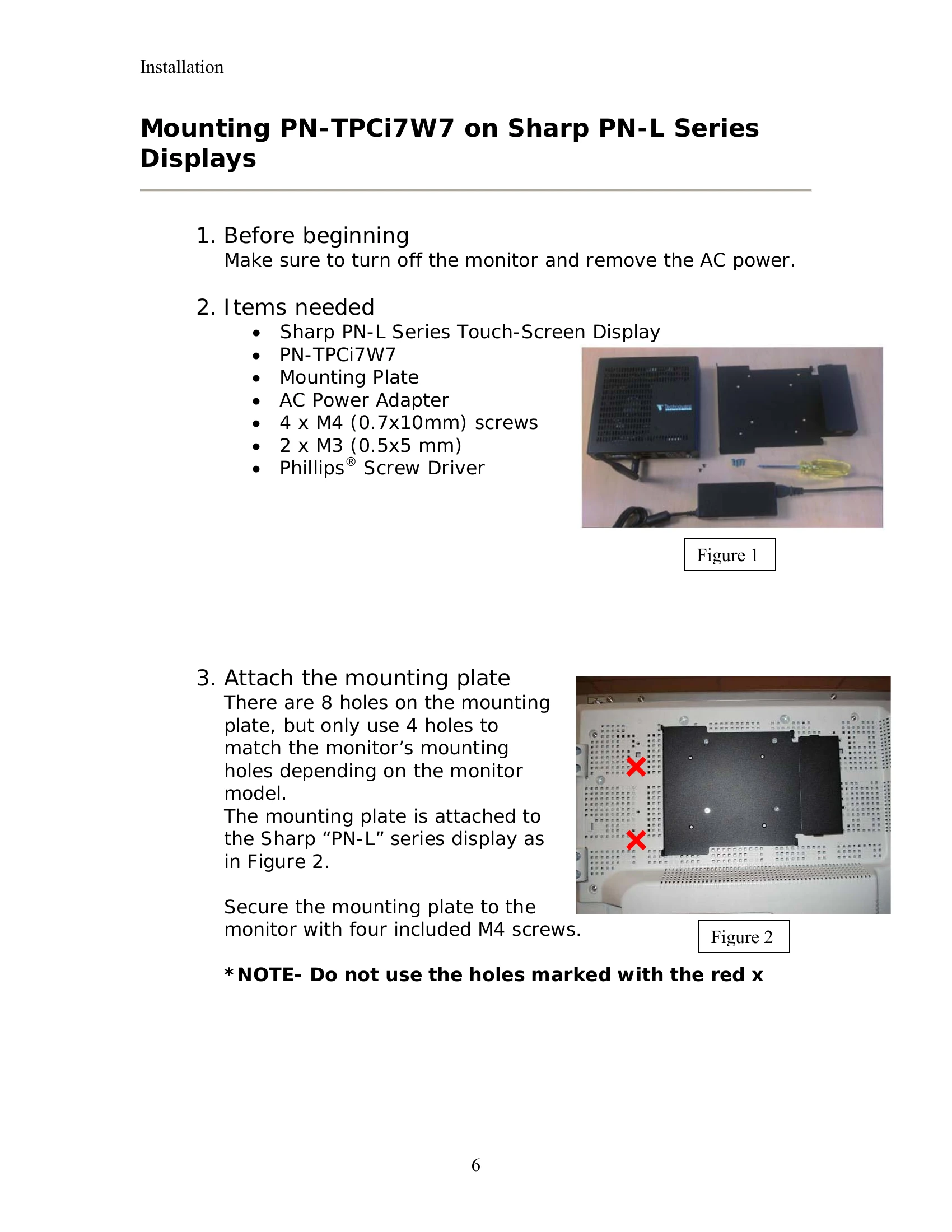
  2. Items needed Sharp PN-L Series Touch-Screen Display, PN-TPCi7W7, Mounting Plate, AC Power Adapter, 4 x M4 (0.7x10mm) screws, 2 x M3 (0.5x5 mm), Phillips® Screw Driver.
  3. Attach the mounting plate Align the mounting plate with the monitor's mounting holes and secure it with four included M4 screws.
  4. Set the AC power adapter in place Place the AC power adapter into the holder on the right side of the mounting plate. AC power cord faces downward and the DC power cord to the PN-TPCi7W7 faces upward.
  5. Install the PN-TPCi7W7 Slide the PN-TPCi7W7 into the mounting plate, ensuring the fingers align with the slits. Secure with M3 screws.
  6. Connect the HDMI video cable and the USB cable prior to turning on the PN-TPCi7W7.
  7. Finish Plug in the DC power cord into the PN-TPCi7W7's power connector.

Rear Connector Layout

Diagram and description of rear connectors including Audio Ports, LAN Connector, and Wireless Antenna.

Rear Connector Layout (con't)

  1. Power Connection Use only the AC power adapter supplied with the system. Plug the 12V AC/DC adapter into the PN-TPCi7W7's power input jack.
  2. Power Button The power button will stay lit if the PN-TPCi7W7 is powered on. Press to power up or to force shutdown if normal shutdown fails.

How to Recover to Factory Installed Condition

  1. Before beginning Back up all data. Contact Sharp Customer Service if the unit is under warranty.
  2. Items needed Recovery DVD, USB DVD Drive.
  3. Windows® OS installation from Recovery DVD Attach USB DVD Drive, insert recovery DVD, reboot, follow instructions, install Windows OS, remove recovery DVD, and reboot.
  4. Install System Drivers from Recovery DVD Insert recovery DVD, install Chipset, HD audio, HDMI audio, and WiFi drivers.
  5. Install 3rd Party Software from Recovery DVD Install provided software including Internet Explorer, Windows Media Player, PowerPoint Viewer, Flash Player, QuickTime, and Media Player Codec Pack.
  6. Install Sharp Pen Software™ & Optimize Windows Follow instructions from the included Sharp Pen Software operating manual.

Support & RMA

Warranty service is available from a Sharp® Authorized Service Center in the United States. Call 1-800-BE-SHARP for repair handling instructions and service center locations. Ship the product securely if needed. Call 1-888-GO-SHARP or visit www.SharpUSA.com for product information or accessories.

Trademarks

Lists various trademarks associated with Sharp, Intel, Microsoft, Adobe, Apple, Linux, HDMI, Phillips, Realtek, and Technovare.

Privacy Policy