Brand: SHARP
Category: Office Equipment
Document Type: Manual
Language: EN
Brand: SHARP
Category: Office Equipment
Document Type: Manual
Language: EN
Uploaded: Nov. 21, 2025, 8:07 p.m.
Manual Publish Date: 2020-11-01
Refer to the manufacturer's documentation for warranty details, as no specific period is mentioned in this excerpt.
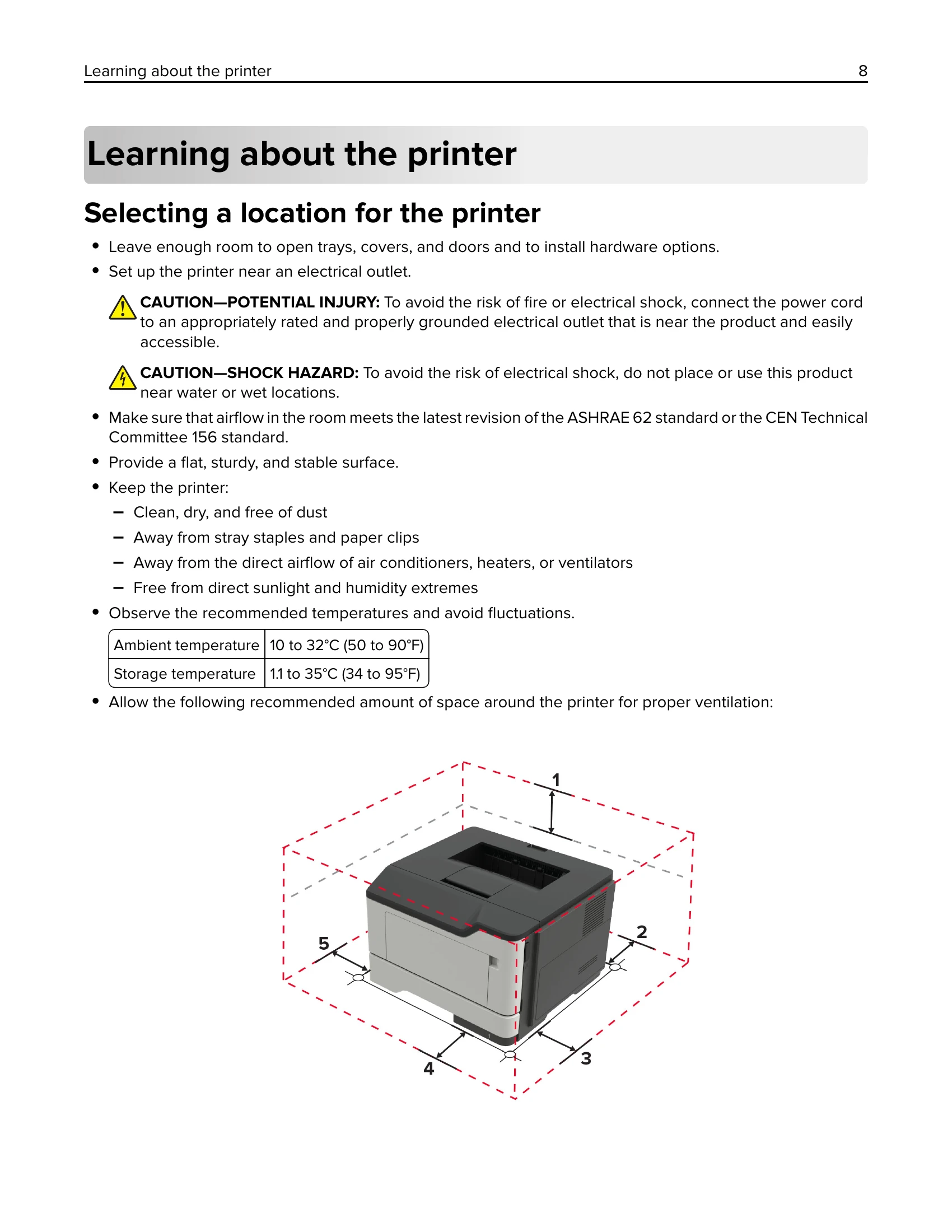
Selecting a location:
Setting paper size and type: Navigate to Settings > Paper > Tray Configuration > Paper Size/Type.
Loading trays: Remove the tray, adjust guides, flex/fan paper, load printable side down, and insert tray.
Loading the multipurpose feeder: Open feeder, adjust guide, flex/fan paper, load printable side up.
| Issue | Troubleshooting steps |
| Crooked print | Check paper loading, tray settings, and paper guides. |
| Dark print | Adjust print density settings. Check toner cartridge. |
| Fine lines not printed correctly | Adjust print quality settings. Check printer driver. |
| Folded or wrinkled paper | Ensure paper is loaded correctly, not creased, and within weight limits. |
| Gray background on prints | Adjust print density or toner save settings. Check toner cartridge. |
| Horizontal light bands | Clean the print head or imaging unit. Check toner cartridge. |
| Light print | Adjust print density. Check toner cartridge. |
| Mottled print and dots | Clean the printer. Check toner cartridge. |
| Paper curl | Ensure correct paper type and weight. Check humidity. |
| Repeating defects | Clean the printer and imaging unit. Check toner cartridge. |
| Text or images cut off | Adjust print margins or layout settings. Check printer driver. |
| Toner easily rubs off | Ensure proper fuser settings or paper type. Check toner cartridge. |
| Vertical dark bands | Clean the printer and imaging unit. Check toner cartridge. |
| Vertical dark lines or streaks | Clean the printer and imaging unit. Check toner cartridge. |
| Vertical light bands | Clean the printer and imaging unit. Check toner cartridge. |
| Vertical white lines | Clean the printer and imaging unit. Check toner cartridge. |
| White pages | Check toner cartridge. Ensure correct paper loaded. |
| Collated printing does not work | Check collation settings in the print driver and on the printer. |
| Envelope seals when printing | Ensure correct envelope type and loading. Adjust print settings if necessary. |
| Incorrect margins | Check document margins, printer margins, and layout settings. |
| Jammed pages are not reprinted | Check print job settings for reprint options. Clear all jams. |
| Paper frequently jams | Check paper loading, tray configuration, and paper guides. Avoid overloading trays. |
| Print jobs do not print | Check printer status, network connection, and print queue. Ensure correct printer is selected. |
| Slow printing | Check print job complexity, network speed, and printer settings. Consider simplifying documents. |