Brand: SHARP
Category: Camera
Document Type: Manual
Language: EN
Brand: SHARP
Category: Camera
Document Type: Manual
Language: EN
Uploaded: Nov. 21, 2025, 7:38 p.m.
| Symptom | Possible cause | Suggested solution |
| No power. | Power source is not properly connected. | Connect power source properly (pp. 6, 9). |
| Battery pack is not charged. | Charge battery pack sufficiently (p. 8). | |
| Dew in camcorder. | Wait until dew dries (p. vii). | |
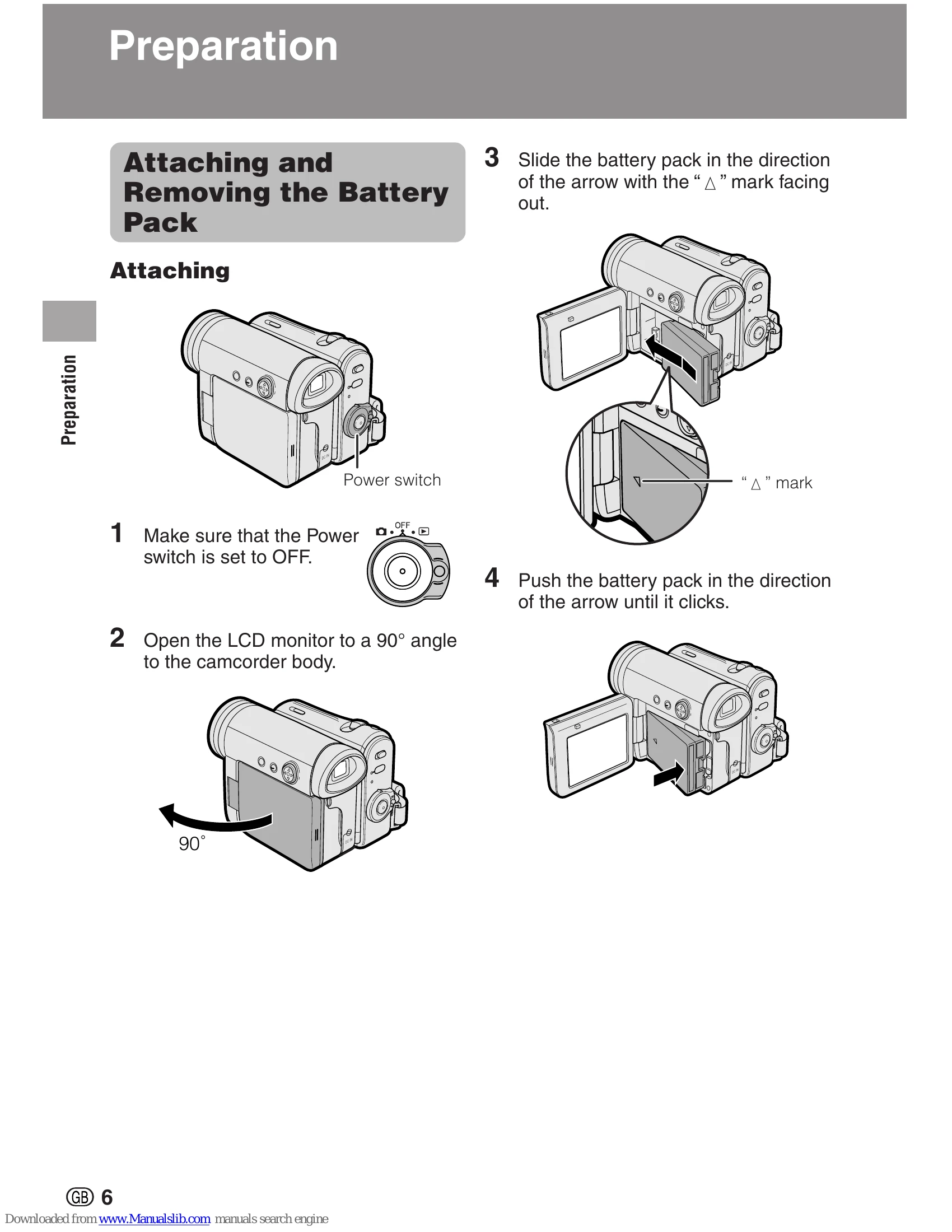
| Safety function is in effect. | Set Power switch to OFF and remove battery pack. Wait for 2 seconds, then reinstall battery pack and turn on power (pp. 6, 7). | |
| Start/Stop button does not work. | Erasure-protect tab on video cassette is open. | Close tab or use a new cassette (p. 92). |
| Power suddenly turns off. | Camcorder left in Recording Standby mode for 5 minutes in Tape Camera mode. | Set Power switch to OFF and then back to Camera mode. |
| Auto focus does not work. | Manual Focus mode is engaged. | Set to Auto Focus mode (p. 53). |
| Zoom used on close subject. | Zoom out from subject (p. 23). | |
| Bright subject produces wide vertical lines. | Subject has little contrast in brightness, or is full of horizontal or vertical stripes. Occurs when shooting subject with strong contrast to the background. Does not indicate a malfunction. | Focus manually (p. 52). |
| Display automatically changes in Tape Camera mode. | Camcorder is in Demo mode. | Set the DEMO MODE menu item to "OFF" (p. 90). |
| No image appears on connected TV screen. | Video input channel on TV or TV channel is not selected properly. | Select video input channel or TV channel properly (p. 30). |
| Audio/video/S-video cable is not properly connected. | Connect audio/video/S-video cable properly (p. 30). | |
| No image from an external source appears on the camcorder screen. | DV cable or audio/video/S-video cable is not properly connected. | Connect DV cable or audio/video/S-video cable properly (pp. 63, 64, 68). |
| The cable connection does not match the S-VIDEO IN menu setting. | Set the S-VIDEO IN menu item to "ON" for S-video connection, or "OFF" for video connection (p. 65). | |
| Cannot rewind or fast forward tape. | Position at beginning or end of tape. | Rewind or fast forward tape to desired point (p. 27). |
| Using a cleaning tape | The cleaning tape will automatically rewind after cleaning finishes (p. viii). | |
| Video noise in image. | Dirty video heads. | Call for service or use a commercially available cleaning tape (p. viii). |
| Old or worn tape. | Use a new cassette. | |
| No sound. | Using a 12-bit recording tape with AUDIO menu item set to “AUDIO 2”. | Set the AUDIO menu item to "AUDIO 1" or "AUDIO 1+2" (p. 62). |
| Tape does not work. | Power switch is set to Camera mode. | Set the Power switch to Playback mode (p. 21). |
| Media Selection switch is set to Card mode. | Set the Media Selection switch to Tape mode (p. 21). | |
| Battery pack is depleted. | Charge battery pack or replace it with a fully charged one (pp. 6-8). | |
| Still images in Card mode are rotated 180° upside down. | The images are recorded in self recording with reversed grip. | Transfer the data to PC (pp. 82–84), and rotate the images 180° back by using a commercially available editing software. |
| Motion images are rotated 180° upside down. | Improper self recording. | Turn on Rotate Playback (p. 50). |
| Cannot delete image on card. | Image is delete-protected. | Cancel the protection setting (p. 77). |
| Cannot format card. | — | |
| Battery pack is easily depleted. | Using camcorder in extremely cold environment. | Warm up battery pack, for example in your pocket, just before using it. |
| Battery pack is not fully charged. | Charge battery pack sufficiently (p. 8). | |
| Clock has been reset. | Lithium battery is not properly installed. | Install lithium battery properly (p. 12). |
| Lithium battery is depleted. | Replace new lithium battery (p. 12). | |
| Cassette will not eject. | Power source is not properly connected. | Connect power source properly (pp. 6, 9). |
| Battery pack is not charged. | Charge battery pack sufficiently (p. 8). | |
| Camcorder is recording. | Stop recording and try again (p. 22). | |
| No image on monitor. | Backlight has been turned off. | Turn on backlight (p. 24). |
| Fluorescent lamp has burned out. | Call for service. | |
| Viewfinder picture is hard to see. | Adjust dioptre (p. 18). | |
| Monitor picture is hard to see. | Inappropriate picture adjustments. | Adjust picture (p. 86). |
| POWER/CHARGE (RED) indicator flashes in red when charging battery pack. | AC adapter or battery pack may have malfunctioned. | Call for service. |
| Cannot edit to connected VCR. | Audio/video/S-video cable is not properly connected. | Connect audio/video/S-video cable properly (p. 63). |
| Remote control does not function. | REMOTE menu item is set to "OFF". | Set REMOTE menu item to "ON" (p. 46). |
| Remote control battery has run down. | Replace remote control battery with new one (p. 13). | |
| Remote control used beyond operating range. | Use remote control within operating range (p. 46). | |
| Intense daylight falling on camcorder remote sensor. | Protect remote sensor from exposure to intense daylight (p. 46). | |
| Obstacle between remote control and camcorder remote sensor. | Remove obstacle or use remote control from different angle (p. 46). | |
| "E007" is displayed on the screen, and unable to operate normally. | The camcorder may be damaged. | Do not take out a cassette, and call for service. |