Brand: SAMSUNG
Category: TV
Document Type: Manual
Language: EN
Brand: SAMSUNG
Category: TV
Document Type: Manual
Language: EN
Uploaded: Nov. 21, 2025, 7:24 p.m.
Manual Publish Date: 2013-03-15
This product comes with a limited warranty for manufacturing defects in materials and workmanship.
| Issues | Solutions and Explanations |
| Flickering and Dimming | Disable Energy Saving features. |
| Component Connections /Screen Color | Run a Self Diagnosis Picture Test. Check cable connections and ensure correct inputs/outputs. |
| Screen Brightness | Adjust Backlight, Contrast, Brightness, and Sharpness settings. |
| Auto Motion Plus/Blur | Use Auto Motion Plus feature (Picture > Picture Options > Auto Motion Plus). |
| Unwanted Powering Off | Disable Sleep Timer, No Signal Power Off, or Auto Power Off features. |
| Trouble Powering On | Check AC power cord, wall outlet, and ensure the remote control is working. Check antenna or cable box connections. |
| Stand Assembly | Refer to the Quick Start Guide for stand assembly instructions. |
| Cannot Find a Channel | Re-run Setup or Auto Program. |
| The TV won't turn on. | Ensure AC power cord is securely plugged in. Check wall outlet. Try TV button on the TV. |
| There is no picture/video. | Check cable connections. Set external device outputs to match TV inputs. Ensure devices are powered on. Select correct input source. Reboot connected device. |
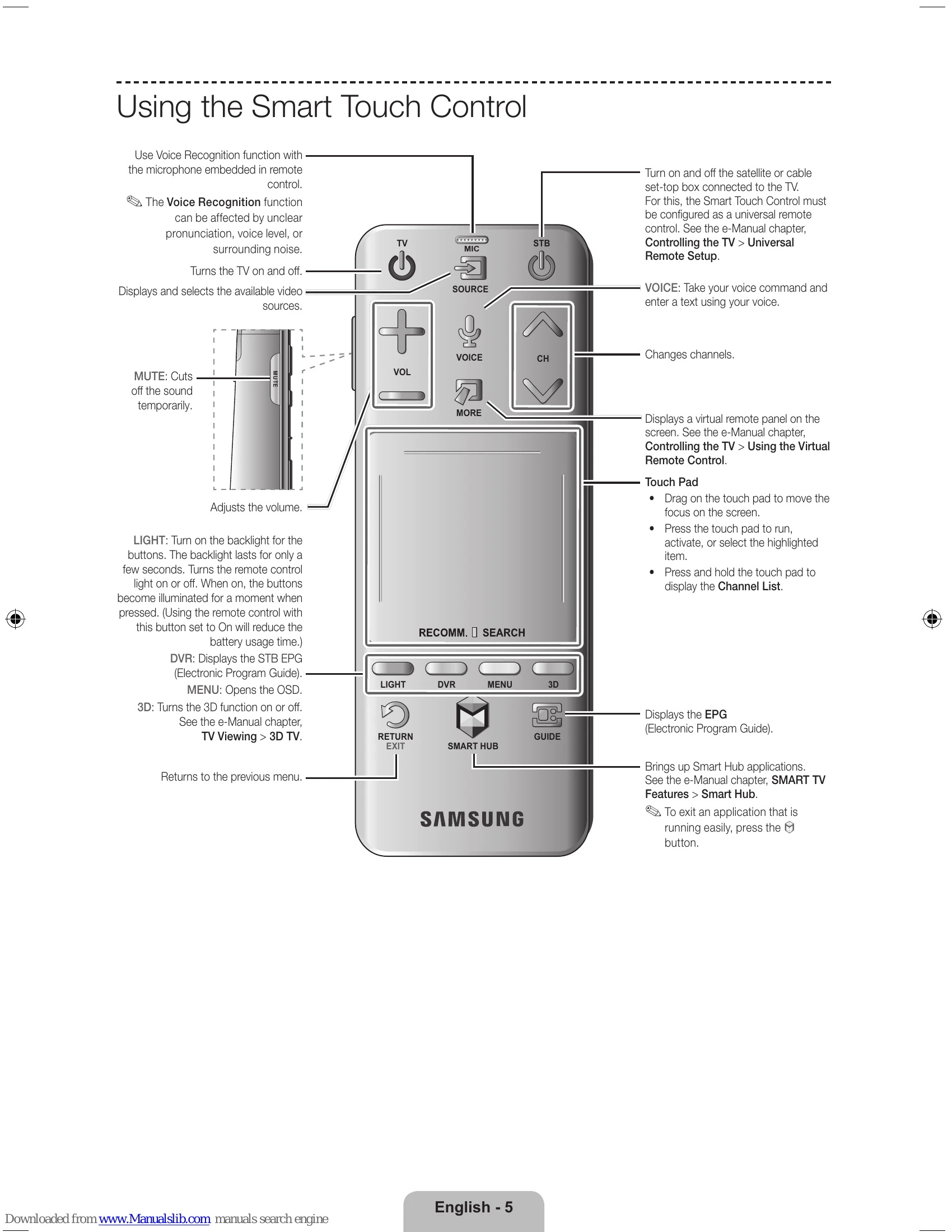
| The remote control does not work. | Replace batteries. Clean remote sensor. Point remote directly at TV. Program cable/set-top box remote. |
| The cable/set top box remote control doesn't turn the TV on or off or adjust the volume. | Program the Cable/Set-Top-Box remote using the SAMSUNG TV code. |