Brand: SAMSUNG
Category: MOBILE PHONE
Document Type: Manual
Language: EN
Brand: SAMSUNG
Category: MOBILE PHONE
Document Type: Manual
Language: EN
Uploaded: Nov. 21, 2025, 7:13 p.m.
Manual Publish Date: 2024-01-01
No specific warranty period is mentioned in the provided document excerpts.
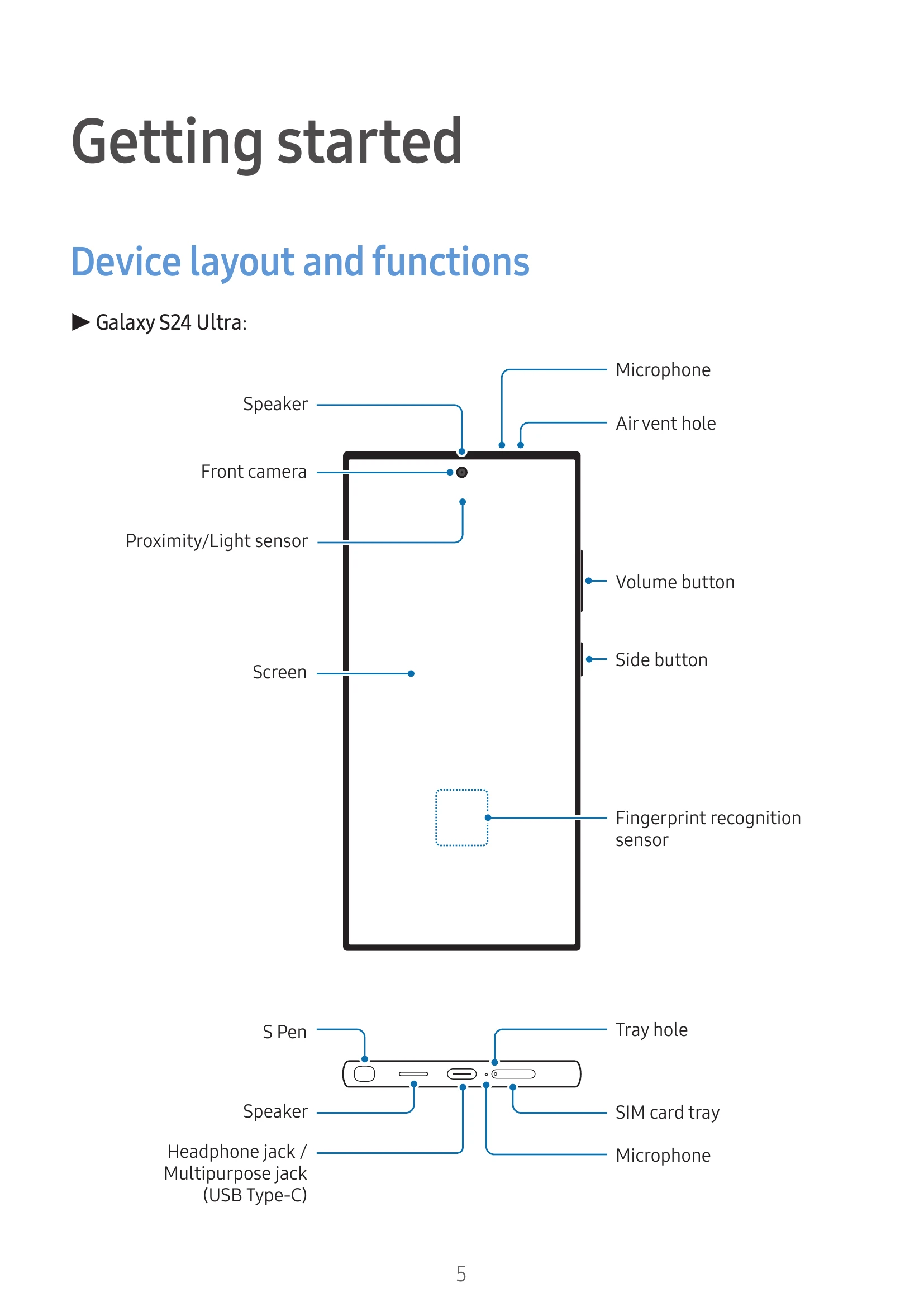
Device layout and functions: Familiarize yourself with the physical buttons, ports, cameras, and sensors of your Galaxy S24 Ultra/S24+.
Charging the battery: Learn how to charge your device using wired and wireless methods. Understand precautions for wireless charging and quick charging options.
Nano-SIM card and eSIM: Instructions on inserting a SIM card or downloading an eSIM, including SIM manager settings for dual SIM models.
Turning the device on and off: Steps to power on, power off, and force restart your device. Includes information on emergency calls and initial setup.
Samsung account: Guide to creating, signing in, and managing your Samsung account for accessing various services. Includes finding your ID and resetting your password.
| Issue | Solutions |
|---|---|
| When you turn on your device or while you are using the device, it prompts you to enter one of the following codes: Password, PIN, PUK, PIN2 | Enter the correct code (password, PIN, PUK, or PIN2) supplied or set for the device. For PIN/PIN2 issues, contact your carrier. |
| Your device displays network or service error messages | Move to an area with better signal strength. Check if you have a subscription for certain options. Contact your carrier for base station issues. |
| Your device does not turn on | Fully charge the battery before turning on the device. |
| Touch recognition works slowly or improperly | Remove screen protectors/accessories, ensure hands are clean and do not tap with sharp objects, avoid humid conditions/water exposure. Restart the device. Ensure software is updated. If screen is scratched/damaged, visit service center. |
| Your device freezes or encounters a fatal problem | Restart the device. Force restart by holding Side and Volume Down buttons for over 7 seconds. Perform a factory data reset if necessary (back up data first). |
| Calls are not connected | Ensure correct cellular network, no call barring set for outgoing or incoming numbers. |
| Others cannot hear you speaking on a call | Ensure microphone is not covered, is close to your mouth, and headphones are properly connected if used. |
| Sound echoes during a call | Adjust volume or move to another area. |
| A cellular network or the internet is often disconnected or audio quality is poor | Ensure internal antenna is not blocked. Move to an area with better reception. Wireless services may be disabled when moving due to carrier network issues. |
| The battery does not charge properly (For Samsung-approved chargers) | Ensure charger is connected properly. Visit service center for battery replacement. |
| The battery depletes faster than when first purchased | Avoid extreme temperatures. Battery consumption increases with certain features/apps. Battery life naturally shortens over time. |
| Error messages appear when opening the camera | Charge the battery. Free up storage. Restart the device. Contact service center if issues persist. |
| Picture quality is poorer than the preview | Picture quality varies with surroundings and techniques. Low light conditions may cause noise or blur. |
| Error messages appear when opening multimedia files | Free up storage. Ensure music files are not DRM-protected or have the appropriate license. Check file format support. Ensure multimedia files are authorized. |
| Bluetooth is not working well | Ensure device is scannable and within range. Turn Bluetooth on/off. Reset network settings. Contact service center if needed. |
| A connection is not made when you connect the device to a computer | Ensure compatible USB cable and proper computer driver installation. |
| Your device cannot find your current location | Set the device to use Wi-Fi or a mobile network to find location. |
| Data stored in the device has been lost | Always make backup copies of important data. |
| A small gap appears around the outside of the device case | This is a normal manufacturing feature; minor rocking may occur. |
| There is not enough space in the device's storage | Delete unnecessary data, cache, or apps. |
| The Home button does not appear | Drag upwards from the bottom of the screen to access the navigation bar. |