Brand: PIONEER
Category: Home Entertainment System
Document Type: Manual
Language: EN
Brand: PIONEER
Category: Home Entertainment System
Document Type: Manual
Language: EN
Uploaded: Nov. 21, 2025, 7:16 p.m.
No specific warranty period is mentioned in the provided pages.
Read the Important Information for the User manual for warnings and cautions.
Find operation procedures in the Contents. Menu item meanings are in the Display information.
Disconnecting the vehicle battery erases memory. Some settings and recorded content are not reset.
Pressing the RESET button resets settings and recorded contents to factory defaults. Do not do this while a device is connected.
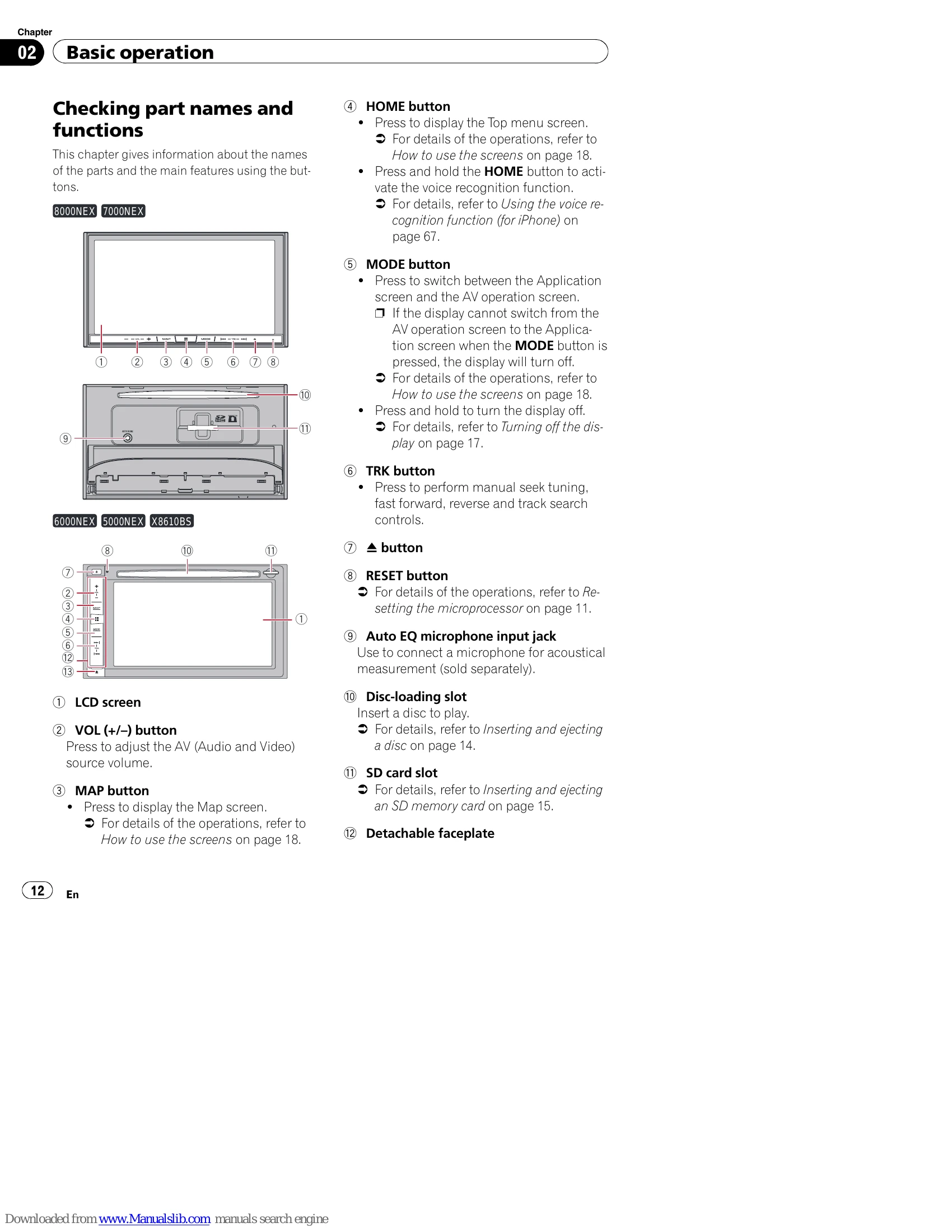
Identifies buttons and components like the LCD screen, VOL (+/-) button, MAP button, HOME button, MODE button, TRK button, RESET button, microphone input, Disc-loading slot, SD card slot, and detachable faceplate.
The detachable faceplate can be removed to discourage theft. Handle with care.
Press the appropriate button and gently pull the faceplate off.
Slide the faceplate in and push the lower part until it clicks.
Be cautious of hands and fingers when opening/closing. Do not force the panel.
Adjust the angle using the buttons; the setting is memorized.
Handle discs and SD memory cards with care. Ejecting during data transfer can cause damage.
Use the button and the disc-loading slot.
Use the button and the SD card slot. Ensure compatibility.
Connect using a USB cable. Performance may vary; USB hubs are not supported.
System boots when the engine starts and turns off when the engine stops.
Select language, then follow setup prompts for smartphone connection and Top menu.
System starts with the engine. May require password if anti-theft is activated.
A monthly notification regarding map data may appear.
Press and hold the MODE button to turn off the display.
Switch between screens using touch panel keys (APPS, NAVI, AV, iPod, etc.) and hardware buttons. Access various menus like Top menu, Settings, Phone, AV source selection, etc.
Includes Radio (FM/AM), HD Radio, CD, ROM, DVD-Video, USB, SD, iPod, iDatalink, Aha Radio, Bluetooth audio, SiriusXM, AV input, HDMI.
| Symptom | Cause | Action (Reference) |
|---|---|---|
| CD or DVD playback is not possible. | The disc is inserted upside down. | Insert the disc with the label upward. |
| The disc is dirty. | Clean the disc. | |
| The disc is cracked or otherwise damaged. | Insert a normal, round disc. | |
| The files on the disc are in an irregular file format. | Check the file format. | |
| The disc format cannot be played back. | Replace the disc. | |
| The loaded disc is a type this product cannot play. | Check what type of disc it is. (Page 209) | |
| The screen is covered by a caution message and the video cannot be shown. | The parking brake lead is not connected or applied. | Connect the parking brake lead correctly, and apply the parking brake. |
| The parking brake interlock is activated. | Park your vehicle in a safe place and apply the parking brake. | |
| No video output from the connected equipment. | The "AV Input" setting is incorrect. | Correct the settings. (Page 150) |
| The audio or video skips. | This product is not firmly secured. | Secure this product firmly. |
| Cables are not connected correctly. | Connect the cables correctly. | |
| No sounds are produced. | The system is performing still, slow motion, or frame-by-frame playback with DVD-Video. | There is no sound during still, slow motion, or frame-by-frame playback with DVD-Video. |
| The volume level will not rise. | The system is paused or performing, fast reverse or forward during the disc playback. | For the media other than music CD (CD-DA), there is no sound on fast reverse or forward. |
| The icon is displayed, and operation is impossible. | The operation is not compatible with the video configuration. | This operation is not possible. (For example, the DVD playing does not feature that angle, audio system, subtitle language, etc.) |
| The picture stops (pauses) and this product cannot be operated. | The reading of data is impossible during disc playback. | Stop playback once, then restart. |
| The picture is stretched, with an incorrect aspect ratio. | The aspect setting is incorrect for the display. | Select the appropriate setting for that image. (Page 183) |
| A parental lock message is displayed and DVD playback is not possible. | The parental lock is on. | Turn the parental lock off or change the level. (Page 183) |
| The parental lock for DVD playback cannot be canceled. | The code number is incorrect. | Input the correct code number. (Page 183) |