Brand: PHILIPS
Category: Electronics
Document Type: Manual
Language: EN
Brand: PHILIPS
Category: Electronics
Document Type: Manual
Language: EN
Uploaded: Nov. 21, 2025, 7:44 p.m.
The unit can play DVD VIDEO, Video CD (VCD), Audio CD, DVD+R, DVD±RW, SVCD, and CD-R or CD-RW discs. It can also play MP3/Windows Media™™™ Audio and/or JPEG files.
The remote control operates within a range of about 23 ft (7 m) and an angle of 30°.
When shipping, use original packaging. When setting up, position away from TVs/radios to avoid distortion. Clean with a soft, dry cloth.
Clean discs with a clean cloth from the center out. Avoid strong solvents.
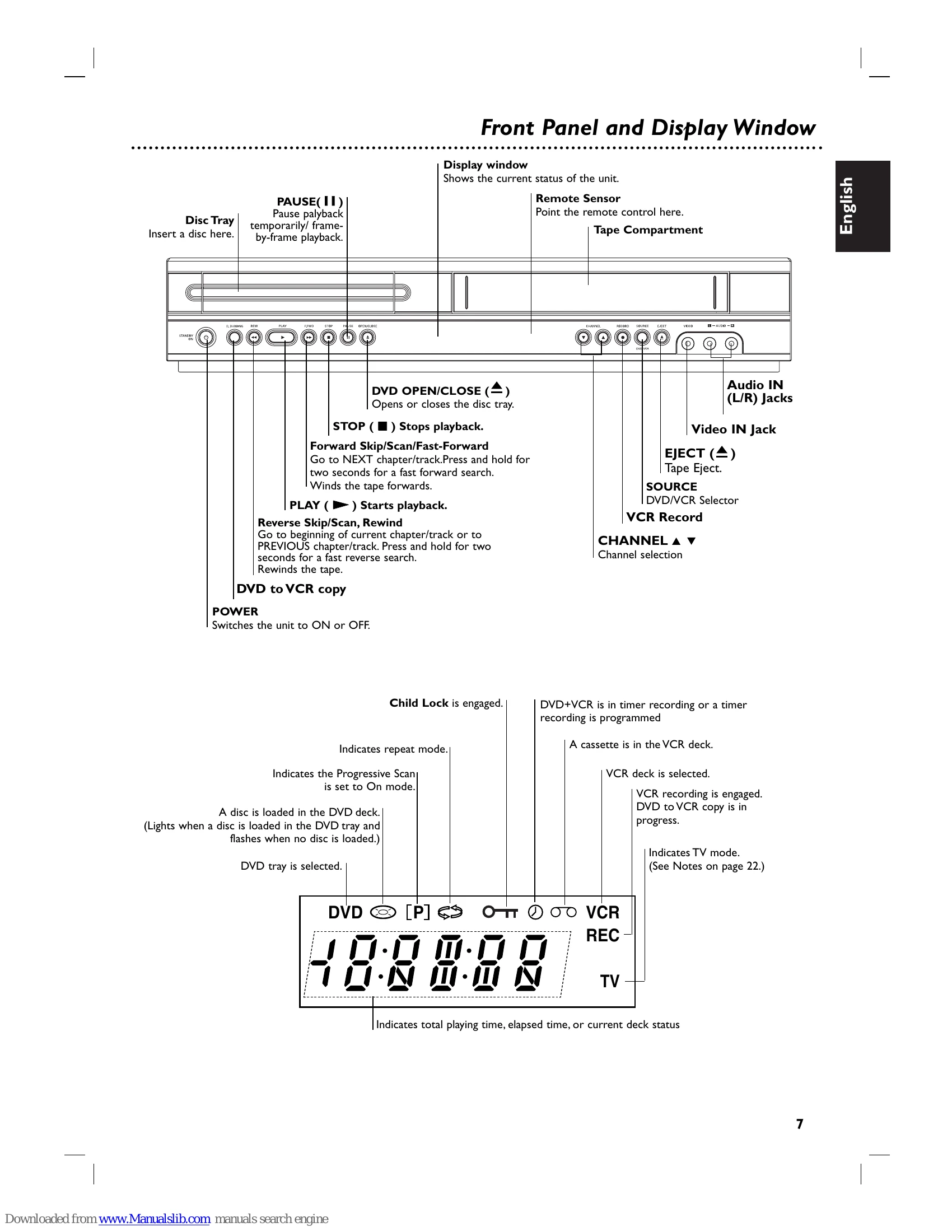
Press DVD or VCR on the remote, or use the SOURCE button on the front panel to select the desired output.
Insert a cassette, press PLAY. Use remote buttons to adjust tracking if needed. Automatic tracking can be turned on/off.
The VCR automatically adjusts tracking. Manual adjustment is possible using remote buttons.
Starts recording immediately for a set period or until the cassette runs out. Supports Long Play (LP) for extended recording time.
For timer recording using On Screen Display.
Insert disc, use menu to select track, press PLAY or OK. Supports ID3 TAG information display.
Compatibility notes regarding sampling frequency, bit rate, file extensions, and disc formats are provided.
Insert disc, navigate folders and files using remote. Supports slide shows and listening to MP3/WMA audio while viewing images.
Tips on file size, number of files, and file extensions for optimal playback.
Store favorite tracks in memory to create custom playlists. Supports track repetition and erasing from the list.
| Symptom | Cause | Correction |
|---|---|---|
| DVD or VCR do not work properly. | DVD or VCR button is not switched properly. | Refer to page 6. |
| No power. | The power cord is disconnected. | Plug the power cord into the wall outlet securely. |
| The power is on, but the DVD player does not work. | No disc is inserted. | Insert a disc. |
| No picture. | The TV is not set to receive DVD signal output. | Select the appropriate video input mode on the TV so the picture from the DVD player appears on the TV screen. |
| The video cable is not connected securely. | Connect the video cable into the jacks securely. | |
| No sound. | The equipment connected with the audio cable is not set to receive DVD signal output. | Select the correct input mode of the audio receiver so you can listen to the sound from the DVD player. |
| The audio cables are not connected securely. | Connect the audio cable into the jacks securely. | |
| The power of the equipment connected with the audio cable is turned off. | Turn on the equipment connected with the audio cable. | |
| The Digital Audio Output is set to the wrong position. | Set the Digital Audio Output to the correct position, then turn on the DVD player again by pressing POWER. | |
| The picture is poor. | The disc is dirty. | Clean the disc. |
| The TV channels are not tuned in properly. | Check tuning, carry out tuning again. | |
| The DVD player does not start playback. | An unplayable disc is inserted. | Insert a playable disc. (Check the disc type and Regional code.) |
| The disc is placed upside down. | Place the disc with the playback side down. | |
| The disc is not placed within the guide. | Place the disc on the disc tray correctly inside the guide. | |
| The disc is dirty. | Clean the disc. | |
| The Rating level is set. | Cancel the Rating function or change the rating level. | |
| The remote control does not work properly. | There is an obstacle in the path of the remote control and this unit. | Remove the obstacle. |
| The batteries in the remote control are exhausted. | Replace the batteries with new ones. | |
| Video tape cannot be inserted. | Is the cassette compartment empty? | Eject the tape in. |
| No Hi-Fi sound | Audio mode is not set properly. | Switch 'AUDIO' in the main menu to 'STEREO'. |
| No NICAM sound recording | NICAM mode is not set properly. | Make sure NICAM in the menu is set to AUTO for the station to be recorded. |