Brand: PHILIPS
Category: Electronics
Document Type: Manual
Language: EN
Brand: PHILIPS
Category: Electronics
Document Type: Manual
Language: EN
Uploaded: Nov. 21, 2025, 8:05 p.m.
No components are user-serviceable; repairs must be done by authorized service centers.
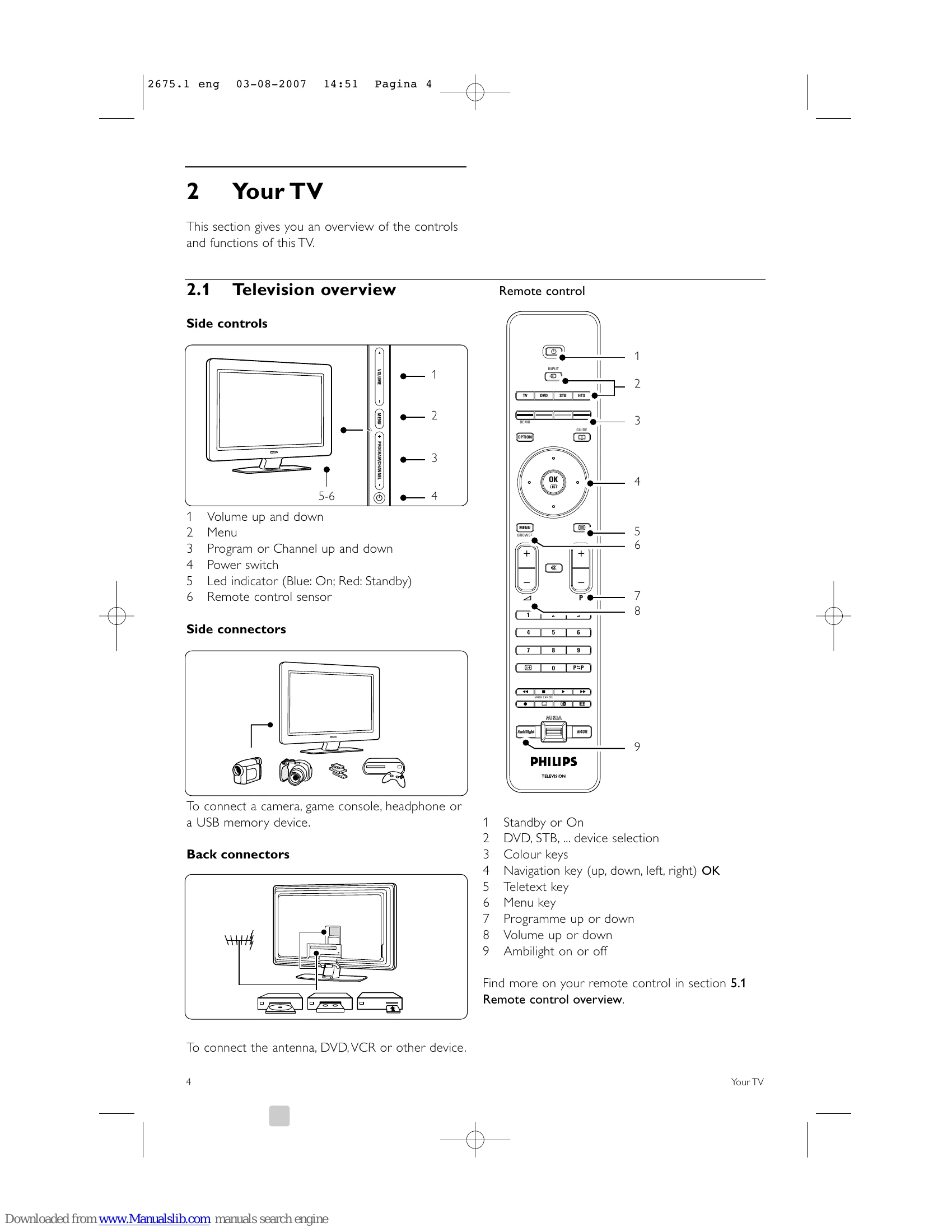
Switching On/Off: Press the Power button on the TV or the remote. The standby LED indicates the TV's status.
Watching TV: Use the channel up/down buttons or number keys. Adjust volume with Volume +/- buttons. Mute sound with the Mute button.
Connecting Devices: Use the Input button to select connected devices like DVD players or digital receivers. Follow on-screen prompts and use device-specific remotes.
Ambilight: Control Ambilight modes (Relaxed, Moderate, Dynamic) and intensity using the Ambilight and Mode buttons.
Teletext: Press the Teletext button to access information pages. Use number keys to select pages and color keys for specific options.
| Problem | Solution |
|---|---|
| TV does not switch on | Verify mains cord connection. Check remote control batteries. Unplug and replug the mains cord. |
| TV does not react on remote control | Verify remote control batteries. Clean remote control and TV sensor lens. Use side control keys for basic settings. |
| Red light on TV blinks | Unplug mains cord for a minute, then plug back in. Ensure adequate ventilation. Contact Customer Support if issue persists. |
| Forgot Child lock code | Refer to section 5.8.3 Set code / Change code. |
| Wrong language in TV menu | Press Menu, navigate to language selection, and choose the correct language. |
| Some TV channels are gone | Verify the correct channel list is chosen. Check if a channel was uninstalled in the Rearrange menu. |
| No digital channels found during installation | Verify if the TV supports DVB-T in your country. |
| There is no picture | Verify antenna connection. Verify the correct device is selected. |
| Sound is on, but no picture | Verify contrast/brightness settings. |
| TV picture is poor | Verify antenna connection. Check for interference from external devices. Verify correct TV system is chosen. Fine-tune channels if necessary. |
| Picture has poor colour | Verify colour settings. Reset to standard settings. Check cable connections. |
| TV did not remember settings | Verify if the TV is set to 'Home' in the Installation > Preferences > Location menu. |
| Picture does not fit screen | Select a fitting picture format. Name connected devices for optimal signal handling. |
| Picture position on screen is not correct | Adjust picture with navigation keys. Check device signal output. |
| Picture but no sound | Verify volume is not set to 0. Check if sound is muted. Verify cable connections. |
| Sound is poor | Verify sound is set to Stereo. Check Equalizer settings. Reset to standard settings. |
| Sound from one speaker only | Verify Balance setting. |
| HDMI connections trouble | Wait for HDCP procedure. Switch devices to restart HDCP. Check device output settings for sound interruptions. Use additional audio cable if needed. |
| USB connection issues | Ensure device is 'Mass Storage Class' compliant. Check for specific driver software. Not all audio/picture files are supported. USB transfer performance may limit playback. |
| PC display unstable/not synchronised | Verify correct PC resolution mode. |