Manual for 193V5

Manual for 193V5

Brand: PHILIPS

Category: Electronics

Document Type: Manual

Language: EN
Uploaded: Nov. 21, 2025, 7:33 p.m.

Warranty Information

Philips guarantees that any monitor with an unacceptable number of pixel defects will be repaired or replaced under warranty.

  • Safety First: Keep the monitor away from direct sunlight, heat sources, and extreme temperatures. Ensure proper ventilation and accessible power outlets. Use only the approved power cord. Avoid severe vibrations and impacts.
  • Maintenance: Do not apply excessive pressure to the LCD panel. Clean with a slightly damp cloth. Never use organic solvents. Unplug when not in use for extended periods or for cleaning. Protect from dust, rain, and moisture.
  • Burn-in/Ghost Image: Always use a moving screen saver or periodic screen refresh. Unattended static images can cause burn-in, which may not be repairable and is not covered by warranty.
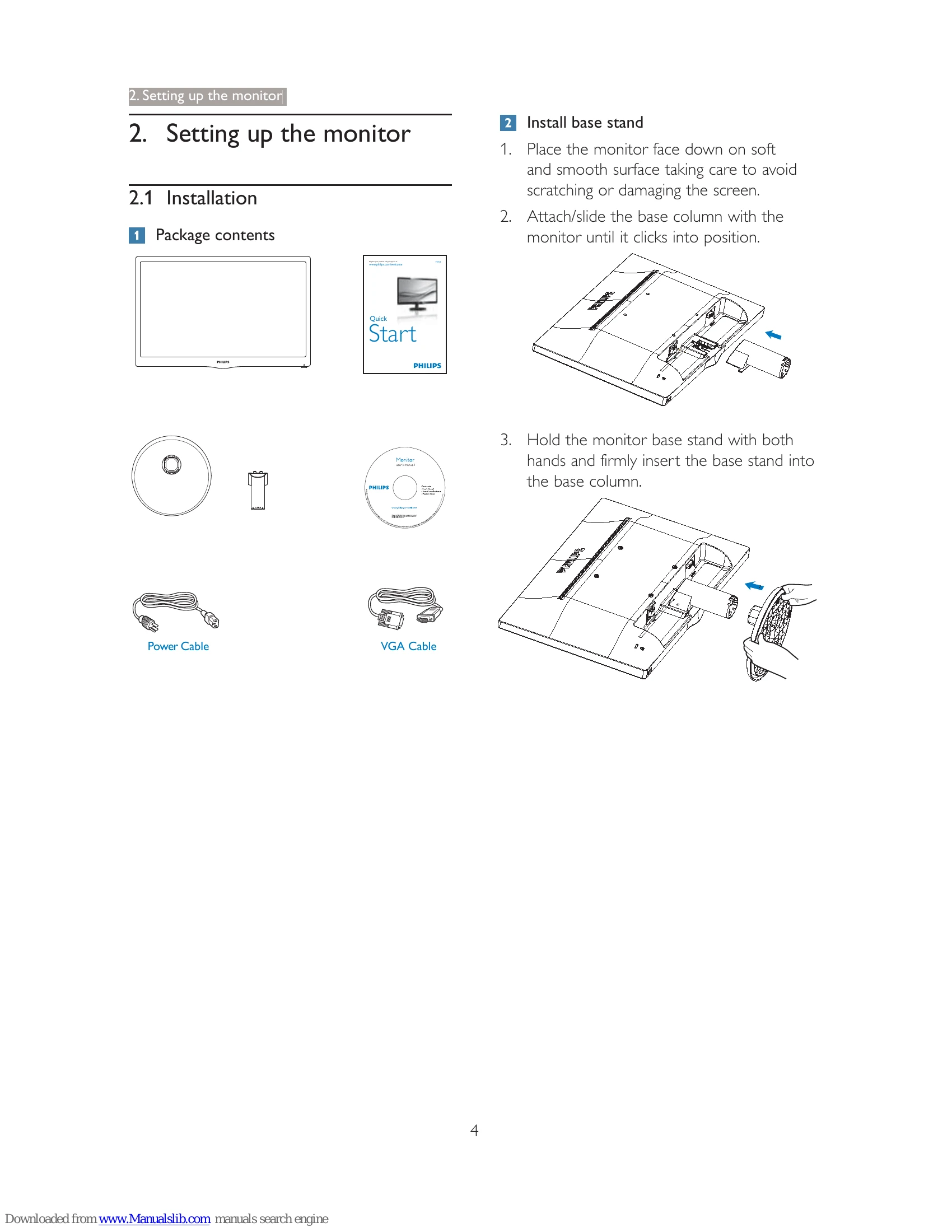
  • Setup: Unpack contents, install the base stand, and connect to your PC. Ensure the power cord is plugged in and turn on both the computer and monitor.
  • OSD Adjustment: Use the bottom key on the front bezel to navigate the On-Screen Display (OSD) for settings like brightness, contrast, language, and more.
  • Image Optimization: Utilize SmartContrast for dynamic contrast adjustment and Philips SmartControl Lite software for fine-tuning resolution, color, and other display settings.
  • Power Management: The monitor supports VESA DPM for automatic power reduction when not in use.
  • Troubleshooting: Refer to the dedicated section for common issues like 'No Picture', flickering, or image distortion. FAQs cover resolution, refresh rates, and file types.

Troubleshooting and error codes

Problem Solution
No Picture (Power LED not lit)
  • Ensure power cord is plugged in.
  • Press power button to ON position.
No Picture (Power LED is White)
  • Ensure computer is on.
  • Check signal cable connection.
  • Check for bent pins on monitor cable.
  • Energy Saving feature might be activated.
Screen says 'Attention Check cable connection'
  • Ensure monitor cable is properly connected.
  • Check for bent pins on monitor cable.
  • Ensure computer is turned on.
AUTO button doesn't function Applicable only in VGA-Analog mode. Manual adjustments via OSD may be needed.
Visible signs of smoke or sparks Disconnect power immediately and contact Philips customer service. Do not troubleshoot.
Image is not centered Use 'Auto' function or Phase/Clock of Setup in OSD Main Controls (VGA mode only).
Image vibrates on screen Check signal cable connection to PC or graphics board.
Vertical flicker appears Use 'Auto' function or Phase/Clock of Setup in OSD Main Controls (VGA mode only).
Horizontal flicker appears Use 'Auto' function in OSD Main Controls.
Image appears blurred, indistinct or too dark Adjust contrast and brightness on OSD.
"After-image", "burn-in" or "ghost image" remains after power off Use screen saver and periodic refresh. Severe cases are not covered by warranty.
Image appears distorted. Text is fuzzy or blurred. Set PC display resolution to monitor's recommended native resolution.
Green, red, blue, dark, and white dots appear on the screen These are normal characteristics of LCD technology. Refer to pixel policy.
"Power on" light is too strong Adjust "power on" light using LED Setup in OSD.
Privacy Policy