Manual for AZ700T

Manual for AZ700T

Brand: PHILIPS

Category: Audio

Document Type: Manual

Language: EN
Uploaded: Nov. 21, 2025, 6:42 p.m.

Warranty Information

Refer to the Philips website for warranty information and support.

  • Get Started: Follow instructions to prepare the remote, connect power (AC or battery), and turn the unit on/off.
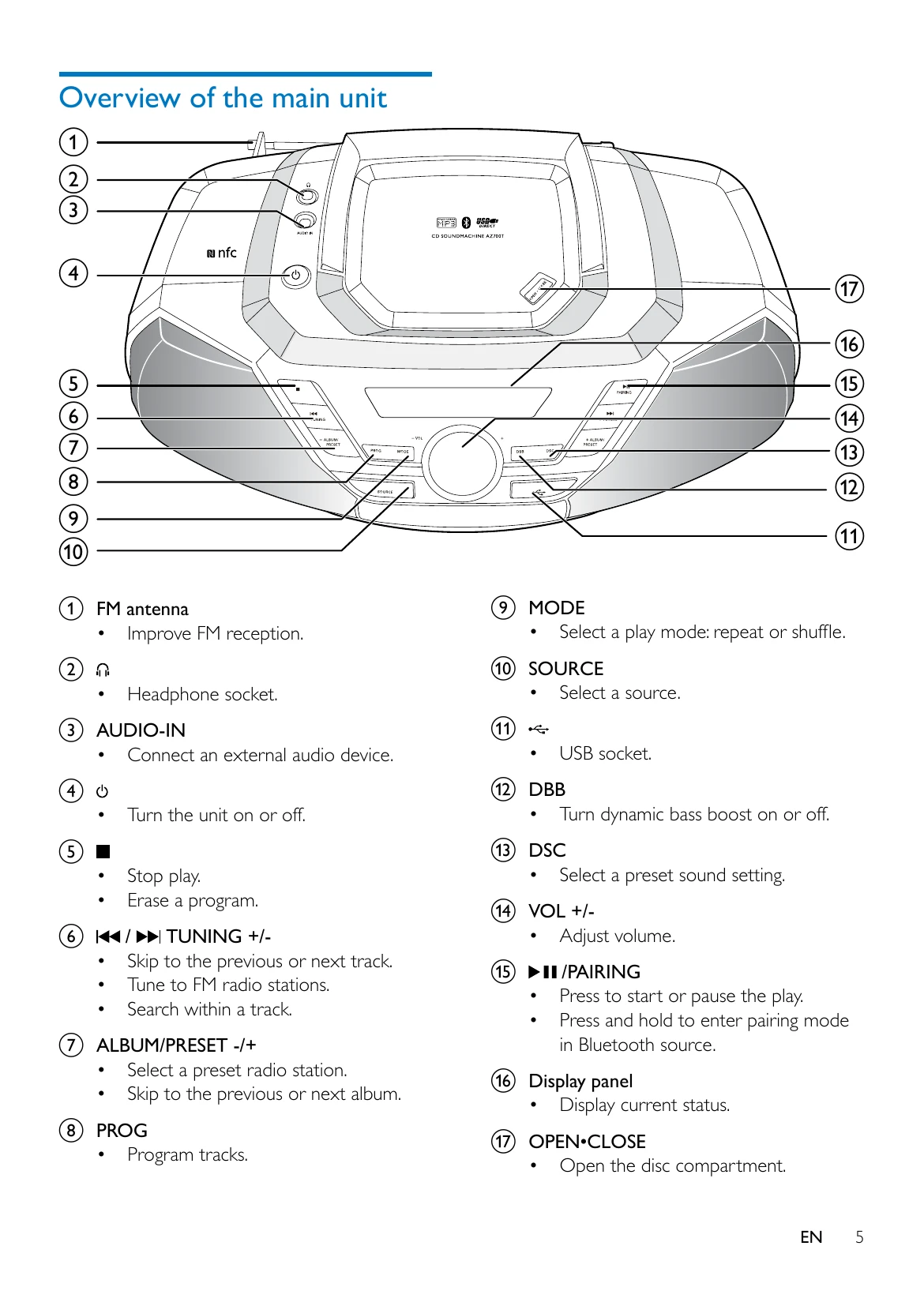
  • Play Music: Select sources like CD, USB, Bluetooth, or external audio devices. Play CDs by inserting them, USB devices by plugging them in, Bluetooth devices by pairing, and external devices via the AUDIO-IN socket.
  • Play Options: Control playback with play, pause, stop, skip, fast-forward/reverse. Program tracks for CDs or USB devices. Adjust volume and sound effects (DBB, DSC).
  • Listen to FM Radio: Tune to stations manually or automatically store them. Select preset stations.
  • Other Features: Set a sleep timer and control screen backlight.
  • Product Information: View specifications for amplifier, disc, tuner, Bluetooth, and general settings. Learn about supported MP3 disc formats and USB playability.
  • Maintenance: Clean the cabinet and discs.
  • Troubleshooting: Find solutions for common issues like no power, no sound, remote control problems, and Bluetooth connectivity.

Troubleshooting and error codes

Problem Solution
USB device not supported The USB device is incompatible with the apparatus. Try another one.
No disc detected
  • Insert a disc.
  • Check if the disc is inserted upside down.
  • Wait until the moisture condensation at the lens has cleared.
  • Replace or clean the disc.
  • Use a finalized CD or correct format disc.
Poor radio reception
  • Increase the distance between the unit and your TV or VCR.
  • Fully extend the FM antenna.
Music playback is unavailable on this unit even after successful Bluetooth connection. The device cannot be used to play music through this unit wirelessly.
The audio quality is poor after connection with a Bluetooth-enabled device. The Bluetooth reception is poor. Move the device closer to this unit or remove any obstacle between them.
Bluetooth cannot be connected with this unit.
  • The device does not support the profiles required for this unit.
  • The Bluetooth function of the device is not enabled. Refer to the user manual of the device to find out how to enable the function.
  • This unit is not in pairing mode.
  • This unit is already connected with another Bluetooth-enabled device. Disconnect that device and then try again.
The paired mobile device connects and disconnects constantly.
  • The Bluetooth reception is poor. Move the device closer to this unit or remove any obstacle between them.
  • Some mobile phones may connect and disconnect constantly when you make or end calls. This does not indicate any malfunction of this unit.
  • For some devices, the Bluetooth connection may be deactivated automatically as a power-saving feature. This does not indicate any malfunction of this unit.
Privacy Policy