Brand: Panasonic
Category: Office Equipment
Document Type: Manual
Language: EN
Brand: Panasonic
Category: Office Equipment
Document Type: Manual
Language: EN
Uploaded: Nov. 21, 2025, 8:02 p.m.
Panasonic will repair defects in materials or workmanship for new Panasonic Toughbooks purchased in the EEA, Switzerland, and Turkey.
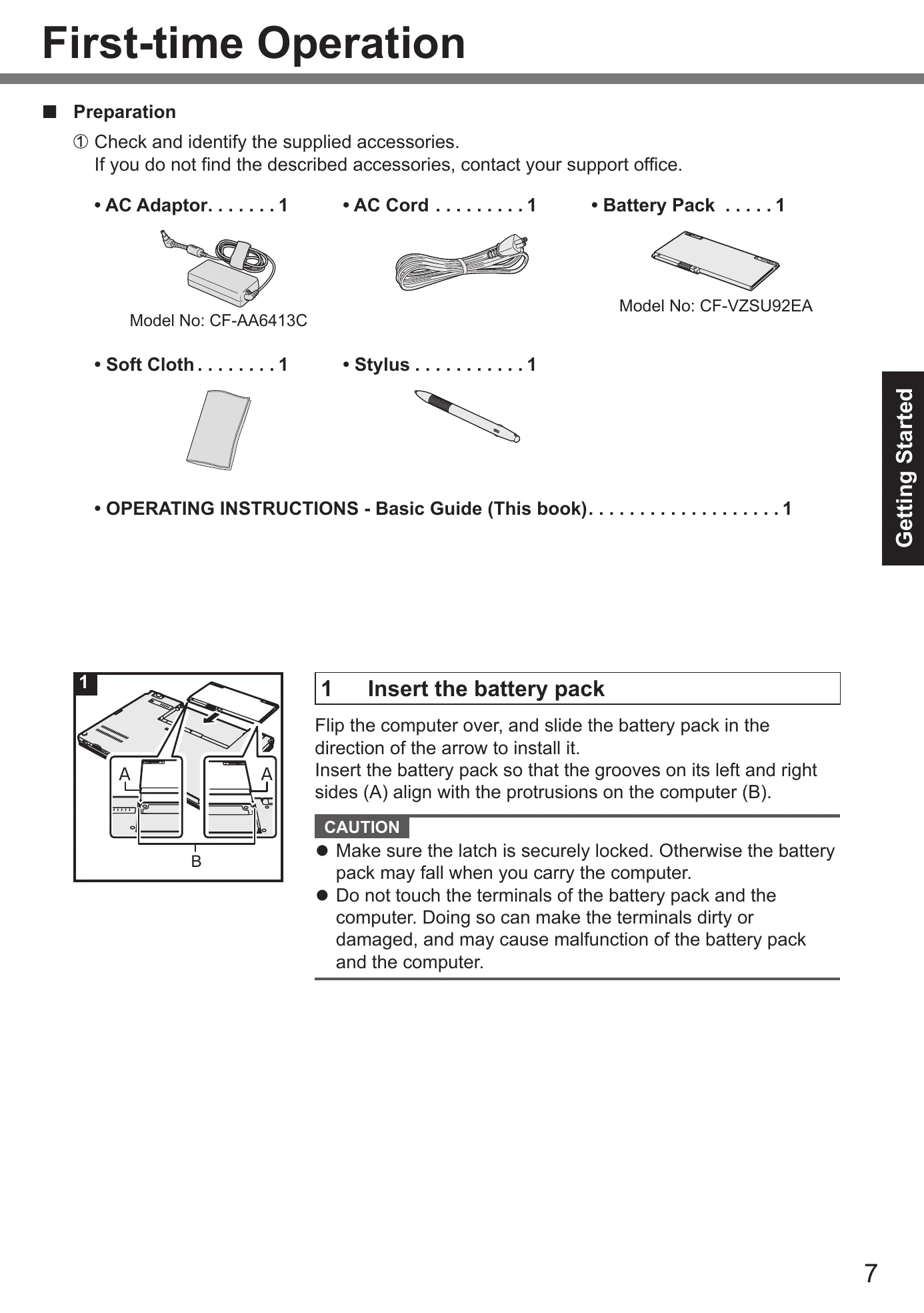
1. Insert the battery pack.
2. Connect the computer to a power outlet.
3. Open the display.
4. Turn on the computer by sliding and holding the power switch until the power indicator lights.
5. Select language and OS (32-bit or 64-bit) for Windows 7.
Follow the on-screen instructions for Windows 8.1 or Windows 7 setup.
It is recommended to create a recovery disc before using the computer.
Open the cover and slide the wireless switch to ON.
You can shrink a part of an existing partition to create unallocated disk space.
| Category | Problem | Solution |
|---|---|---|
| Starting Up | The computer does not power on / The power status indicator or battery indicator is not lit. | Connect the AC adaptor. Insert a fully charged battery. Remove and reconnect the battery pack and AC adaptor. Wait for the CPU to cool down if it's hot. Pull out the AC cord for more than 1 minute before reconnecting. |
| Windows does not start up. | Remove all peripheral devices. Slide power switch for 4 seconds or longer to turn off, then turn on again. For Windows 7, start in Safe Mode. Check Setup Utility settings for UEFI Boot. Turn off and reinstall RAM module if it was added or changed. | |
| You have forgotten the password. | Contact Panasonic Technical Support for Supervisor or User Password. For Administrator password, log on with another account to delete the problem account's password, or use a password reset disk. Reinstall Windows if other options fail. | |
| 'Remove disks or other media. Press any key to restart' or similar message appears. | Remove floppy disk and USB memory. Disconnect USB devices or set [USB Port] or [Legacy USB Support] to [Disabled]. Perform installation and return flash memory drive to original condition. Contact Panasonic Technical Support if problem persists. | |
| The date and time are incorrect. | Open Control Panel and set the correct date, time, and time zone. Contact Panasonic Technical Support if the internal clock battery may need replacement. Check server date/time if connected to LAN. 2100 A.D. or later year may not be recognized correctly. | |
| [Executing Battery Recalibration] screen appears. | The Battery Recalibration was canceled. Turn off the computer by the power switch, then turn on. | |
| [Enter Password] does not appear when resuming from sleep / hibernation. | Select [Enabled] in [Password On Resume] in the Setup Utility. Windows password can be used instead. Open Control Panel and set password requirements. | |
| The computer will not automatically enter sleep or hibernation. | Perform access point settings for wireless LAN. Turn off wireless LAN function if not used. Ensure no software is regularly accessing the hard disk. | |
| When logging on (e.g., resuming the computer), audio is distorted. | Change audio settings: On Desktop, right-click, Personalize, Sound. Remove check mark from [Play Windows Startup sound]. | |
| Cannot resume. | Slide the power switch to turn on the computer. Data not saved will be lost. This can happen if AC adaptor/battery was disconnected, a peripheral was connected/disconnected, or power was forced off. | |
| Other startup problems. | Check for disk errors. Remove all peripheral devices, including external display. Run disk check utility. Start in Safe Mode for error details. | |
| Entering Password | Even after entering the password, password input screen is displayed again. | Check if the computer is in ten-key mode (NumLk indicator) or Caps Lock mode (Caps Lock indicator). |
| Cannot log on to Windows. ('The user name or password is incorrect' is displayed.) | The user name includes '@'. Log on with another account to delete it, or create a new account. Reinstall Windows if no other account exists. | |
| Windows does not shut down. | Remove all peripheral devices. Wait one or two minutes. | |
| Display | When the screen becomes black for a moment. | This can happen when [Display power saving function] is enabled. Adjust brightness with Fn+F1/F2, or remove/insert AC adaptor. If using video playback, set [Display power saving function] to [Disabled]. |
| No display. | External display is selected. Press Fn+F3 (or Fn+P) to switch display. For Windows 7, wait until switched completely. Display might be off due to power-saving function; press Ctrl or other key to resume. Slide power switch to resume from sleep/hibernation. Press Fn+F2 to brighten the screen. | |
| The screen is disordered. | Changing display colors/resolution may affect screen. Restart computer. Change refresh rate of internal LCD to 60 Hz. | |
| The external display does not work normally. | External display may not support power saving function. Turn off external display. | |
| Battery | The battery indicator lights red. | Battery level is very low. Connect AC adaptor. Save data and power off if no AC adaptor is available. Replace with a fully charged battery. |
| The battery indicator is blinking. | If blinking red: Save data, power off, remove battery/AC adaptor, reconnect. Contact Panasonic Technical Support if persists. Battery or charging circuit may be defective. If blinking orange: Battery temperature is outside acceptable range for recharging. Use computer normally until range is met. Software/peripherals may be consuming too much power; exit applications, remove peripherals. | |
| The battery indicator is flashing. | Battery is recharging. If [Battery Charging Indicator] is set to [Flashing] in Setup Utility, indicator will alternately become lighter/darker. | |
| Touchpad | The cursor does not work. | Connect external mouse correctly. Restart computer using keyboard. Read 'No response' section if no keyboard response. |
| On-screen Document | The document of PDF format is not displayed. | Install Adobe Reader and update to the latest version. Check for updates via Help menu if connected to the internet. |
| Others | No response. | Press Ctrl+Shift+Esc to open Task Manager. Check for hidden input screens (Alt+Tab). Press power switch for 4 seconds to shut down, then turn on. Uninstall/reinstall program if it does not work. |
| The battery status indicator lights green and then turns off immediately. | When battery is fully charged and computer is off/in sleep mode, power supply from AC adaptor stops. Indicator lights green momentarily upon connecting AC adaptor. |