Manual for HC-W850P/HC-V750P/PC

Manual for HC-W850P/HC-V750P/PC

Brand: Panasonic

Category: Camcorder

Document Type: Manual

Language: EN
Uploaded: Aug. 10, 2025, 12:40 a.m.

Warranty Information

The product is warranted against defects in materials and workmanship for 1 year for the camera and 90 days for accessories.

Preparation

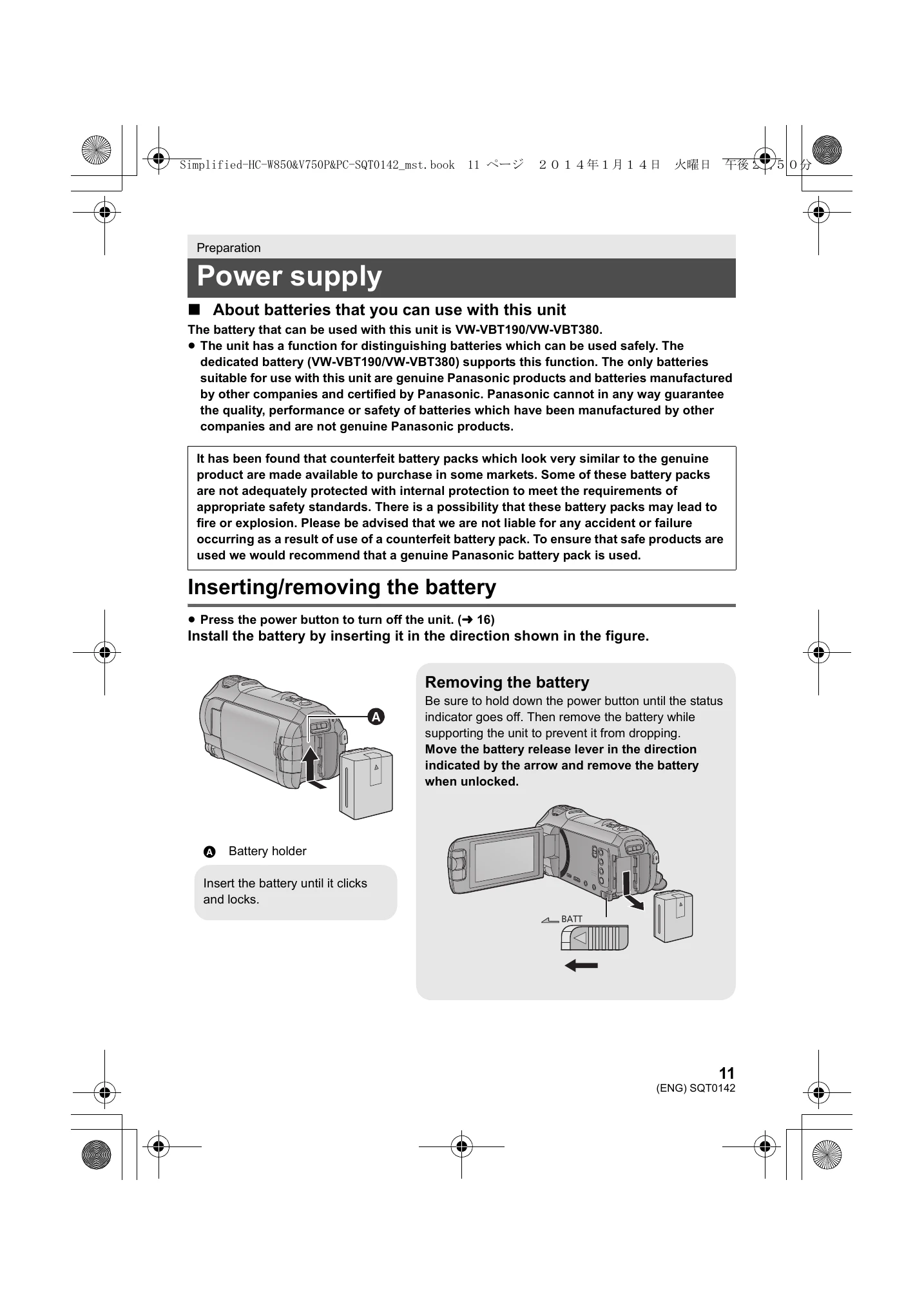
  • Power supply: Learn about compatible batteries (VW-VBT190/VW-VBT380) and how to insert/remove them.
  • Charging the battery: Instructions on charging the battery using the AC adapter and DC cable, or via USB.
  • Recording to a card: Details on compatible SD cards (Class 4 or higher) and how to insert/remove them. Formatting the SD card deletes all data.
  • Turning the unit on/off: Use the power button or open/close the LCD monitor.
  • Selecting a mode: Switch between Recording Mode (Motion Picture/Still Picture) and Playback Mode.

Basic Operations

  • Changing the Recording Mode: Select modes like Intelligent Auto, Creative Control, Scene Mode, or Manual.
  • Recording motion pictures: Start/pause recording using the start/stop button or the recording button icon.
  • Recording still pictures: Press the capture button halfway for focus, then fully to take a picture.
  • Recording with the Sub Camera (Twin Camera) [HC-W850]: Record two images simultaneously by rotating the Sub Camera.
  • Using the touch screen: Operate by touching or sliding on the LCD monitor.
  • Setting date and time: Access the CLOCK SET menu to adjust the date and time.

Troubleshooting and error codes

Problem Check points
The Wi-Fi connection is not possible between this unit and a smartphone. (Wireless Access Point Connection)
  • Make sure the smartphone is properly connected to the wireless access point by checking the Wi-Fi settings of the smartphone.
  • Make sure this unit and the smartphone are connected to the same wireless access point.
  • Make sure the wireless access point is registered in this unit.
(Direct Connection)
  • Make sure the smartphone is properly connected to this unit by checking the Wi-Fi settings of the smartphone.
  • Make sure the SSID and Password have been correctly input.
  • Make sure the smartphone is not connected to the wireless access point. If it is connected to the wireless access point, change the Wi-Fi access point using the smartphone's Wi-Fi set up.
It takes long time every time to connect to a smartphone.
  • It may take longer time to connect depending on the Wi-Fi connection setting of the smartphone, but it is not a malfunction.
This unit is not displayed in the Wi-Fi setting screen of the smartphone.
  • Try switching the ON/OFF of the Wi-Fi function in the Wi-Fi settings of the smartphone.
  • If there is a setting for avoiding poor connections in the Wi-Fi setting menu of the Androidâ„¢ device 4.0 or later version, turn it OFF.
The Wi-Fi connection is disconnected immediately.
  • If there is a setting for avoiding poor connections in the Wi-Fi setting menu of the Androidâ„¢ device 4.0 or later version, turn it OFF.
Cannot be connected using NFC.
  • Make sure your smartphone is compatible with NFC. This unit can be used with NFC-compatible terminals via Android (OS version 2.3.3 or later).
  • Make sure the NFC function of your smartphone is ON.
  • Make sure this unit is not turned off with the power button.
  • Some smartphones cannot be easily checked simply by touching. If this unit is not recognized even after touching, change positions and try again by touching slowly.
  • Touch again if it does not connect after touch.
Privacy Policy