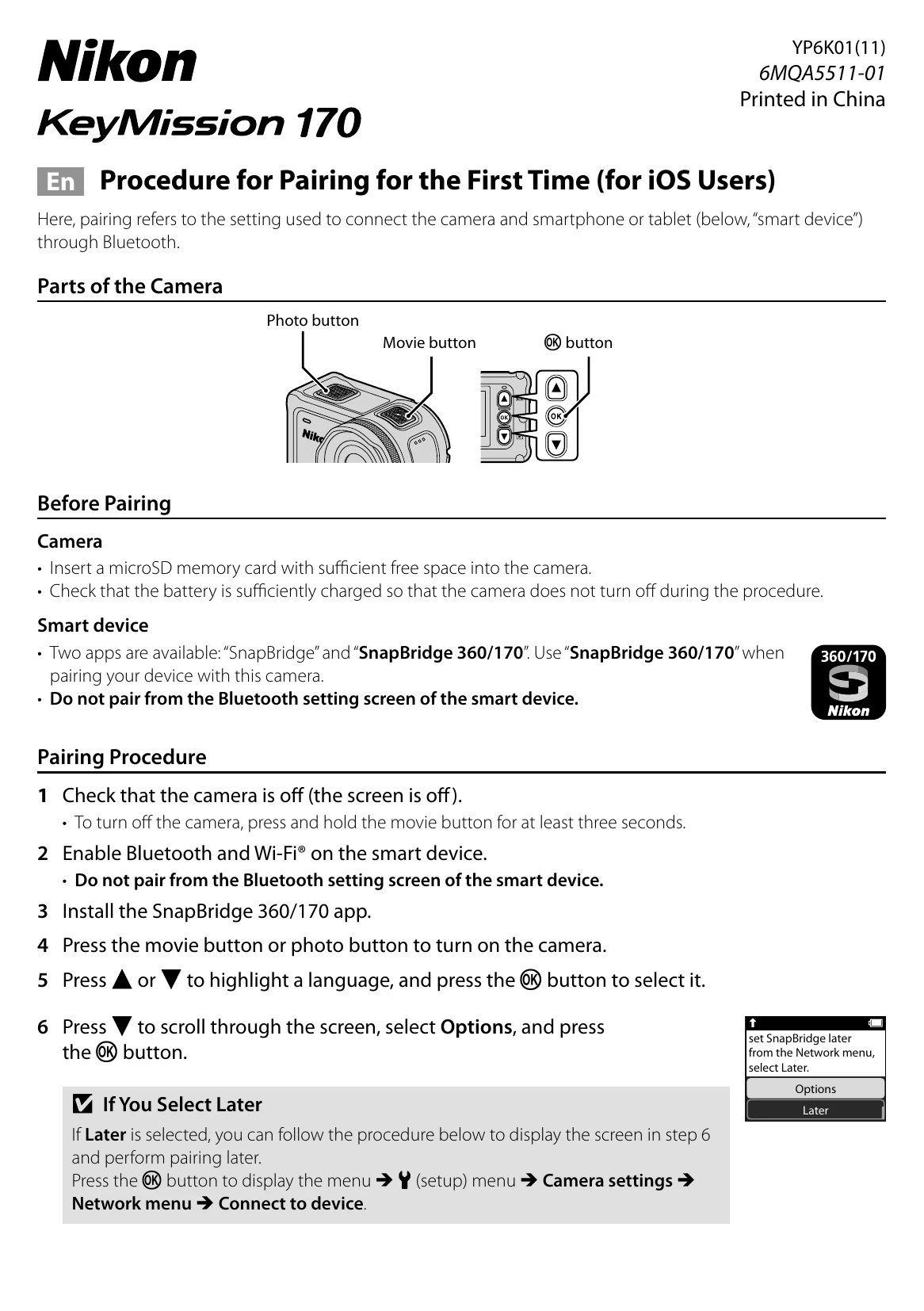
Turn on the camera by pressing the movie or photo button.
Select language and press OK.
Press to scroll to "Options" and select it, then press OK.
Scroll to "Next" and press OK.
Launch the SnapBridge 360/170 app on your smart device.
Tap the camera name displayed on the smart device.
Confirm the authentication code matches on both devices.
On the camera, select OK. On the smart device, tap "Pairing".
Follow on-screen instructions to complete pairing.
When You Cannot Pair:
Turn off the camera by holding the movie button for at least three seconds.
Close the SnapBridge 360/170 app.
Remove the camera from the smart device's Bluetooth settings.
If language selection dialog doesn't appear, follow "If You Select Later" in step 6.
Troubleshooting and error codes
When You Cannot Pair
Press and hold the movie button on the camera for at least three seconds to turn off the camera.
Close the SnapBridge 360/170 app.
Remove the Bluetooth device (registered as the camera name) in the Bluetooth setting screen of the smart device.
If the language selection dialog is not displayed when the camera is turned on, perform pairing by following the procedure described in “If You Select Later” in step 6.