Manual for MultiSync E231W

Manual for MultiSync E231W

Brand: NEC

Category: Monitor

Document Type: Manual

Language: EN
Uploaded: Nov. 21, 2025, 9:18 p.m.

Quick Start

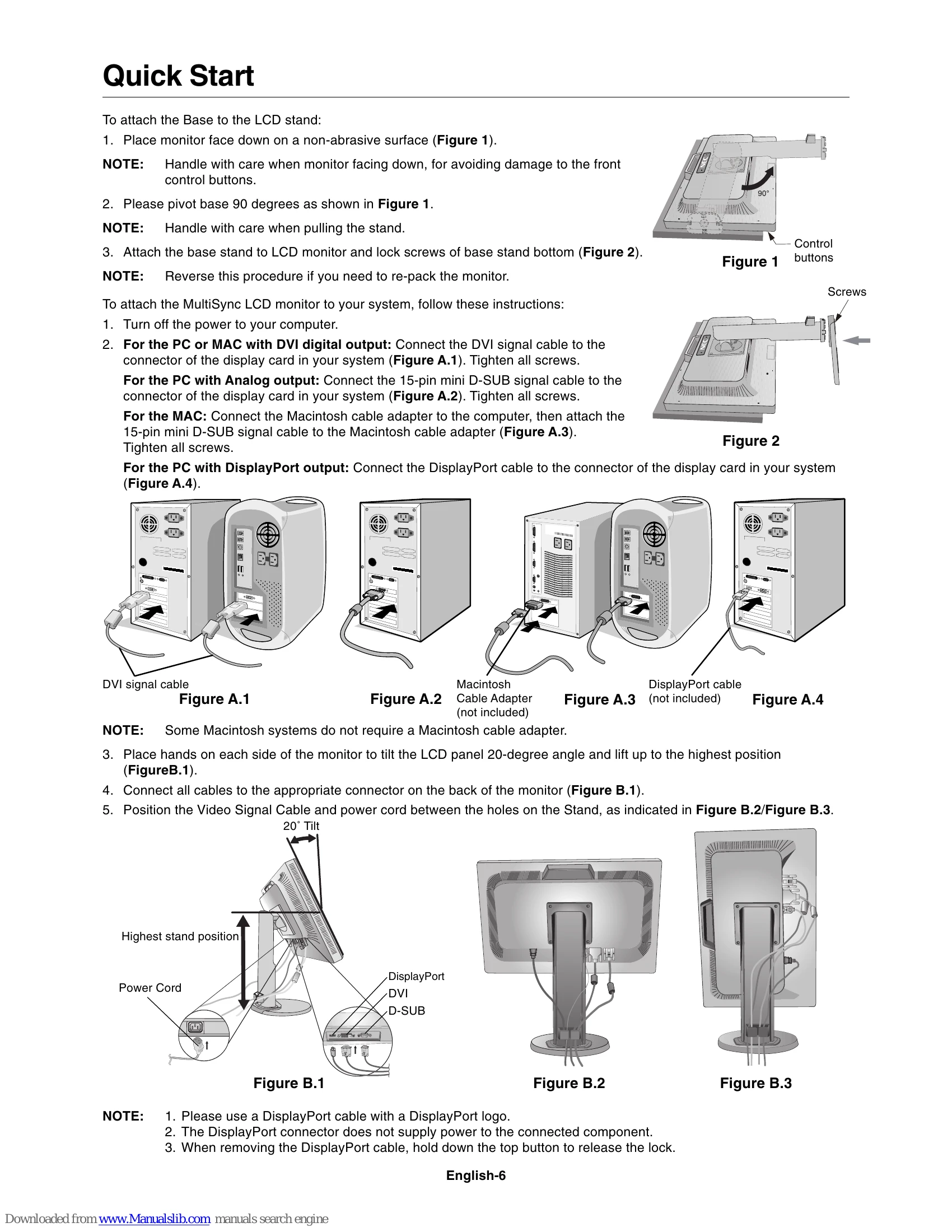
  1. Attach the Base to the LCD stand: Place the monitor face down on a non-abrasive surface. Pivot the base 90 degrees. Attach the base stand to the monitor and lock the screws.
  2. Attach the MultiSync LCD monitor to your system: Turn off the computer. Connect the appropriate video signal cable (DVI, 15-pin mini D-SUB, or DisplayPort) to your computer's display card.
  3. Place hands on each side of the monitor to tilt it to a 20-degree angle and lift it to the highest position.
  4. Connect all cables to the back of the monitor. Position the video signal cable and power cord between the holes on the stand.
  5. Connect the power cord to the power outlet.
  6. Turn on the monitor with the front power button and then turn on the computer.

Raise and Lower Monitor Screen

Place hands on each side of the monitor and lift or lower to the desired height.

Tilt and Swivel

Grasp both sides of the monitor screen and adjust the tilt and swivel as desired.

Screen Rotation

Raise the screen to its highest position. Then, place hands on each side and turn clockwise from Landscape to Portrait or counter-clockwise from Portrait to Landscape.

Troubleshooting and error codes

Issue Possible Cause/Solution
No picture
  • Signal cable not fully connected.
  • Monitor does not support DisplayPort converter signal.
  • Display card not fully seated.
  • Power switches not ON.
  • Unsupported mode selected.
  • Incompatibility or incorrect settings.
  • Bent or pushed-in pins on signal cable connector.
  • IPM mode issue (LED is dark blue).
Power Button does not respond Unplug and replug the power cord to reset.
Image Persistence LCD technology may exhibit a temporary "ghost" image. To alleviate, turn off the monitor for as long as the image was displayed. Use moving images or screen savers.
"OUT OF RANGE" message
  • Signal clock or resolution is too high. Choose a supported mode.
  • Signal frequency is out of range. Choose a supported mode.
Image is unstable, unfocused, or swimming
  • Signal cable not fully attached.
  • Use OSD Image Adjust controls for focus and adjustment.
  • Check compatibility and signal timings.
  • Change video mode to non-interlace and use 60Hz refresh rate.
LED on monitor is not lit Power switch should be ON and power cord connected.
Picture is not as bright
  • Ensure ECO MODE and AUTO BRIGHTNESS are OFF.
  • If brightness fluctuates, turn AUTO BRIGHTNESS OFF.
Display image is not sized properly
  • Use OSD Image Adjust controls to increase/decrease H. SIZE.
  • Ensure a supported mode is selected on the display card.
No Video
  • Computer may be in power-saving mode.
  • Some video cards may not output video signal when the monitor is OFF/ON or disconnected/connected from AC power cord at low resolution with DisplayPort.
Brightness difference during multiple monitor usage Change Auto Brightness to OFF and adjust brightness manually.
Privacy Policy