Brand: Motorola
Category: Networking
Document Type: Manual
Language: EN
Brand: Motorola
Category: Networking
Document Type: Manual
Language: EN
Uploaded: Nov. 21, 2025, 6:56 p.m.
Manual Publish Date: null
Provides one year of warranty for consumer products and ninety days for accessories.
| Category | Issue | Solution |
|---|---|---|
| Account | I am unable to receive a new password although I have used the “Forgot password\" option. | 1. The e-mail might have been sent to your Junk Mail Folder. Please check your Junk Mail Folder. 2. There might be a delay in getting your e-mail. Please wait a few minutes and refresh your email account. |
| Connectivity Issues | I get a message: We are having problems accessing your camera. This could be due to lack of internet connection. Please wait and try again later. | 1. Please try again in a few minutes. This could be because of any issue with your internet connection. 2. If the problem remains, please restart your Camera to check if this fixes the problem. 3. Please restart your Wireless Router. |
| Viewing Camera | When I am in “remote mode”, the video stops after 5 minutes. How do I view for longer? | When you are accessing your Camera via a network different from your home network (over the internet) your video times out after 5 minutes. You can click on the Camera again from the Android™/iOS application to start streaming again. If you are accessing from your webbrowser, then you can press on the Reload button to start viewing your Camera video stream again. |
| Features | The sound alert setting threshold is not right. | You can Adjust Sound Sensitivity to trigger notifications under Camera Setting menu. |
| Setting Up | While I am adding a new Camera to my account, I am not able to find any Cameras to add. | If you are trying to add a Camera which has previously been added into your account or another account, you will first have to reset the Camera. This can be done by pressing and holding the PAIR button at the bottom of the Camera for 5 seconds. |
| General | What are the supported browsers for accessing from my PC/Mac? | We recommend using Google Chrome 24 or above. However the following browsers are also supported: Internet Explorer 9.0 or above (for PC), Safari 6.0 or above (for Mac) or Firefox 18.0 or above (both PC or Mac). |
| General | What is the significance of LED flashing? | A flashing LED indicates the following status: Slow flashing: 1. Your Camera is in setup mode. You can add the Camera to your account in this mode. Out of the box, the Camera is in Setup mode. To reset to Setup mode, press and hold the PAIR button on the bottom of the Camera untill you hear a beep. Slow flashing: 2. The Camera is either connecting to the router or has lost the link to the router. Please ensure that the Camera is in the Wi-Fi® signal range. LED is stable: The Camera is connected to the Wi-Fi® network. |
| Connectivity issues | I am not able to access my Camera. | Please check if the Camera is within Wi-Fi® range. If the LED on your Camera is flashing slowly, please try to move the Camera closer to the router for better Wi-Fi® connectivity and try again. |
| Setting Up | During setup on devices for Android™ and iOS, I am not able to find my Camera during the last step and the setup fails. | Please reset the Camera to setup mode and try again. Press and hold the PAIR button on the bottom of the Camera untill you hear a beep. Wait for a minute for the Camera to restart. When the Camera LED is flashing, this indicates that it is in setup mode. Now restart the setup from your smartphone again. |
| Connectivity Issues | Even though I am accessing my Camera from the same Wi-Fi® network, I still find my Camera is shown as remote. I can only access it for 5 minutes at a time. | Please check your wireless router settings. For example, for Buffalo brand routers there is an option called Wireless Isolation. Please disable this option. |
| Camera | When I try to view the Camera, I get a prompt for Camera firmware upgrade. What should I do? | Please upgrade your firmware. This takes around 5 minutes. We push upgrades from time to time to improve the Camera features. |
| General | Which platforms are supported for accessing my Camera? | Minimum requirement: Windows® 7* *Java browser plug-in needed Mac OS® version 10.7 ChromeTM version 24 Internet Explorer® version 9 Safari® version 6 Java™ version 7 Firefox® version 18.0 Adobe® Flash® Player 15.0 Android™ 4.4.2 iPhone® /iPad® iOS version 7.0 |
| General | I do not hear any sound when I am accessing a remote Camera. | You can tap on the speaker icon in the video stream screen to hear audio. By default the audio is not ON when you are accessing a remote Camera. |
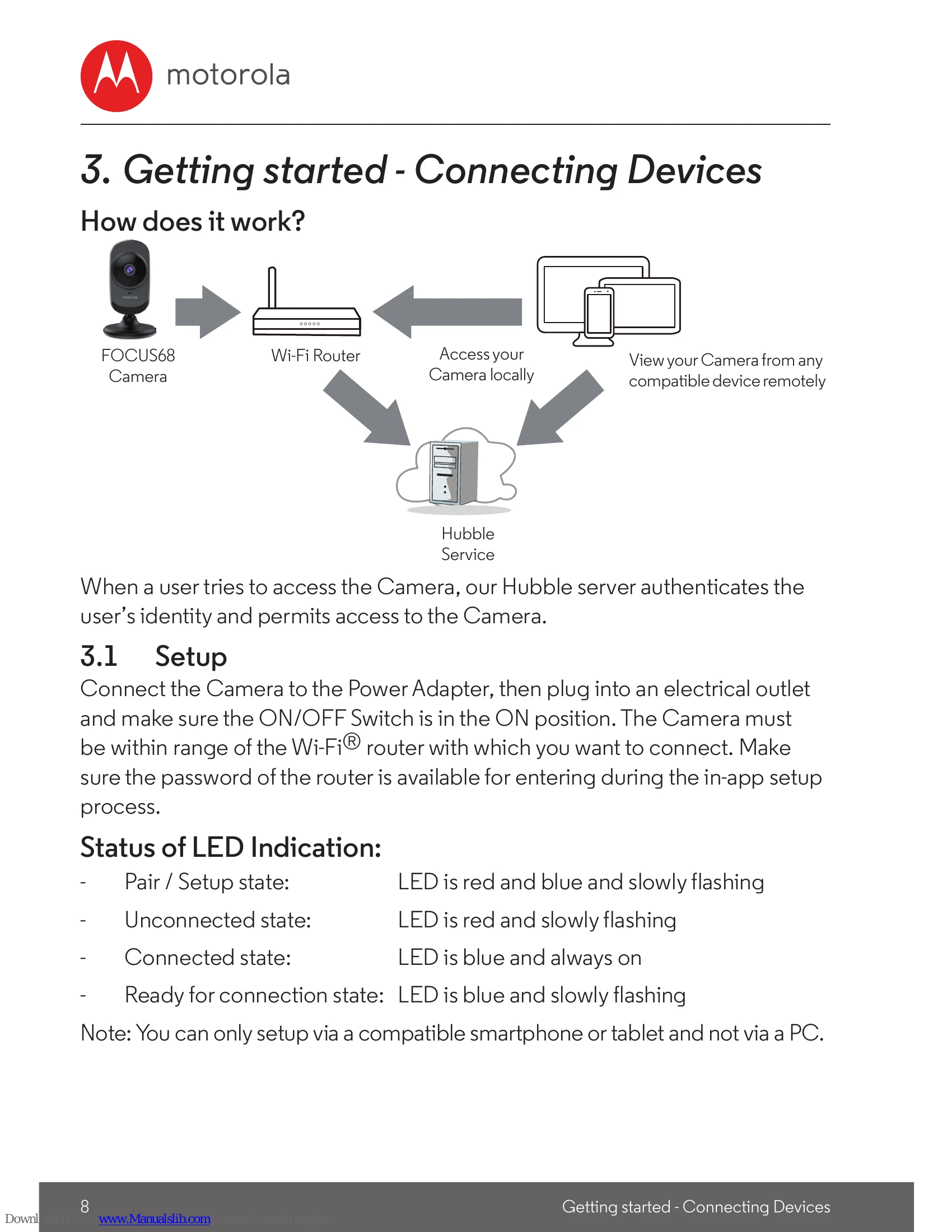
| General | What is the meaning of “Local Camera” and “Remote Camera”? | When you are accessing your Camera from the same wireless network (Home) in which it is configured, it is a Local Camera. When you are accessing your Camera away from your home it is a Remote Camera. You may be using 3G, 4G or 4G LTE or a Wi-Fi® connection outside of your home. |
| General | How do I download the App for Android™ and iOS devices? | Android™: – Open the Google Play Store on your Android™ device. – Select Search – Type in "Hubble for Motorola Monitors" – The results will show the Hubble App – Select to install it iOS Device: – Open the App StoreSM – Select Search – Type in “Hubble for Motorola Monitors” – The results will show the Hubble App – Select to install it |
| Setting up | When the video is cut off, the application attempts to reconnect and this results in lost sound and choppy video. | You will need to turn off the Auto Lock function of your device to ensure continuous video/audio streaming. |
| Features | How many users can access the Camera at one time? | If you are accessing in Local Mode, two users are supported, after two users all streaming will go through the remote server. This allows for unlimited user access to a single Camera at one time. |
| Connectivity issues | I found interference caused by my other webcam devices. | Video streaming performance is related to internet bandwidth, especially if you have 2 or more video streaming devices that are working through the same router. |