Brand: Mitsubishi
Category: Printer
Document Type: Manual
Language: EN
Brand: Mitsubishi
Category: Printer
Document Type: Manual
Language: EN
Uploaded: Nov. 21, 2025, 9:15 p.m.
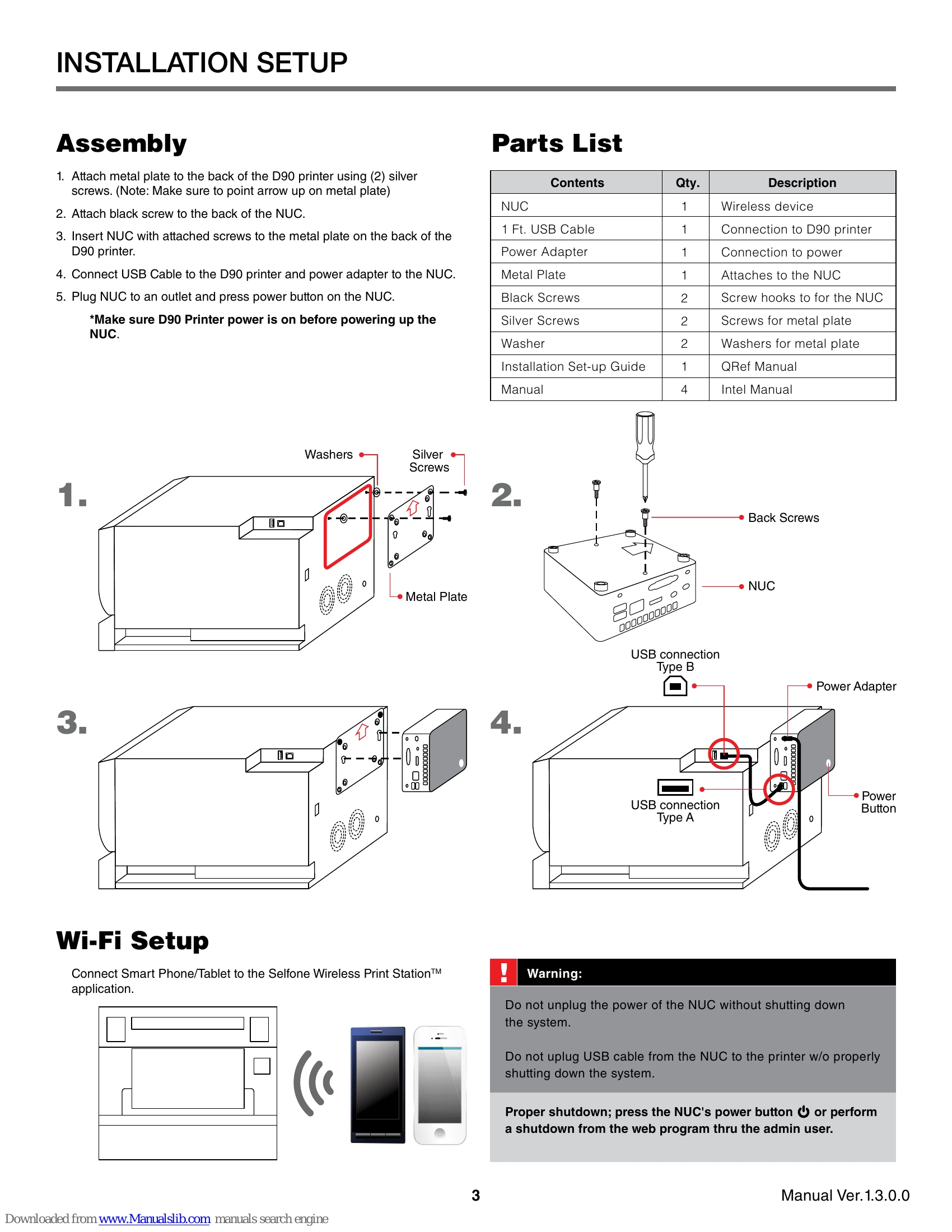
1. Attach metal plate to the back of the D90 printer using (2) silver screws.
2. Attach black screw to the back of the NUC.
3. Insert NUC with attached screws to the metal plate on the back of the D90 printer.
4. Connect USB Cable to the D90 printer and power adapter to the NUC.
5. Plug NUC to an outlet and press power button on the NUC.
Connect Smart Phone/Tablet to the Selfone Wireless Print Station™ application.
Easy Print provides a quick and easy way of printing stored images from mobile phones and tablets (iOS and Android).
After selecting photo:
After selecting photo:
Fun Print allows selection of up to 6 images from your mobile device and place them in a pre-format template. Can preview and edit each image before printing.
After selecting photo:
Connect to Wi-Fi settings to .SelFone_Wi-Fi_Print
Access the main menu at: http://192.168.110.1/maintenance/
To access Settings, tap Stop service on the start screen and select OK. Go to Top Menu to access settings.
| Issue | Solution |
|---|---|
| If the App isn't responding: |
1. If the app is having issues, acting slow or giving problems, reload the browser screen. 2. If reloading the screen does not work, check Wi-Fi connection and make sure you are connected to .SelFone_WiFi_Print |
| If the Printer is not responding: |
Note: When logged in as an administrator, the start screen will show System: Error 1. Make sure your printer is plugged in and power is on. 2. Make sure that USB connection between the printer (Type B) and NUC (Type A) is secure. 3. Printer is out of paper and/or ink. a. Properly shut down the system and replace paper and/or ink, then power it back on and re-connect to the Wi-Fi. |
| If the NUC is not responding: |
1. Make sure the NUC is plugged in and power is on. 2. Make sure that USB connection between the NUC (Type A) and printer (Type B) is secure. |