Manual for DPro930SB-BK(A)/(B)/-BK(B)

Manual for DPro930SB-BK(A)/(B)/-BK(B)

Brand: Mitsubishi

Category: Monitors

Document Type: Manual

Language: EN
Uploaded: Nov. 21, 2025, 6:35 p.m.

Manual Publish Date: 2002-10-01

Warranty Information

This warranty provides a three-year period for the product and ninety days for spare parts.

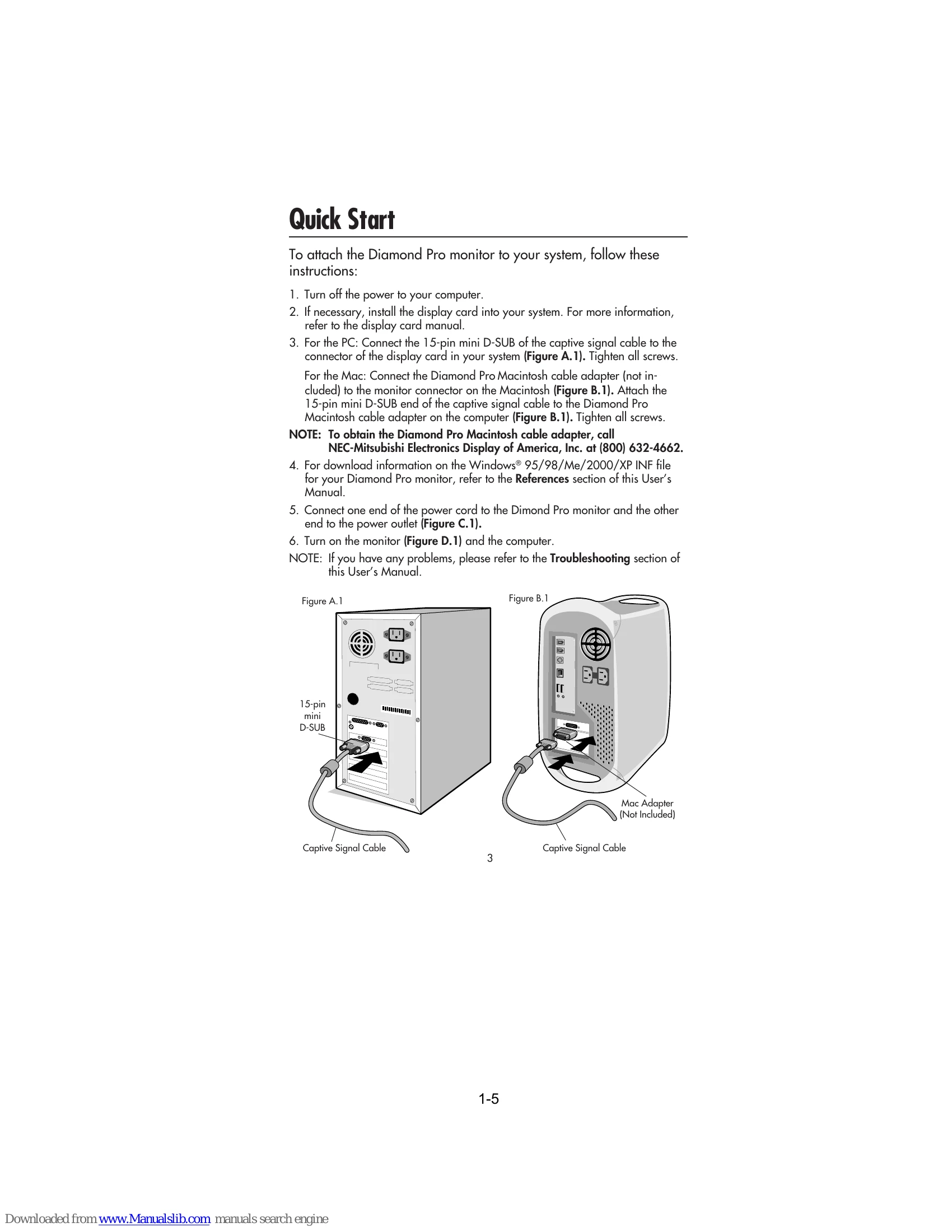
The User's Manual covers basic operation, setup, and features of the Diamond Pro 930SB monitor. It includes instructions for Quick Start, Controls (OSD menu, Brightness/Contrast, Size/Position, Geometry, Tools), Recommended Use, Specifications, and Features. The operation summary focuses on setting up the monitor, connecting it to a computer, and adjusting display settings via the On-Screen Display (OSD) controls for optimal viewing experience.

Troubleshooting and error codes

Issue Possible Solutions
No picture
  • Ensure display card is seated.
  • Power Button and computer power switch should be ON.
  • Signal cable must be completely connected.
  • Check for bent or pushed-in pins on the connector.
Image is scrolling or unstable
  • Signal cable should be completely attached to the computer.
  • Check pin assignments and signal timings.
  • If using Macintosh cable adapter, check connection and compatibility.
LED on monitor is not lit
  • Power Switch should be ON and power cord connected.
LED on monitor is flashing and/or disappears
  • Contact Customer Service at (800) 632-4662.
Picture is fuzzy or color looks blotchy
  • Adjust Moiré Canceler, Brightness, Contrast, or GlobalSync® controls.
  • Use EdgeLock™ control to change modes.
  • Activate Degauss Control via OSD™™ controls.
Picture bounces or a wavy pattern is present
  • Move electrical devices causing interference away from the monitor.
  • Refer to FCC information inside the cover.
Edges of the display image are not square
  • Use OSD Geometry Controls to straighten edges.
  • Position the monitor facing east if possible.
Display image is not centered, too small, or too large
  • Use OSD Size and Position Controls to adjust the image.
Thin lines appear on your screen
  • These are normal for aperture grille CRTs and are not a malfunction.
Black vertical lines are visible on the screen
  • Position an open white window over the affected area, maximize brightness/contrast. Localized heating should clear the lines. Readjust controls afterward.
Attention message displayed
  • Check the inputted signal. If message disappears, there is no problem.
Self check function
  • Press a control button to see a diagnosis message. Check R, G, B colors. If some color is lacking, the monitor has a problem. Contact Customer Service.
  • If no diagnosis message with LED lit green, power off the computer. Check signal cable and computer.
  • If no diagnosis message with LED lit orange, check signal cable and computer. Move mouse or press a key.
  • If no diagnosis message with LED lit green and orange, contact Customer Service.
Privacy Policy