| 18. TV functions do not respond to the remote control or to front panel control and will not Power Off. |
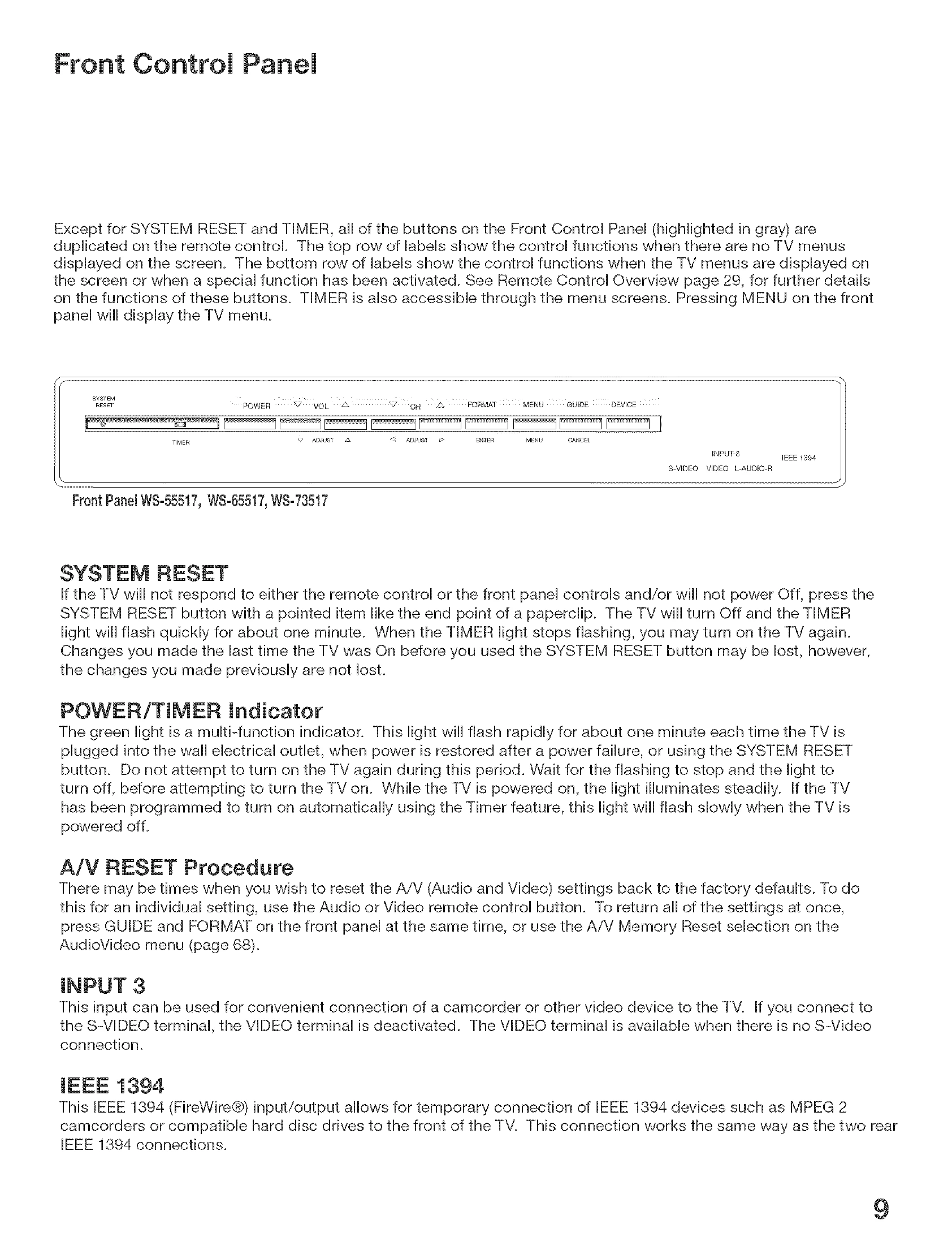
Use the System Reset button as explained at the end of this section. |
| 19. Name options not available for some channels |
Only memorized analog channels can be named. |
| 20. When viewing a stopped VCR, white lines are rolling on the screen. |
- Turn off video mute for the VCR.
- Begin playing the tape.
- Change the VCR input to the antenna input.
|
| 21. TV turned itself Off and the light on the Front Panel started to blink. |
- Momentary power fluctuation caused the TV to turn off to prevent damage. Wait for the green light to stop flashing and turn On again.
- If the TV does not stay turned On, use the System Reset button. If this happens frequently, obtain an AC line power conditioner/surge protector.
|
| 22. When a Device is selected from the Device Selection menu, the screen is blue (no signal source). |
- Make sure the selected device is turned on.
- From the Edit NetCommand® menu select Review setting. Verify that the inputs are actually connected to the TV. If they are not, either change the physical connections on the back panel, or select the Change setting on the Edit NetCommand menu to change the TV NetCommand's settings for the connection.
|
| 23. The Device does not respond to button presses from the remote. |
- Remote has not been setup for NetCommand use.
- The incorrect manufacturer was selected during setup. Select the Change setting from the Setup menu and then the device to display the manufacturer selection. Change if necessary.
- The device is not supported and keys have not been learned.
- The requested function is not supported by NetCommand. Verify that the function is supported or keys are learned.
- The IR emitter is incorrectly placed. Make sure the IR emitter is facing the IR sensor in the device.
- The IR emitter is not plugged into the IR emitter Output NetCommand.
- The IR emitter is facing the TV screen, causing double signals. Be sure that the IR emitter cannot send to the TV.
|
| 24. The A/V Receiver is the selected audio source but there is no sound. |
- Check to see if the A/V Receiver power is turned on. After the power is turned on, redisplay the Device Selection menu and press ENTER to allow NetCommand to correctly select the A/V Receiver input.
- From the Setup Menu select Review setting. Check the Review screen to see if the A/V Receiver inputs and device correspond to the actual connections on the A/V Receiver. If they do not match, either change the actual connections, or select Change on the Edit NetCommand menu to change the device on the Connection screen.
|
| 25. The TV Speaker icon or A/V Receiver icon is grayed out and not selectable. |
Select the Change setting from the Edit NetCommand menu, and then select the device (for example VCR). Once the Connection screen is displayed, check if the audio checkbox is selected for the TV input and/or AVR input. |
| 26. Devices are grayed out in the Device Selection menu or the PIP Selection menu. |
A recording is in progress requiring the use of Monitor Out. Cancel the recording to select the device. |
| 27. Cannot see the A/V Receiver menu. |
- The A/V Receiver is not connected to any input of the TV. To check the A/V Receiver menu temporarily plug into an unused input of the TV. Then select Review from the Setup Menu, turn the input On to view the A/V Receiver menu.
|
| 28. Screen is black when trying to view digital channels or IEEE 1394 device. |
The PerfectColor™™ color balance has been incorrectly set. Use the Setup menu to reset the color balance. |
| 29. The REC button is not working, or, on the Transport menu the record key is grayed out and not available. |
- The device does not support recording, such as a DVD player.
- Recordings can not be initiated from the Transport menu when using an IEEE 1394 device. Press REC instead. The Record menu displays allowing setup of a recording.
|
| 30. A program recorded on your TV is distorted when played on a 4:3 TV. |
- TV was set to Anamorphic when program was recorded.
- Record programs in Cropped mode if playing back on a 4:3 TV.
|
| 31. Excessive digital artifacts. |
- The IEEE 1394 cable is too long (15 feet between devices is the maximum length).
- There may be a slow device in the middle of the IEEE 1394 network. Move the slow devices to the end so that connections for faster devices do not pass through them.
|
| 32. Cannot see a picture from a DV Camcorder. |
- Go to Device Selection menu and select analog connection.
- Connect the DV Camcorder to analog input (for example, Input-3). Select Setup from the main menu, then Change. At the Change screen, select the camcorder. On the Name screen, check Analog Connection. Select the device and on the following screen, select which analog input was used, and check audio and/or video.
|
| 33. DVCR analog/digital problems. |
- If the tape is currently playing but no picture displays, you may have a mismatch of the media with the display. Press the DEVICE key to display the Device Selection menu. Press ENTER for the DVCR device. If digital is selected, try analog, or if analog is selected, try digital.
|
| 34. D-VHS recordings for digital cable have drop-outs (loss of picture or sound), or no playback. |
Digital cable signals on IEEE 1394 can exceed the data rate standards supported by DVCR. |
| 35. TV is out of focus. |
Focus is out of alignment. Align Convergence. |
| 36. Red or blue color is "bleeding" or shadowing images. |
Focus is out of alignment. Align Convergence. |
| 37. There is no audio and video from the IEEE 1394 device. |
- The device is not turned on - turn the device power on.
- No media (tape or disc) is inserted into the device.
- The media is blank (has no recording).
- The play command failed - Try pressing play again on the device's remote control or front panel.
- The device is already in use (for example: the device is currently recording).
- The source is copy-protected or violates copy protection.
- The device's digital video signal is not supported by the TV, such as DV video, common with camcorders. Use analog connections instead, if available.
- The device is not an audio/video device.
|
| 38. The IEEE 1394 device cannot be selected. |
- Too many other devices are already communicating over IEEE 1394. Remove or stop some devices and try again.
- The device may be busy, either recording or a peer-to-peer connection has been established. Cancel the recording or peer-to-peer connection.
|
| 39. The IEEE 1394 Device is not listed in the Device Selection menu. |
- The device is unchecked in the Review screen. Select the Setup menu, then select Review setting. Verify the device is checked.
- The IEEE 1394 plug is disconnected or loose.
- The IEEE 1394 Device has not been powered On. Turn on.
- The device has not been discovered.
- The device is not an Audio/Video device
|
| 40. DEVICE MENU button does not display a menu. |
- The IEEE 1394 device does not provide a menu.
- The TV cannot support IEEE 1394 menus. See page 46.
|
| 41. All IEEE 1394 devices disappear. |
- The connected devices must not be in a loop that returns to the TV. Make sure a device is connected at the end.
- Disconnect all the cables and devices from the TV. Replace them one by one to locate the problem device or cable.
- Use System Reset (front control panel).
|
| 42. Cannot rediscover a deleted IEEE 1394 device |
- The device has been disconnected. Plug it in.
- The device is unchecked in the Review screen. Go to Setup in the Main menu, then select Review. Check the device.
- Remove IEEE 1394 plug. Go to the Edit NetCommand menu. Delete the IEEE 1394 device. Plug the device in again so it can be discovered again.
|
| 43. An IEEE 1394 device has been plugged in but does not appear in the Device Selection menu (not discovered). |
- The IEEE 1394 connection to the TV or another device is not secure or is loose.
- The IEEE 1394 device is not powered on.
- A device in the IEEE 1394 chain is not powered on - turn on all the devices.
- The device discovery can take as long as a minute to initiate.
- IEEE 1394 cable is too long (maximum of 15 feet between devices).
- The IEEE 1394 device uses an incompatible protocol and will not be discovered
|
| 44. Cannot record to or from the IEEE 1394 device, including Dub recordings. |
- To initiate a recording to IEEE 1394 device press the REC key. The Record menu displays allowing setup of the recording.
- The source device for the recording is not powered on.
- When dubbing, the destination device for the recording is not powered on.
- The wrong media, (analog tape for digital recording, or digital tape for the analog recording) is in the device.
- Either the program is copy protected, or if there are multiple subchannels and one of the programs (not necessarily the program requested) is copy protected.
- The program has already been recorded once and the copy protection only allows one recording.
- Unapproved source device for copy protected material.
- The recording device can not decode the copyright signal included in the signal source (try another device if available).
- The playing device (for dubbing) does not support copyrighted material.
- Source for recording is copyrighted.
- Too many IEEE 1394 devices in network. Insufficient bandwith available. Disconnect unused devices.
- Source Device has higher speed (S 400) than record device. If possible, reverse devices, play in the slower device and record in the faster device.
|
| 45. Cannot control the IEEE 1394 device from the Transport Menu. |
- Device may not support the command.
- Selected function is gray (such as Record for a DVD, which does not support the Record function).
|
| 46. When ChannelView™™ list is displayed, information appears incomplete |
Available information is sent from the broadcaster or cable provider. No other data is available. |
| 47. Program to be recorded was correctly selected from ChannelView, however, incorrect program was recorded. |
The broadcaster supplied program information that was incorrect and/or was changed after a recording was added to the Record List. |
| 48. Incomplete ChannelView program recorded. |
Recording device may have lack of space availability and there is not enough blank space to make a full recording. |
| 49. ChannelView program recording failed. |
- Connection and compatibility issues with IEEE 1394 (FireWire®) digital devices. This may include too many Firewire devices in use at one time, or the recording device not understanding the record command.
- Television lost power long enough to lose current clock time.
- Analog VCR power was left Off.
|