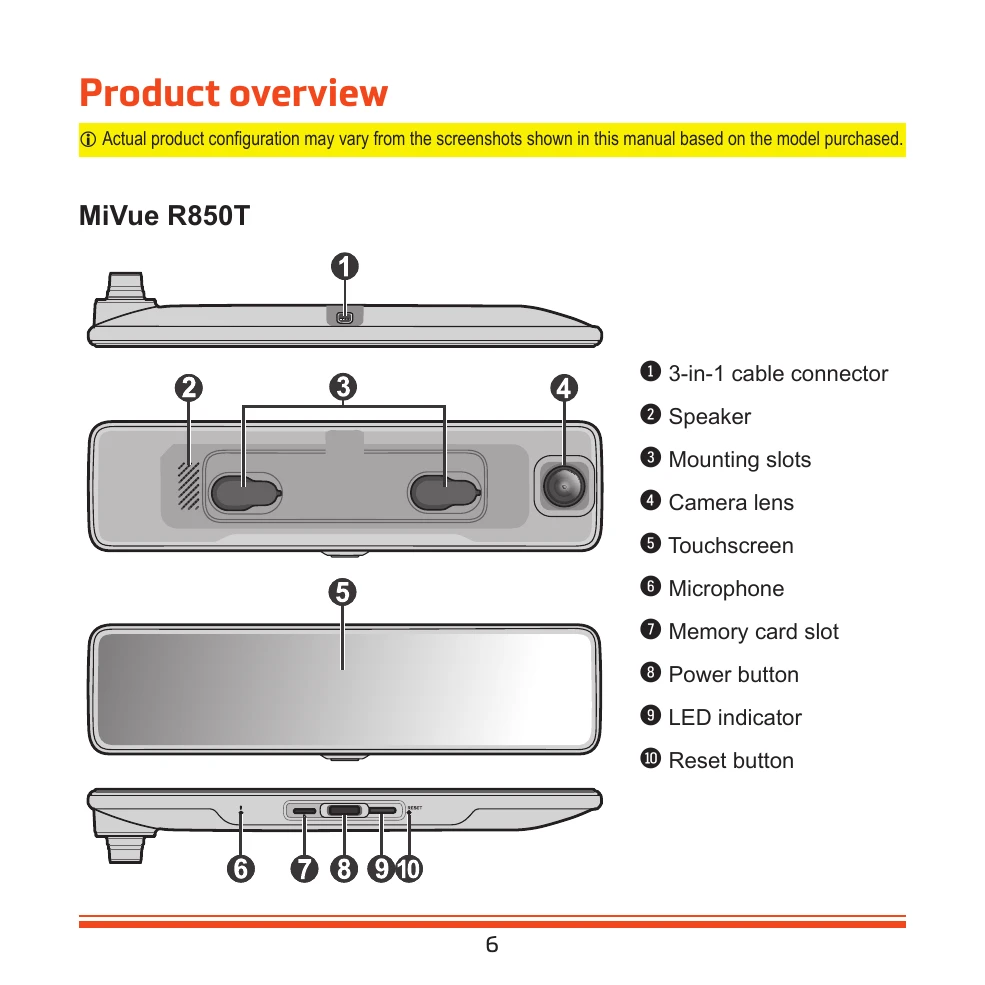
Starting the dash cam for the first time: Upon starting the vehicle, the dash cam powers on. If it's the first use or reset, select language, time zone, and distance unit. A Quick Start guide is available via tap or menu.
Dash cam viewing angle: Ensure the vehicle is parked on level ground. In split-screen view, adjust each camera's angle for a 50/50 ground-to-sky split.
Using the dash cam: The user interface displays recording status, GPS, and time. Icons allow adding safety cameras, capturing photos, emergency recording, viewing media, and accessing settings.
Turning the dash cam on/off: It powers on/off with the vehicle engine. Manual control is via the power button (hold for off, press for on). The power button also controls mirror display.
Restarting the dash cam: If unresponsive, use a pointy object to press the reset button.
Basic hand gestures: Swipe to change views, drag to adjust brightness/field of view, double-tap for Mirror Mode.
Changing display mode: Swipe to cycle through full screen (front/rear), picture-in-picture, and split-screen views. Stand-by mode dims the screen after inactivity, returning with a tap. Mirror Mode shows a rear-view mirror.
Voice commands: Control the dash cam with commands like 'Front View', 'Rear View', 'Screen Switch', 'Emergency Recording', and 'Sound Recording Switch'.
Recording videos: Continuous loop recording starts automatically. Event-driven recording is triggered by the G-sensor or manually. Photos can be captured via the button bar.
Parking Mode monitoring: Available with an optional power source. Smart Mode records G-sensor/motion events; Passive Powered Mode records G-sensor events after power-off.
Playback mode: Access recorded files via the button bar, selecting categories like Normal, Event, or Parking. View files full-screen or by camera. Delete files in full-screen mode.
Safety camera alerts: Receive alerts for speed cameras. Add custom safety cameras via the '+' icon and manage them in SafetyCam settings.
Updating safety camera data: Visit the Mio website for updates.
Getting connected: Use the MiVue Pro app to view, share, and back up videos via Wi-Fi. Enable Wi-Fi in settings to connect to your smartphone.
Settings: Configure Quick Settings (Connect to App, Volume, Voice Recording, Auto Mirror Mode, Auto Brightness, Voice Command), Video Recording (Clip Length, Resolution, EV, Frequency, G-Sensor Sensitivity, Stamps), Parking Mode (Smart, Passive, Detection Method, TimeLapse, Enter/Leave Method), SafetyCam (Alert Sound, Distance, Method, Mobile Alert, Threshold, Cruise Speed Alert, Custom SafetyCam), Driving Safety (Headlight Reminder, Driver Fatigue Alert, Eco Drive Indicator), System (Recording View info, Date/Time, GPS Time, Manual time, System Sound, Distance unit, Language, Restore default, Satellites, Info), and SD Card (Storage allocation, Format SD card).
MiVue Manager: Use this tool to view recorded videos on your computer. Download from Mio's support page, install, and then remove the memory card to access files via a card reader.
Playing recording files: Use MiVue Manager to view files by date or type (Event/Normal/Parking). Playback controls include skip, play/pause, speed adjustment, volume, zoom, full-screen, and progress bar. Driving information and G-sensor charts are available.
Tool bar: Functions include selecting folders, previewing/printing images, saving files, capturing images, opening the Settings Menu (language, skin, updates, about), exporting GPS info (KML), and opening YouTube.
Caring for your device: Keep away from moisture, extreme temperatures, and direct sunlight. Avoid dropping or shocking the device. Clean with a soft, lint-free cloth. Do not attempt to disassemble or repair.
About GPS/WIFI: Information on GPS operation and WIFI frequency and power.
Regulatory information: CE marking compliance and EU standards.
WEEE: Proper disposal instructions.
UK Compliance Information: Declaration of compliance with UK regulations.