Manual for MiVue 82x

Manual for MiVue 82x

Brand: Mio

Category: Automotive Electronics

Document Type: Manual

Language: EN
Uploaded: Aug. 10, 2025, 12:46 a.m.

Manual Publish Date: 2019-07-01

Warranty Information

No warranty information is available in the provided pages.

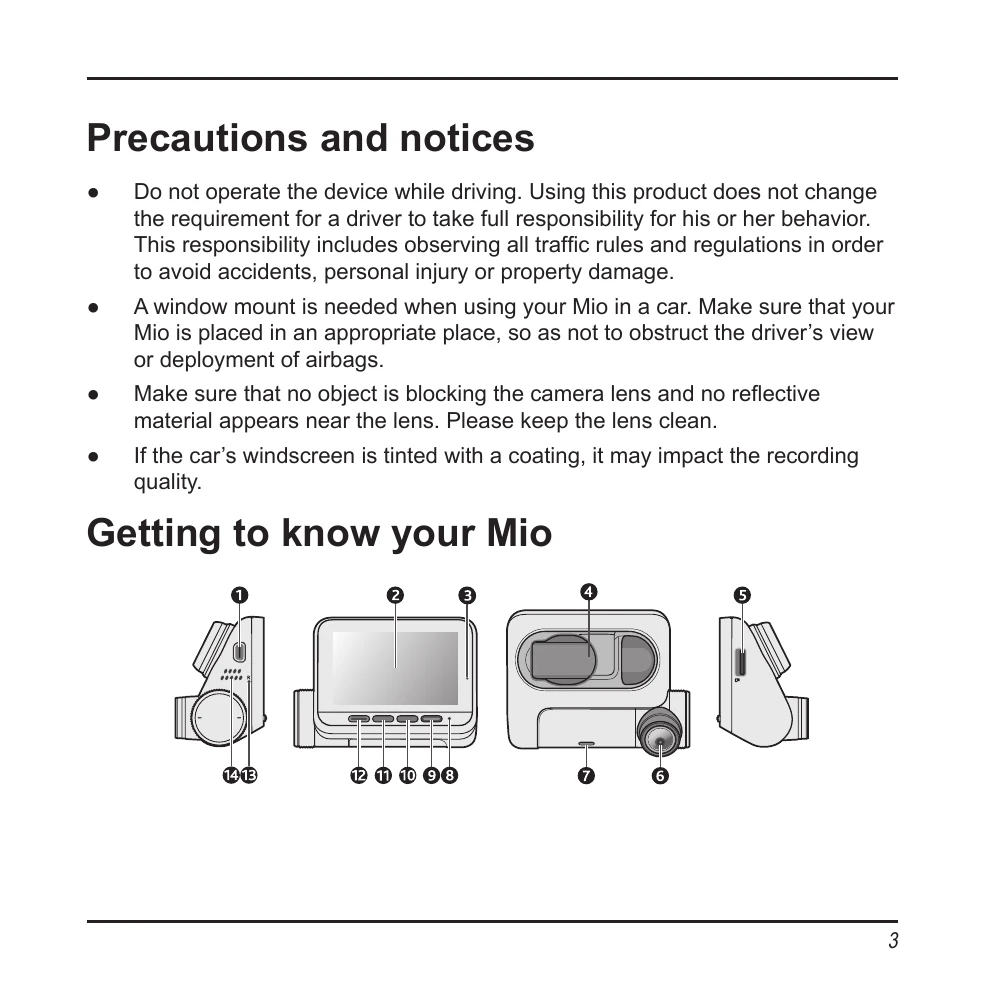
  • Turning On/Off: Automatically powers on with the vehicle engine. Follow on-screen prompts for initial setup (language, date/time). Press any key to turn the screen on if it turns off during recording. Hardware reset available via a small rod.
  • Recording Modes: Continuous recording starts automatically. Manually stop/start by pressing the designated buttons. Event recording is triggered by the G-sensor for impacts or sudden maneuvers, saving footage before and after the event.
  • Parking Mode: Supports Smart Mode (G-sensor and motion detection, requires external power) or Passive Powered Parking Mode (G-sensor triggered, powered by internal battery).
  • Capture Mode: Take photos by pressing the camera button.
  • Playback Mode: Access recorded files via the menu, select file type, and use playback controls to play, pause, change speed, mute, adjust volume, go full screen, or skip files.
  • Safety Camera Alerts: Receive visual and audio alerts for speed cameras. Custom safety cameras can be added.
  • Connectivity: Use the MiVue Pro app to view, share, and back up videos via Wi-Fi.
  • Settings Customization: Adjust various settings including file playback, camera options, Wi-Fi, sound recording, and driving safety features (LDWS, Headlight Reminder, Fatigue Alert, Eco Drive, FCWS, Stop & Go).

Troubleshooting and error codes

Problem Device not responding / Frozen Software glitch Insert a small rod into the reset button to restart the device.
Possible Cause Recording quality affected Tinted windscreen / Obstructed lens Ensure the windscreen has no tinting coating that affects recording, and keep the camera lens clean and unobstructed.
Solution GPS positioning not available Indoors / Tunnel / Bad weather Move to an area with a clear view of the sky. Signal reception may be affected by obstacles or weather.
Problem Wi-Fi connection issues Wi-Fi disabled / Incorrect settings Ensure Wi-Fi is enabled on both the dash cam and smartphone. Check and re-enter the SSID and password if necessary.
Possible Cause Files not saved correctly Memory card full / Formatting issues Format the MicroSD card before use. Ensure adequate free space on the memory card. Use a Class 10 or higher card.
Privacy Policy