Manual for 27GR95QE

Manual for 27GR95QE

Brand: LG logo LG

Category: Monitor

Document Type: Manual

Language: EN
Uploaded: Nov. 21, 2025, 7:57 p.m.

Manual Publish Date: 2022

Warranty Information

Warranty information is not explicitly detailed in this manual.

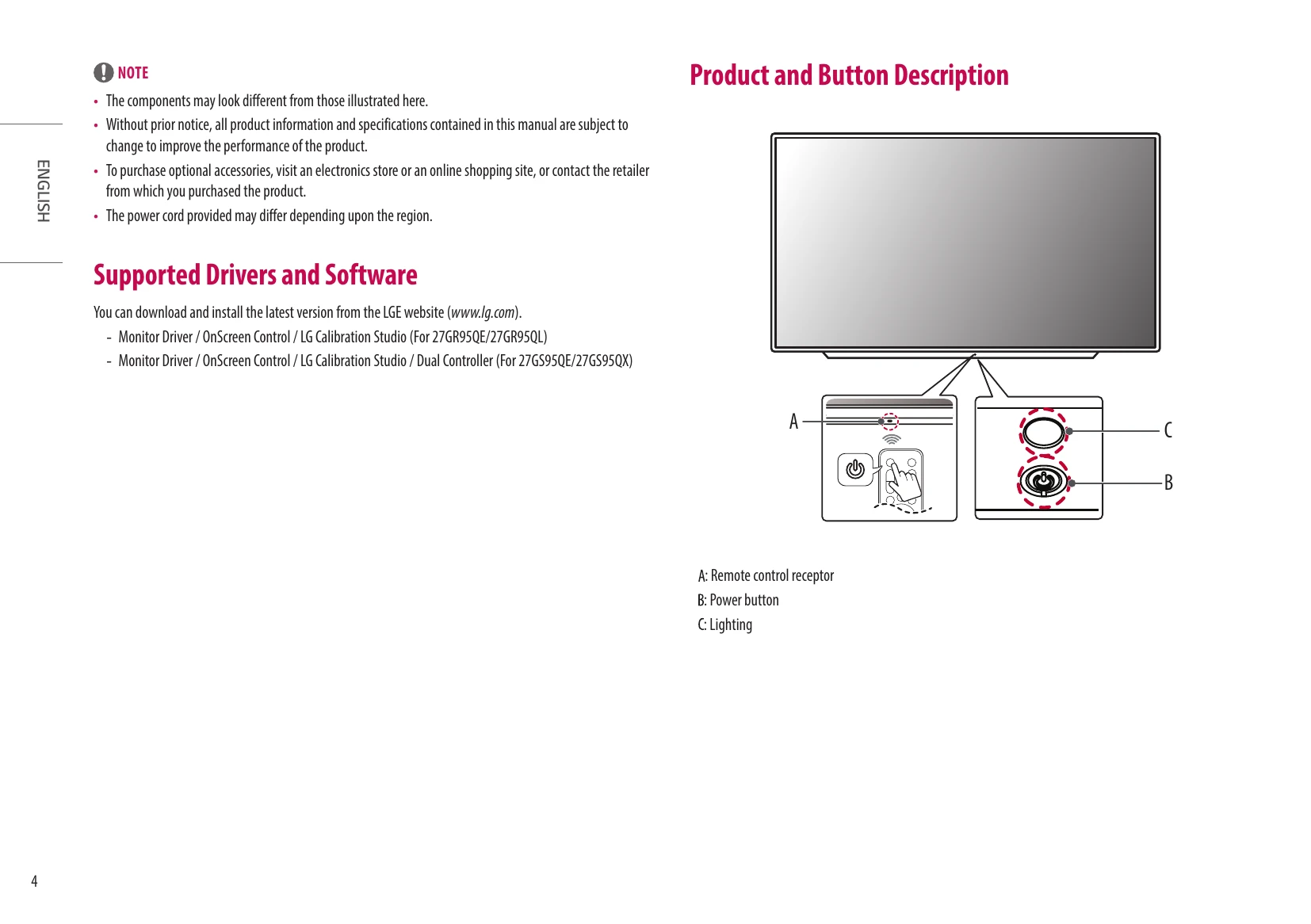
  • Basic functions: Press the power button to turn on, press and hold to turn off. Move Menu and Select Menu options for further adjustments.
  • Menu Settings: Control Power off, Input selection, Volume, and Brightness.
  • Moving and Lifting: Use original packaging, disconnect power, hold frame firmly, keep screen away from potential scratches, avoid shock/vibration, and keep upright.
  • Installing on a Table: Place monitor upright, 100mm from the wall for ventilation. Ensure power cord is grounded.
  • Connecting to a PC: Supports Plug and Play. Use HDMI or DisplayPort connections. Ensure certified cables are used for compatibility.
  • Connecting Peripherals: USB port functions as a hub. Connect keyboard, mouse, or other USB devices. Ensure Windows updates are installed.
  • Remote Control: Replace battery by pulling out the tray. Point remote at the sensor. Functions include Power, Input, Volume, Mute, Brightness, Previous, Settings, and Reader mode.
  • User Settings: Access main menu via Settings button. Adjust options using arrow keys and OK button. Includes Game Mode, Game Adjust, Picture Adjust, Input, and General settings.

Troubleshooting and error codes

Issue Troubleshooting Steps
Nothing is displayed on the screen.
  • Check if the monitor's power cord is plugged in and the power outlet is functioning.
  • If the monitor is in sleep mode, move the mouse or press a keyboard key to wake it up.
  • Ensure the computer is turned on.
  • Verify the monitor is powered on.
  • Check if the input setting is correct (Settings > Input).
Message: [The screen is not currently set to the recommended resolution.] This occurs when signals from the PC (graphics card) are outside the monitor's recommended frequency range. Adjust PC settings to the appropriate frequency.
Message: [No Signal] The signal cable between the PC and the monitor is missing or disconnected. Check and reconnect the cable.
Message: [Out of Range] This occurs when signals from the PC (graphics card) are outside the monitor's horizontal or vertical frequency range. Adjust PC settings to the appropriate frequency.
"Unrecognized monitor, Plug and Play (VESA DDC) monitor found" message?
  • Ensure the display driver is installed from http://www.lg.com.
  • Verify the graphics card supports Plug and Play.
Screen display is unstable and shaky. / Images displayed on the monitor leave shadow trails.
  • Select the appropriate resolution. A resolution of HDMI 1080i 60/50 Hz (interlaced) may cause flickering; change to 1080p or recommended resolution.
  • Ensure the graphics card is set to the recommended (optimal) resolution to avoid blurred text, dim screen, or misalignment.
Are there spots on the screen? Pixelated spots (red, green, blue, white, or black) may appear and are not an error or indicative of a performance issue.
Some features are disabled. The OSD might be locked. Disable [OSD Lock] in [General].
No sound from the headset port.
  • Check if images are displayed using DisplayPort or HDMI input without sound.
  • Ensure headset port connections are made properly.
  • Increase the volume using the power button or +/- (Volume) button on the remote control.
  • Set the audio output of the PC to the monitor.
  • Set [Sound Out] to [H/P out].
Privacy Policy