Tips / Important Safety Precautions
Using the PC LG Easy Guide, LG Troubleshooting
LG Easy Guide (User's Guide) and LG Troubleshooting (Troubleshooting Guide) are provided to users for easy and convenient use of the product.
LG Easy Guide and LG Troubleshooting can be used on the Start screen and the Desktop.
Running in the Start Screen
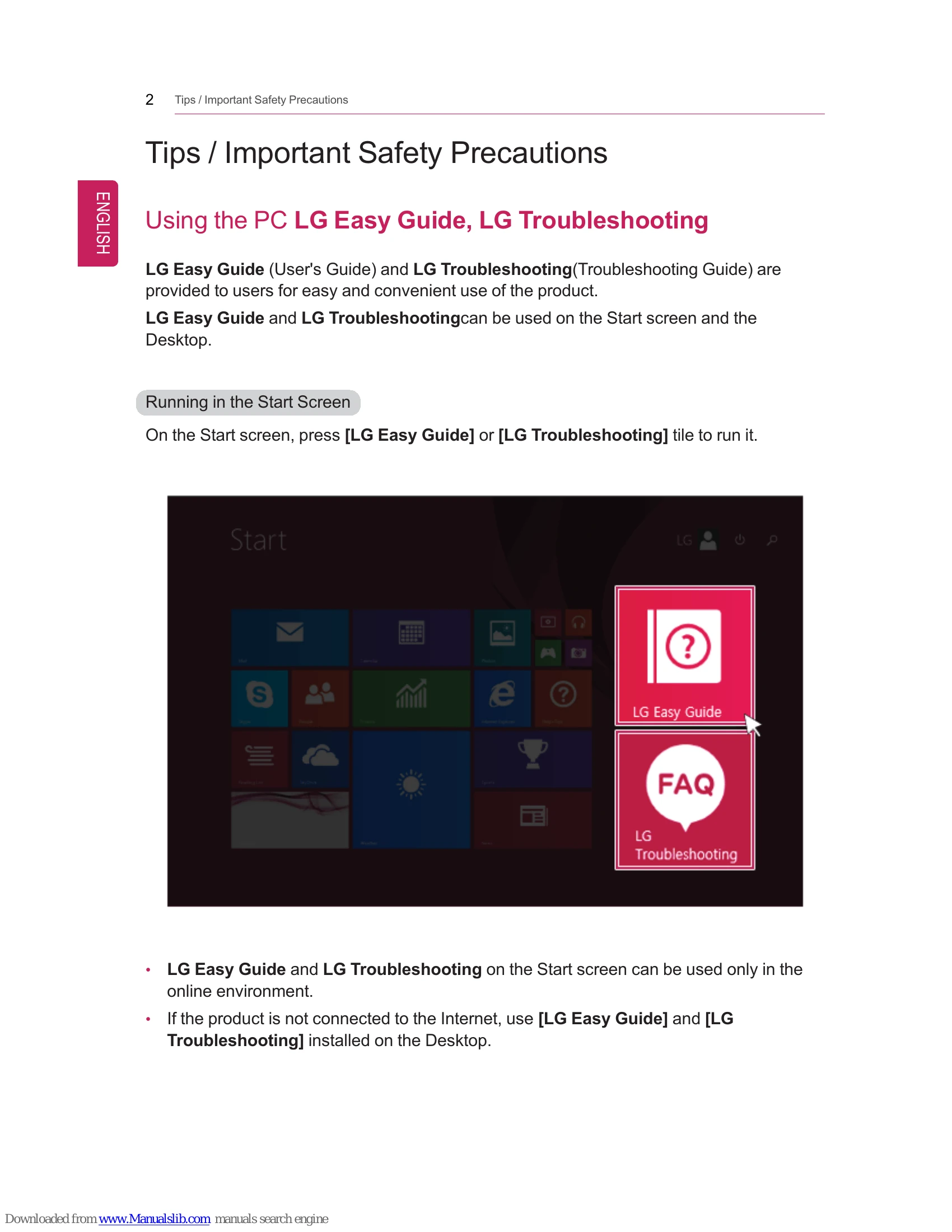
On the Start screen, press [LG Easy Guide] or [LG Troubleshooting] tile to run it.
- LG Easy Guide and LG Troubleshooting on the Start screen can be used only in the online environment.
- If the product is not connected to the Internet, use [LG Easy Guide] and [LG Troubleshooting] installed on the Desktop.
Running on the Desktop PC
- On the Start screen or Desktop, click [
 ] icon to run [LG Easy Starter].
- From [LG Software] menu, run [LG Easy Guide] or [LG Troubleshooting].
TIP
LG Easy Starter may be installed through LG Update Center.
- If LG Easy Starter is not installed, refer to [Run, Stand by and Exit Windows Store App] and then run [LG Easy Guide] or [LG Troubleshooting].
Information/Precautions Before Using
Before reading LG Easy Guide, first check the following information.
- Representative images are used in LG Easy Guide. Product purchase may differ in appearance and color.
- LG Easy Guide includes instruction about optional products. There may be information about products you did not purchase.
- LG Easy Guide has been written for the Windows 8.1 operating system.
- The contents of LG Easy Guide are subject to change without prior notice.
- Use, duplication, or reproduction of any part of LG Easy Guide without prior permission from LG Electronics Inc. is strictly prohibited.
- LG Electronics Inc. does not provide warranty for data loss. In order to minimize damage from data loss, please make backup copies of important data.
- The optical disk drive (DVD, CD-ROM, etc.) is optional and may not be provided with the product.
- Manufacturers and installers cannot provide services related to human safety as this wireless device may cause radio interference.
Safety Precaution Notations
The below symbols are to inform you of dangers and safety concerns that you must be aware of. Read the symbol-indicated instructions with caution to avoid any possible mishap.
- WARNING: Appears in the case of noncompliance with the instruction that may cause serious physical damage or fatal injuries.
- CAUTION: Appears in the case of noncompliance with the instruction that may cause minor damage to the body or the machine.
Text Notations
The below symbols are used to display information required to use the product. Familiarize yourself with the instructions marked by the symbols to ensure proper operation of the product.
- TIP: Indicates that the following information is added to help the user utilize the machine more conveniently.
Important Safety Precautions
Please use the machine in the proper environment to extend the machine's lifespan. Use the machine in a safe and stable place.
Installation
WARNING
- Do not use the machine in damp places like a laundry room or bathroom. Moisture may cause a glitch or electric shock.
- Please use the machine within the appropriate temperature range (10 °C to 35 °C) and humidity range (20% RH to 80% RH).
- Dispose of the desiccating agent and plastic wrap properly. The desiccating agent and plastic wrap may cause suffocation.
- Use the product in a clean, dust-free environment. Otherwise, the system may not function properly.
- Do not place any objects within 15 cm of the PC. Otherwise, the internal temperature of the PC could rise and cause a burn.
CAUTION
- Place the machine in a safe place so it does not fall. If dropped, the machine could be damaged and even cause an injury.
- Do not store or use the PC near a magnetic object (i.e. a bag with a magnetic object, a diary, a wallet, a memo board, high-powered speakers, a bracelet, or etc.). Otherwise, the storage device (HDD, SSD, eMMC) and the system may be damaged, and the system may fail to operate properly.
- Do not use the PC on a bag with magnetic objects attached to it. Otherwise, the storage device and the system may be damaged, and the system may fail to operate properly.
- Operate the product where there is no electromagnetic interference. Keep a certain distance between the PC and electronic appliances such as speakers that generate strong magnetic fields. Otherwise, data may be lost from the storage device (HDD, SSD, eMMC) or the LCD color may be damaged.
- Do not put any heavy objects on the machine. There is the risk of malfunction. If the object were to fall, it could cause an injury or damage the machine.
Using a Battery
WARNING
- Charge the battery only with the provided instrument. Otherwise, the battery may be damaged presenting a risk of fire.
- Do not throw or disassemble the battery. The resulting damage may cause an injury, explosion, or fire.
- Use batteries certified and acknowledged by LG Electronics Inc.™™. Otherwise, an explosion or fire may occur.
- When storing or moving the battery, avoid having the battery in contact with any metallic objects like car keys or paper clips. Otherwise, the battery may be overheated to be damaged resulting in a fire or an injury.
- Keep the battery away from heat. Otherwise, an explosion or fire may occur.
- Do not short-circuit the battery. Otherwise, it may explode.
- Do not dispose of a spent or backup (standby) battery arbitrarily. It may explode or cause a fire. Disposal methods may differ by country and region. Dispose of spent batteries in accordance with the laws and safety rules of the country and region you reside in.
- If the battery leaks or emits a foul odor, remove the battery and contact the local service center.
- If you cannot remove the battery, contact an LG Electronics Service Center. It may explode or cause a fire.
- Do not store in places with temperatures above 60 °C and high humidity (in cars or saunas). It may explode or cause a fire.
- Keep the battery out of reach of children or pets. If damaged, it could cause an injury.
- Keep the battery from being pierced by a sharp object or chewed by pets. It may explode or cause a fire.
- Do not put the battery in water. Otherwise, the battery may be damaged or explode.
- When installing the battery, be sure that the bottom of the PC is locked in place. Otherwise, the battery may be damaged.
- Do not use the PC on a carpet, blanket or bed. Also, do not put the adapter under a blanket. The PC may malfunction, cause a fire or burn the user due to temperature rise.
- Carefully read the directions printed on the battery before use. Keep the battery at room temperature. Refer to Using a Battery (Tips) in this guide to use and store the battery properly.
Plugging in the AC Adapter
WARNING
- Do not bend the power cable for AC adapter too much or get stamped by a sharp object. The wires inside the cable may break and cause electric shock or fire.
- Do not use loose plugs or damaged power cords. An electric shock or fire may occur.
- Do not touch the power cord with your hands wet. Otherwise, an electric shock may occur.
- Pull the plug, not the cord, to disconnect the AC adapter and power jack. Otherwise, a fire may occur or the product may get damaged.
- Operate the product at the proper voltage. Excessive voltage may result in damage on the product, electric shock or fire.
- Use power outlets with an earth pin installed and proper supply of rated electricity. An electric leakage may cause an electric shock or fire.
- Plug the power cord tightly into the outlet. Loose connection of the power cord could cause a fire.
- In the case that a strange noise is heard from the cord or plug, disconnect the power cord from the outlet immediately and contact the service center. A fire or electric shock may occur.
- Use the power supply/adapter provided with the product and never disassemble the product. Using a different product or disassembling it may cause an electric shock or fire.
- Use a socket with an earth pin equipped. If not earthed, the product may cause an electric shock and get damaged.
- Ensure that the power outlet is earthed before plugging in. Otherwise, an electric shock from power leakage may occur.
- Always keep the AC adapter and power outlet clean. A fire may occur.
- Do not impair the cord by bending or pressing it too hard. Keep children and pets from damaging the power cord. An impaired cord could damage the PC parts causing a fire or an electric shock.
- Disconnect the PC completely before cleaning it. Otherwise, an electric shock or impairment may occur.
- If the power/AC adapter or the product is soaked, disconnect the battery, power/AC adapter, and all other lines before contacting the local service center. An electric shock or fire may occur.
- Ensure that the power jack linked to the AC adapter and product is connected firmly. Loose connection may cause malfunction or fire.
Using the PC
WARNING
- Clean the PC with a proper agent and dry it completely before using it again. If the PC is wet while used, an electric shock or fire may occur.
- When lightning flashes in your area, disconnect the power, modem, LAN and other connections. An electric shock or fire may occur.
- Do not leave a cup or other containers filled with watery substance near the PC. In the case that liquid goes inside the PC, a fire or electric shock may occur.
- Do not connect the modem to a key telephone system. A fire may occur or the product may get damaged.
- If you have dropped or damaged the PC, disconnect the power and contact the local service center for a safety check. If a damaged PC is used continuously, an electric shock or fire may occur.
- Do not put a lit candle or live cigarette on the PC. A fire may occur.
- The fluorescent lamps on the LCD contain mercury. If you have contacted the liquid from the LCD panel, immediately wash the substance away with water. If you feel any slightest trouble, visit your doctor immediately.
- If you smell or see smoke from the PC, stop using the PC and disconnect the power before contacting the local service center. A fire may occur.
- Do not play the PC games excessively. Playing a PC game for an extensive time may cause a mental disorder. It could even inflict physical impairments on feeble people including children and the elderly.
- You may hear noise while on 3D mode.
CAUTION
- Do not leave any objects such as a pen between the keypad and the LCD. You might break the LCD by unwittingly closing it with a foreign object remaining on the pad.
- Do not press or scratch the LCD with a sharp object. It may cause impairment.
- Ensure the power is off before shutting the LCD. The machine may be deformed due to temperature rise.
- The bottom of the PC gets hot when the system is working. Please avoid touching it and do not put it on your laps.
- Do not impose excessive force on the LCD screen or drop it. You could break the LCD glass panel.
- Do not forcibly open the LCD screen with one hand. The machine may be twisted.
- To clean the LCD screen, use designated agents and soft cloth and rub the screen in one direction. Too much force may damage the LCD screen.
- When handling PC parts, follow the instructions in the manual. Otherwise, damage may be inflicted.
- Do not put your finger or an object in the PC card slots. An injury or electric shock may occur.
- Install a vaccine program on your PC and do not download illegal programs nor access any corruptive web site such as those pushing pornographic contents. The system may be infected and impaired.
- Please ask one of our service technicians to check the operational state after your PC has been repaired. Otherwise, an electric shock or fire may occur.
- For minors, we recommend a program that blocks access to illegal or pornographic web sites. Minors' exposure to adult-only contents may inflict psychological instability or even trauma on them. Take an extra precaution for your children if the whole family is using this machine.
- Do not press the Eject button while the optical disk drive (CD/DVD/Blu-ray) is running. The data may be lost or the disk may spin out unexpectedly to cause an injury.
- Keep the machine away from heat-emitting devices such as a heater. The product may get deformed or catch on fire.
- Do not insert other devices than designated ones in the ports. Otherwise, the product may get damaged.
- Do not use a damaged optical disc (CD/DVD/Blu-ray) or floppy disk. It may cause product damage or physical injury.
- Prevent children from thrusting their finger into the optical disk drive (CD/DVD/Blu-ray) tray. The finger may be stuck in the tray and injured.
- To remove an optical disc (CD/DVD/Blu-ray) from the tray, turn off the program accessing the disc and wait until the disc drive light is turned off before pressing the [Eject] button. The optical disk spins fast inside the tray and may be ejected from the tray to cause bodily injury.
- Do not block the ventilation hole with any object. Otherwise, an electric shock may occur.
- Do not leave the machine in a car. The battery may cause an explosion or fire.
- Avoid using a wireless LAN connection within the 5 m radius of a microwave or plasma lamp. If you have to use wireless LAN and a plasma bulb within the range, do it between channels 11 and 13. The transmission rate may drop even if the connection is made.
- Turn off the PC if you are not going to use it for an extended time period. It may overheat the battery.
- As the AC adapter can be hot, do not touch it with bare skin while using it. Extended period of exposure may cause burn.
- Make sure that the memory cover is securely closed before turning on the PC. Do not use the machine when the memory cover is open. It may damage the machine.
Upgrading PC
WARNING
- To upgrade the PC, turn off the system and disconnect the power cord and battery. Disconnect the telephone line if linked to the modem. An electric shock or fire may occur.
- When you upgrade the PC, ensure that children will not swallow any parts including bolts. If a child swallowed a nut, they may get suffocated. In that case, see the doctor immediately.
CAUTION
- Please use parts certified by LG Electronics Inc.™. Otherwise, a fire or product damage may occur.
- Consult our service engineer before you use a peripheral device not manufactured by LG Electronics Inc.™. The product may get damaged.
- Do not disassemble or moderate the machine arbitrarily. You could get an electric shock and would not be able to receive the warranty service for that.
- Handle devices and parts of the machine with care. The product may get damaged.
- If you dissemble the PC, connect the power after reassembly is done. Any exposed part may give you an electric shock.
- Do not drop any part or device of the machine while disassembling it. If dropped, it may be damaged and cause an injury.
Carrying the PC
CAUTION
- Before carrying the machine, turn off the power and disconnect all the cables. Otherwise, you may trip over the wire, damaging the PC and getting an injury.
- During air travel, follow the directions of flight attendants. Using the PC during flight may cause an aircraft accident.
- Do not carry the machine with the LCD open. Otherwise, the product may get damaged.
- When leaving the machine in a car, keep it in shadow. The product may be deformed or caught on fire due to temperature rise.
- Protect the machine from any shock while carrying it. System damage or an injury may result.
- Carry the product in a bag designed for it. Carrying it in another type of bag may result in product damage.
- If the machine is not used for a long time, remove the battery pack and discharge electricity to store them. That way, the battery can maintain the optimal state.
- Do not leave the powered-on PC in a space without enough ventilation (i.e. bags) for an extended or repeated time. The battery may overheat and cause a fire.
FAQ 211
TIP
Toggle screen by pressing [ ] + [P] keys
- Press [ ] + [P] keys to display the Switch Screen menu. Select the screen to use and press [Enter] key.
FAQ 212
CAUTION
- If you do not set Speaker as the default value after disconnecting the HDMI cable, the system may not produce any sound.
- If you use bluetooth headsets, a WiDi adapter, or a HDMI output port by turns, set the connected device as a basic device as shown below.
FAQ 213
- If a program was running already, you need to exit and restart the program for it to produce sound.
FAQ 214
Using a Wireless or Regular Router
A wireless / regular router connects several PCs and mobile devices etc. to one internet line and enables the use of internet and the network.
A wireless / regular router has to be bought separately. Refer to the manual provided by the manufacturer for instructions.
Connecting a Wireless or Regular Router
If one internet line is used with a wireless / regular router and several devices are connected, this may result in a slower connection.
In case of a wireless network, it is recommended to change the network name and security settings for a more secure connection.
Network speed can differ according to operation environment and specifications.
- Connect the internet cable of the modem that was provided by your internet provider to the router's WAN port.
- Connect all devices (PC, IPTV, internet phone, etc.) with a LAN cable to LAN ports 1 to 4 of the router.
The number of LAN ports can vary for each router model.
- Please refer to the manual provided by the router manufacturer for setup of the network and internet.
FAQ 215
Wireless Network
The wireless network (Wireless LAN) is the network environment that connects a PC with the internet provider or company network through an Access Point (wireless or regular router).
Wireless network is optional, and so it may not be installed in some models.
Using the Wireless Network
If an Access Point (wired or wireless router) is in the vicinity of the PC, the wireless network can easily be accessed.
During the search for a wireless network (Wireless LAN), various Access Point may be found according to the location where the PC is used.
In case no accessible wireless network (Wireless LAN) is near the PC, no Access Point might be found.
A password protected Access Point cannot be accessed without knowing the right password.
- Run [Charms] on the Start screen or in Desktop mode.
- In the Charms, click [Settings] > [Wireless Network Icon].
FAQ 216
- Closest available Access Point(wireless network) is automatically searched.
FAQ 217
- Select the Access Point (wireless network) you want to use and click [Connect] to connect to the Access Point. If a password is set for the wireless network, the Enter Password window appears.
- When the connection is established, [Connected] is displayed in the connected Access Point(wireless network).
- Click the [Internet Explorer] icon in the taskbar to check whether the internet is operating normally.
FAQ 218
Wired LAN
LAN is the network environment that users can connect to by using a cable to connect to their internet providers or the company's network.
Using Wired LAN
LAN is installed with an automatic IP (DHCP) as default value.
Please refer to the following instructions to find out more about setting up an automatic IP (DHCP) or manual IP.
- Connect LAN cable to the LAN port.
- Switch to the Desktop mode after clicking the [Desktop tile] in the Start screen. And then, run the [Charms].
FAQ 219
- In the Charms, click [Settings] > [Control Panel] > [View By] > [Small Icon] > [Network and Sharing Center].
FAQ 220
- Click [Change Adapter Settings].
FAQ 221
- Right-click [Ethernet] and select [Properties].
FAQ 222
- Select [Internet Protocol Version 4 (TCP/IPv4)] and click [Properties].
FAQ 223
- If you want to use an automatic IP(DHCP), select [Obtain an IP Address Automatically]. If you want to use a manual IP, select [Use Following IP Address] to enter the address. Please ask the network administrator about obtaining a manual IP.
- Press [OK] to complete the network setup.
- Click the [Internet Explorer] icon in the taskbar to check whether the internet is operating normally.