Brand: Lenovo
Category: Smartphone
Document Type:
Language: EN
Brand: Lenovo
Category: Smartphone
Document Type:
Language: EN
Uploaded: Aug. 10, 2025, 12:06 a.m.
Lenovo is not responsible for the performance or safety of products not manufactured or approved by Lenovo.
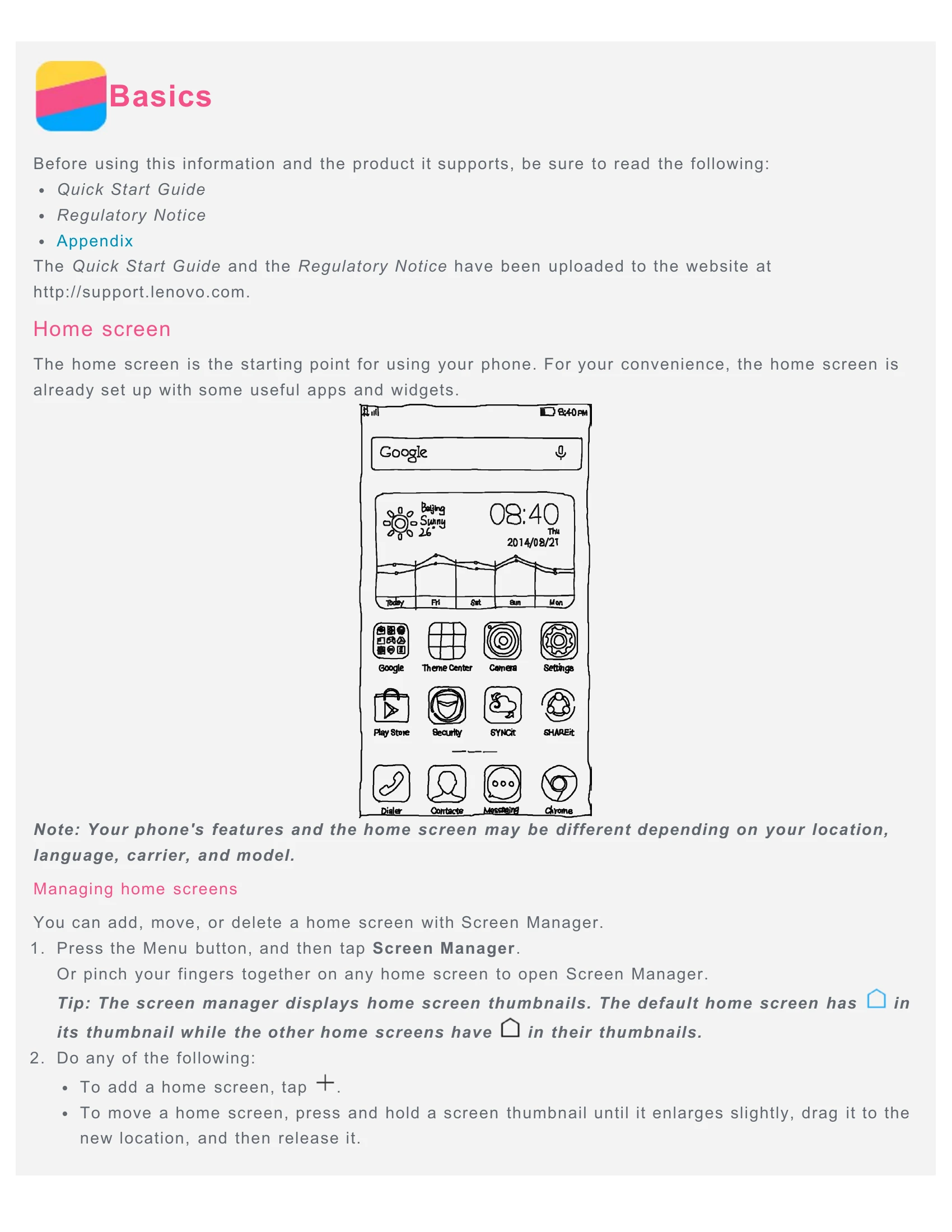
The home screen is your phone's starting point, pre-set with useful apps and widgets. You can manage home screens by adding, moving, or deleting them. Use Screen Manager for this by pressing the Menu button and tapping 'Screen Manager', or by pinching your fingers together on a home screen.
Enter edit mode by pressing the Menu button and tapping 'Add', or by pressing and holding anywhere on the home screen. In edit mode, you can add widgets, move apps and widgets, create app folders by dragging one app onto another, and uninstall apps by tapping the 'X' icon.
To change the wallpaper, press the Menu button and tap 'Wallpaper'. You can set a photo from your Gallery or use a static or live wallpaper.
The phone has three main buttons: Menu button (for options and viewing running apps), Home button (to return to the default home screen), and Back button (to go back or exit apps).
Press the On/Off button to lock the screen. To unlock, press the On/Off button again and slide up from the bottom of the screen. The default method is 'Slide'.
The Notifications panel shows missed calls, messages, and ongoing activities. You can also access shortcut switches like WLAN from here. Swipe down from the top to open it, and swipe up or press the Back button to close it.
When connected to a computer via USB, you can select modes like Media device (MTP) for file transfer, Camera (PTP) for photo transfer, USB storage (SD card) to use it as a disk, Charge only for faster charging, or USB debugging mode (ADB) for development.
Make calls by dialing manually in the Dialer app, from the call log, or by selecting a contact. To answer or reject a call, drag the contact image. Silence a call by pressing volume buttons, the On/Off button, or placing the phone face down. During a call, options like Add call, Hold, Mute, Record, Dialpad/Hide, and Speaker are available.
Create new contacts by tapping '+' in the Contacts app and entering information. Search for contacts by scrolling or using the search box. You can delete contacts by pressing and holding them and selecting 'Delete contact'. Import/Export contacts are also available via the menu.
Send messages by opening the Messaging app, tapping '+', entering recipient details, typing your message, and tapping send. For multimedia messages, tap the attachment icon. Search for messages by typing in the search box. Delete messages by pressing and holding them in a conversation thread and tapping 'Delete'.
Use the Camera app to take photos and record videos. Tap icons to select modes, take photos, or record videos. View media in the Gallery. You can also choose shot modes, flash modes, use HDR, switch cameras, and access camera settings.
Press and hold the On/Off and volume down buttons simultaneously. Screenshots are saved in the Gallery or File Browser app.
View photos and videos by opening the Gallery app and selecting an album. Swipe to navigate, pinch to zoom. Share photos/videos using Messaging or Bluetooth. Select multiple items to share. Delete photos/videos similarly.
Connect to WLAN via Settings > System > WIRELESS & NETWORKS > WLAN. Enable Data connection via Settings > System > WIRELESS & NETWORKS > Mobile networks. Set up a hotspot via Settings > System > WIRELESS & NETWORKS > More > Hotspot.
Use Chrome to surf the Internet. Enter website addresses or search keywords in the address box. Refresh the page, go back/forward, and save images. Bookmark websites via the Menu button. Clear browsing history in Chrome settings.
Configure Date & time, Language, and Input method. Set a screen lock in Security settings. Enable app installation from unknown sources in DEVICE ADMINISTRATION. Set ringtones and volumes. Perform a factory reset under Backup & reset.
Important safety information covers handling, preventing water damage, and repair guidelines. Charging information details supported methods and temperature ranges. Safety warnings include distraction, choking hazard, explosive atmospheres, and medical device interference. Cleaning instructions recommend a soft, lint-free cloth. Operating temperature guidelines are provided. Protect your data by being cautious with unknown files and network resources, and keep the phone away from strong magnetic fields.