Brand: JVC
Category: Television
Document Type: Manual
Language: EN
Brand: JVC
Category: Television
Document Type: Manual
Language: EN
Uploaded: Nov. 21, 2025, 8:22 p.m.
Manual Publish Date: 2009-01-01
Information on warranty is subject to change without notice.
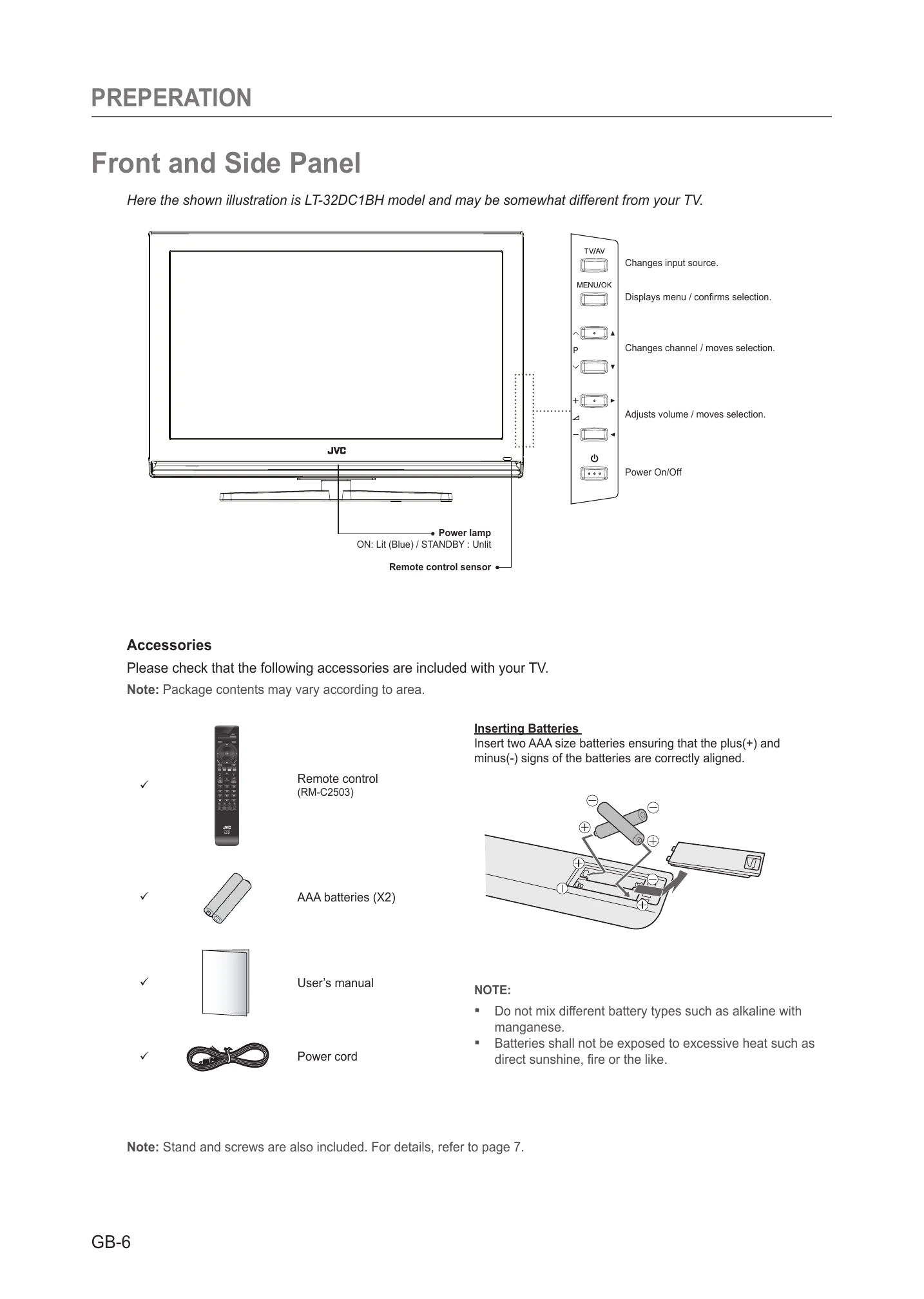
1. Connect the power cord correctly. The TV will be in standby mode.
2. Press the POWER, TV/AV, or PA/V button on the TV or remote to turn it on.
1. Press PA/V or use NUMBER buttons to go to a channel.
2. Press TV/RADIO to switch between digital TV and radio channels.
3. Press TV/DTV to switch between analog and digital TV channels.
4. Press BACK to return to the previous channel.
1. Press VOL+/- to adjust volume.
2. Press MUTE to temporarily silence the audio.
| Error message | Possible causes | What to do |
|---|---|---|
| No or Bad Signal | The aerial is not pointing properly. | Adjust aerial. Check the cable from the aerial. If you cannot resolve the problem, you may need to have your aerial and installation tested by a professional. |
| The channel is scrambled or not available. | The channel has a signal, but no audio or video is provided. | Confirm if the channel is currently on air. |
| The channel is for data broadcasting. | The channel cannot be viewed without the appropriate model that supports data channels. | |
| Smartcard is not plugged in. | Insert Smartcard. | |
| Audio not available | Wrong Smartcard is in use. | Insert the appropriate Smartcard for the channel(s) you wish to view. |
| Smartcard is not plugged in correctly. | Reinsert Smartcard; ensure that it is inserted correctly. | |
| Smartcard is damaged. | Contact your Smartcard retailer or channel broadcaster for a Smartcard replacement. | |
| The channel has a video signal, but no audio is provided. | Press the VOL+/- button on your remote control to confirm that the channel has audio options. | |
| CI Module not installed. | CI Module (Conditional Access Module) is not installed. | Insert CI Module. |
| CI Module is not inserted correctly | Reinsert CI Module. | |
| CI Module is not recognized. | Insert a different CI Module to check if your existing module is working. | |
| Invalid CI Module | Wrong CI Module (Conditional Access Module). | Insert the correct CI Module. |
| CI Module is not inserted correctly. | Remove and reinsert the CI Module. | |
| CI Module is damaged | Replace CI Module. |