Brand: JVC
Category: Camcorder
Document Type: Manual
Language: EN
Brand: JVC
Category: Camcorder
Document Type: Manual
Language: EN
Uploaded: Aug. 10, 2025, 12:36 a.m.
Charging: Refer to the operating instructions in the Detailed User Guide.
Recording: Refer to the operating instructions in the Detailed User Guide.
Playback: Refer to the operating instructions in the Detailed User Guide.
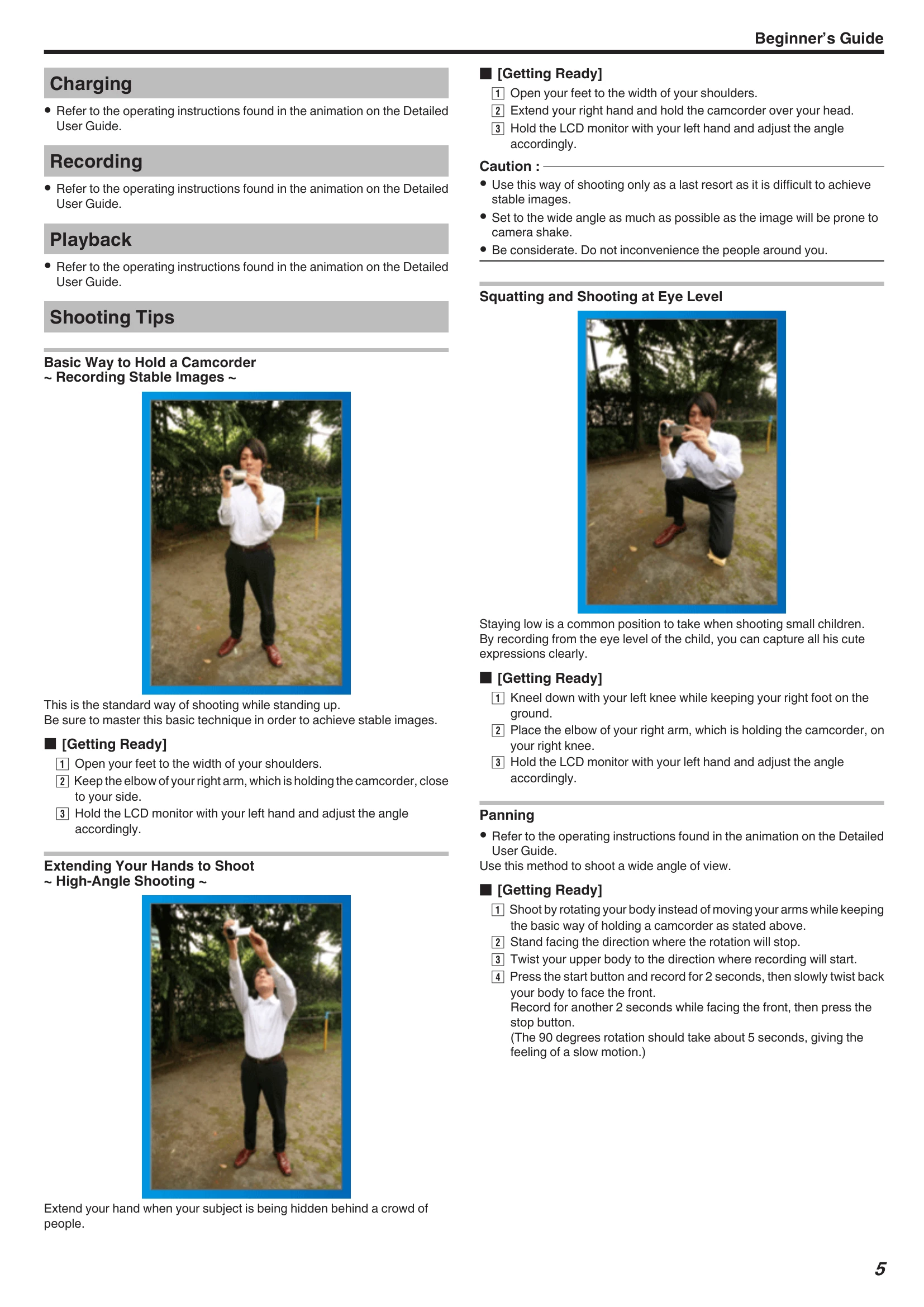
Shooting Tips: Includes basic ways to hold the camcorder for stable images, squatting, extending hands for high-angle shots, and panning.
| Error Message | Solution |
|---|---|
| SET DATE/TIME! | Connect the AC adapter, charge the battery for more than 24 hours and set the clock. If the message still appears, the clock battery is exhausted. Consult your nearest JVC dealer. |
| COMMUNICATION ERROR | Reconnect the USB cable. Turn off this unit and the devices connected to it, and turn them on again. Reattach the battery pack. |
| MEMORY CARD ERROR! | Check that the card is supported by this unit. Turn off and on this unit again. Remove the AC adapter and battery pack, then remove and re-insert the SD card. Remove any dirt from the SD card terminals. If the problem persists, back up files and execute "FORMAT SD CARD". |
| NOT FORMATTED | Select "OK", then select "YES" on the "DO YOU WANT TO FORMAT?" screen. |
| RECORDING FAILURE | Turn off and on this unit again. |
| CANNOT TAKE MORE STILL IMAGES AT THIS TIME | Stop video recording before taking still images. |
| PLAYBACK FAILED | Remove and re-insert the SD card. Remove any dirt from the SD card terminals. Insert the SD card before turning on the power. Do not subject this unit to strong impact or vibration. |
| VIDEO MANAGEMENT FILE IS DAMAGED, RECOVERY IS REQUIRED TO RECORD/PLAYBACK, RECOVER? | Select "OK" to restore. Videos that cannot be restored will not be displayed on the index screen, but you may be able to play them back using "PLAYBACK OTHER FILE". |
| UNSUPPORTED SCENE! | Use files recorded with this unit. |
| UNSUPPORTED FILE! | Use files recorded with this unit. |
| THIS FILE IS PROTECTED | Switch off the "PROTECT/CANCEL" function in the "EDIT" menu. |
| CHECK CARD'S WRITE PROTECTION SWITCH | Set the write protect switch of the SD card to off. |
| INSUFFICIENT AVAILABLE SPACE | Delete files, or move files to a computer or other devices. |
| RECORDABLE MANAGEMENT CAPACITY LEVEL HAS BEEN REACHED | Move files to a computer or other device. Select "FILE + MANAGEMENT NO" in "FORMAT SD CARD". |
| SCENE QUANTITY EXCEEDED LIMIT | Move files to a computer or other device. Select "FILE + MANAGEMENT NO" in "FORMAT SD CARD". |
| NUMBER OF FOLDERS OVERFLOW | Move files to a computer or other device. Select "FILE + MANAGEMENT NO" in "FORMAT SD CARD". |
| FILE QUANTITY LIMIT EXCEEDED | Move files to a computer or other device. Select "FILE + MANAGEMENT NO" in "FORMAT SD CARD". |
| PLAYLIST QUANTITY EXCEEDS LIMIT | Reduce the number of playlists to 99 or less. |
| CANCELLED BECAUSE PLAYLIST AMOUNT EXCEEDED MAXIMUM LIMIT | When creating a DVD, reduce the number of playlists to be saved. Reduce the number of videos to add to the playlist to 999 files. |
| PROCESSING CANCELLED DUE TO LIMITED SPACE FOR OPERATION | Reduce the number of videos to add to the playlist to 999 files. |
| RECORDING CANCELLED | Turn off and on this unit again. Protect the unit from vibration and shock. |
| POWER IS OFF, OR USB DEVICE IS UNSUPPORTED | Turn on the power of the connected USB device. Connect the AC adapter to the DVD writer or BD writer. |
| INSERT DISC | Open the tray, check and reset the disc, then close the tray. Replace the disc. |
| CHANGE DISC | Open the tray, check and reset the disc, then close the tray. Replace the disc. |