Brand: JVC
Category: Camcorder
Document Type: Manual
Language: EN
Brand: JVC
Category: Camcorder
Document Type: Manual
Language: EN
Uploaded: Nov. 21, 2025, 8:12 p.m.
JVC warrants media free from defects for 30 days; liability is limited to media replacement.
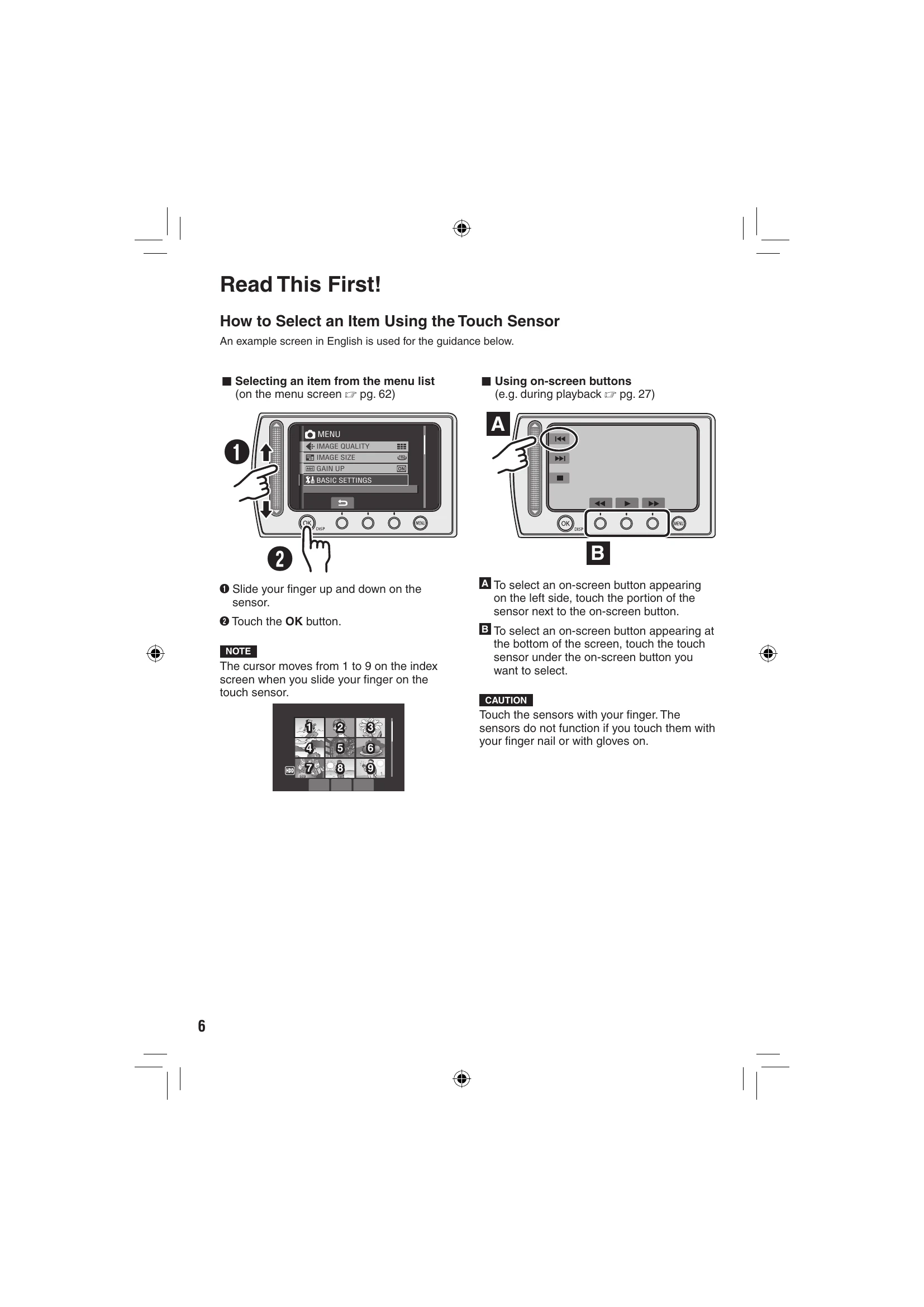
Selecting an item from the menu list:
Using on-screen buttons:
A: To select an on-screen button on the left, touch the sensor next to it.
B: To select an on-screen button at the bottom, touch the sensor under it.
CAUTION: Touch sensors with your finger, not fingernails or gloves.
| Trouble | Action |
|---|---|
| No power is supplied. | Connect the AC adapter securely. Detach the battery pack once again and reattach it firmly. Replace the dead battery with a fully charged one. |
| No display appears. | If the camera is not operated for 5 minutes while the power is on, it turns itself off automatically to conserve power. To turn the camera on again when using the battery pack, close the LCD monitor and open it again. When using the AC adapter, perform any operation such as zooming. Adjust the brightness of the LCD monitor. |
| The power was turned off accidentally. | Move to a place where not affected by vibration or excessive sound. The drop detection function operated. Close the LCD monitor and open it again. To turn off this function, set [DROP DETECTION] to [OFF]. |
| The displayed amount of remaining battery power differs from the actual operating time. | Fully charge the battery, and then run it down. If the problem persists, the battery is worn out and needs to be replaced. Please purchase a new one. |
| The power does not turn on, or the battery operation time is extremely short even after the battery is fully charged. | Make sure to use the camera under appropriate operating temperatures. The battery is worn out and needs to be replaced. Please purchase a new one. |
| The access/charge lamp on the camera does not light during charging. | Charging may stop in places subject to extremely high/low temperatures to protect the battery. It is recommended to charge it in places with a temperature of 10°C to 35°C (50°F to 95°F). When the battery is already fully charged, the lamp does not light. Check the remaining battery power. |
| Images on the LCD monitor appear dark or whitish. | Adjust the brightness and angle of the LCD monitor. |
| Colored bright spots appear on the LCD monitor. | The LCD monitor is made with high precision technology. However, black spots or bright spots of light (red, green or blue) may appear constantly on the LCD monitor. These spots are not recorded on the picture. This is not due to any defect of the unit. (Effective dots: more than 99.99%) |
| Aspect ratio of the image is strange when watching images on TV. | Change the settings in [SELECT TV TYPE] to match the aspect ratio of the image with the screen size of the connected TV. |
| Recording cannot be performed. | Recording medium is full. Delete unnecessary files or replace the microSD card. Select the recording medium properly. |
| Vertical lines appear on recorded images. | Such a phenomenon occurs when shooting a subject illuminated by bright light. This is not a malfunction. |
| The LCD monitor becomes red or black for an instant. | Such a phenomenon occurs when shooting under direct sunlight. This is not a malfunction. |
| During recording, the date/time does not appear. | Touch the DISP button once. |
| During video recording, the REC indicator flashes. | The temperature of the camera is increasing. If the camera continues to heat up, recording may be stopped to protect the recording medium. In this case, turn off the power, and then wait until the camera cools down. |
| The LCD monitor indications blink. | Certain modes of program AE, effect, DIS and other functions that cannot be used together are selected at the same time. |
| Digital zoom does not work. | Change the settings in [ZOOM]. Digital zoom is not available in the still image recording mode. |
| The focus is not adjusted automatically. | Set [FOCUS] to [AUTO]. Clean the lens and check the focus again. |
| The color of the image looks strange. | Wait to become natural color. The camera adjusts the white balance automatically but it takes a time. Try manual white balance adjustment. In bright places, setting [PROGRAM AE] to [NIGHT] or a slow speed is not recommended. When the recorded image is too dark, try backlight compensation or adjust brightness. When the recorded image is too bright, try adjust brightness. |
| White balance setting cannot be activated. | Do not select the sepia (SEPIA) or monotone (MONOTONE) mode before setting white balance. |
| The continuous shooting speed is slow. | The continuous shooting speed will drop after repeated continuous shots, depending on the recording media, or under certain recording conditions. |
| Playback cannot be performed. | Select the recording medium properly. To watch images on a TV, set the TV's input mode or channel that is appropriate for video playback. |
| The same image is displayed for a long time during video playback, or motion is choppy. | Replace the microSD card. (When the surface of the card is damaged, difficulty in reading the data occurs.) Perform clean up or format the microSD card. |
| The black & white fader does not work. | Do not select the sepia (SEPIA) or monotone (MONOTONE) mode before setting white balance. |
| There is a noise during playback. | The driving sound (hum) of the hard disk may have been recorded if the camera was moved suddenly during recording. Do not move or shake the camera suddenly during recording. |
| During video playback, the indicator flashes. | The temperature of the camera is increasing. If the camera continues to heat up, playback may be stopped to protect the recording medium. In this case, turn off the power, and then wait until the camera cools down. |
| Files cannot be deleted. | Remove protection from the files and delete them. |
| The data process is too slow after the power is switched on or the mode is changed. | There is a large number of still images (approx. 1,000 or more) stored in the recording medium. Copy the stored files to other devices, and delete them from the recording medium. |
| The microSD card cannot be removed from the camera. | Push the microSD card in a few more times. |
| The [CREATE DVD] screen is displayed in the LCD monitor, and no other operations can be performed. | Another operation is being attempted while a DVD burner that is turned on is connected. Turn off the camera connected to the DVD burner, or disconnect the USB cable. |
| The touch sensor or sensor button does not function. | Touch the sensors with your finger. The sensors do not function if you touch them with your finger nail or with gloves on. |