Brand: JVC
Category: Camcorder
Document Type: Manual
Language: EN
Brand: JVC
Category: Camcorder
Document Type: Manual
Language: EN
Uploaded: Aug. 10, 2025, 12:34 a.m.
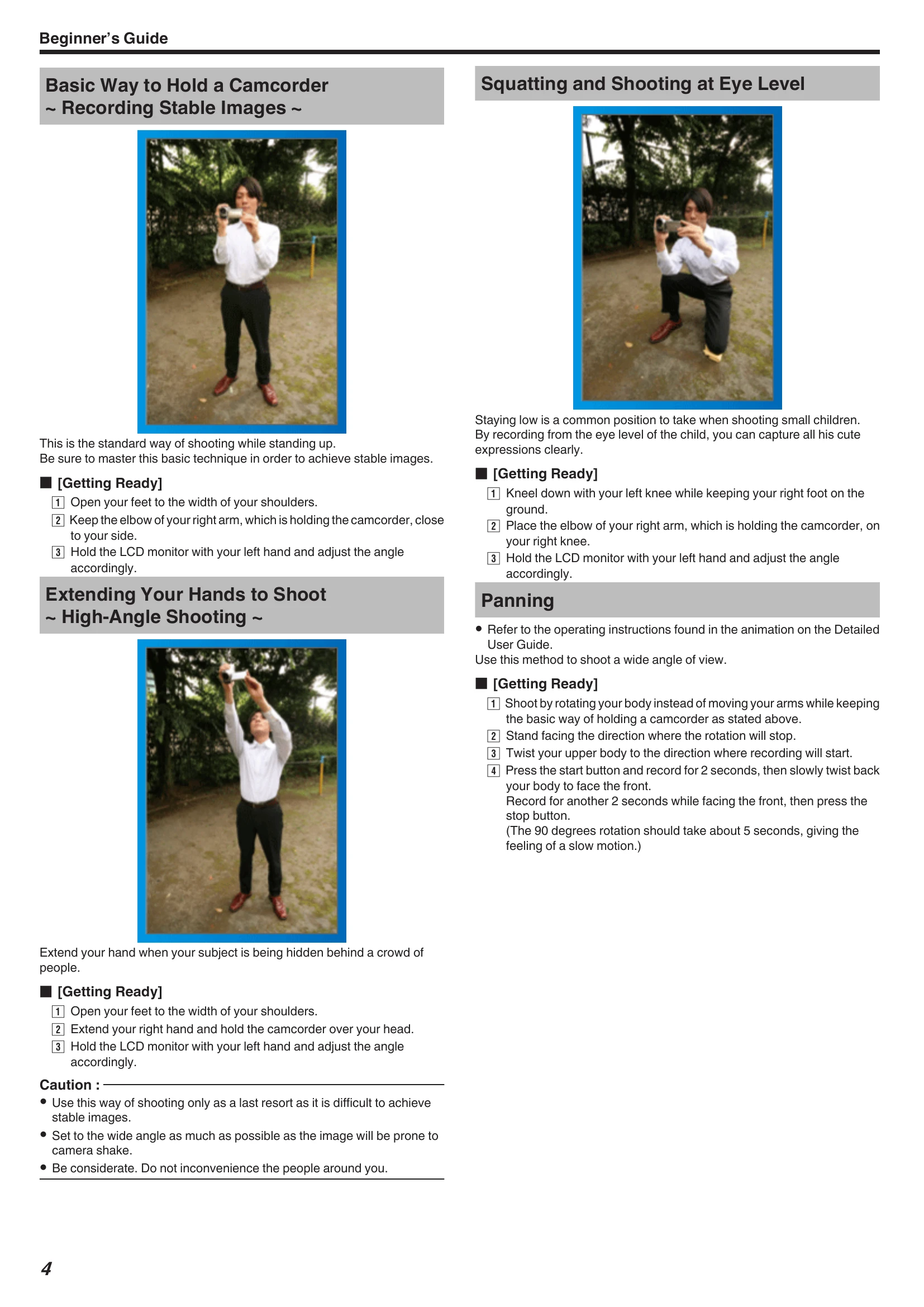
Open feet shoulder-width apart, keep right elbow close to side, hold LCD with left hand.
Kneel on left knee, right foot on ground, place right elbow on right knee, hold LCD with left hand.
Open feet shoulder-width apart, extend right hand over head, hold LCD with left hand.
Record happy celebrations, decorating the tree, and preparing dinner.
Discuss plans with couple, find the entrance route, and capture bride and groom with guests.
Bring necessary equipment like camcorder, battery packs, AC adapter, and power plug adapter. Record preparations and airport scenes.
Take videos or stills of rides. Induce responses by calling out. Capture best moments as stills.
| Problem | Solution |
|---|---|
| Unable to turn on the power when using the battery pack. | Recharge the battery pack. Check if terminals are dirty. Use JVC battery packs. |
| Short usage time even after charging. | Battery deterioration may occur. Replace the battery pack. |
| Unable to charge the battery pack. | Check if terminals are dirty. Use original AC adapter. |
| The remaining battery display is not correct. | May occur when AC adapter is connected, or after long-term use or repeated charging. |
| Recording cannot be performed. | Adjust settings manually in Intelligent Auto mode. |
| Recording stops automatically. | Stops after 12 consecutive hours. Turn off and on again. Also stops to protect circuit when temperature rises. |
| The continuous shooting speed of still images is slow. | Speed may drop with repeated use, depending on SD card, or under certain recording conditions. |
| The focus is not adjusted automatically. | Adjust focus manually. Wipe lens with cleaning cloth. Cancel manual focus. |
| Zoom does not work. | Digital zoom unavailable in still image/time-lapse recording. Set "ZOOM" in menu. |
| Mosaic-type noise occurs. | Set "VIDEO QUALITY" to "UXP" or "XP". |
| A shadow appears on the lower right of the screen. | This is not a malfunction; light focused on center part of screen. |
| Cannot insert the SD card. | Ensure correct insertion direction. |
| Unable to copy to SD card. | Set "REC MEDIA" to SD card. Format SD card if used on other devices. |
| Sound or video is interrupted. | Interruption at connecting section between scenes is not a malfunction. |
| There is no sound. | Turn off Silent mode. Set "OPERATION SOUND" to "ON". Audio not recorded in HIGH SPEED RECORDING/TIME-LAPSE RECORDING. |
| The same image is displayed for a long time. | Use high speed SD card. Clean terminals. Format SD card. |
| The motion is choppy. | Use high speed SD card. Clean terminals. Format SD card. Verify PC system requirements. |
| Cannot find a recorded file. | Cancel date search. Change playback media. Select "PLAYBACK OTHER FILE". |
| Images do not appear on the TV properly. | Disconnect/reconnect cable. Turn unit off/on. |
| Images are projected vertically on the TV. | Set "VIDEO OUTPUT" to "4:3". Adjust TV screen. |
| The image displayed on TV is too small. | Set "VIDEO OUTPUT" to "16:9". |
| HDMI-CEC functions do not work properly. | Set "HDMI CONTROL" to "OFF". |
| The unit operates slowly. | Copy files to computer and erase from unit. |
| This unit does not function properly and error messages appear. | Turn off power, remove AC adapter and battery pack. Unit will be reset. |
| Operation disabled since the POWER/CHARGE lamp and the ACCESS lamp are blinking. | Remove power sources, reattach, turn on. Contact dealer if problem persists. |
| SET DATE/TIME! | Charge battery for >24 hours and set clock. If persists, clock battery exhausted. |
| COMMUNICATION ERROR | Reconnect USB cable. Turn devices off/on. Reattach battery pack. |
| FORMAT ERROR! (GZ-EX555) | Check procedure, perform again. Turn unit off/on. |
| ERROR IN BUILT-IN MEMORY! (GZ-EX555) | Turn unit off/on. If problem persists, back up files and format built-in memory. |
| MEMORY CARD ERROR! | Check if card is supported. Turn unit off/on. Remove AC/battery, reinsert card. Clean terminals. Format SD card. |
| NOT FORMATTED | Select "OK", then "YES" to format. |
| RECORDING FAILURE | Turn unit off/on. |
| CANNOT TAKE MORE STILL IMAGES AT THIS TIME | Stop video recording before taking stills. |
| PLAYBACK FAILED | Remove/re-insert SD card. Clean terminals. Insert SD card before power on. Avoid impact/vibration. |
| VIDEO MANAGEMENT FILE IS DAMAGED, RECOVERY IS REQUIRED... | Select "OK" to restore. Unrestored videos may not display. Use "PLAYBACK OTHER FILE". |
| UNSUPPORTED SCENE! | Use files recorded with this unit. |
| UNSUPPORTED FILE! | Use files recorded with this unit. |
| THIS FILE IS PROTECTED | Switch off "PROTECT/CANCEL" function in "EDIT" menu. |
| CHECK CARD'S WRITE PROTECTION SWITCH | Set write protect switch of SD card to off. |
| INSUFFICIENT AVAILABLE SPACE | Delete files or move to computer. Replace SD card. Ensure enough free space before combining seamless videos. |
| RECORDABLE MANAGEMENT CAPACITY LEVEL HAS BEEN REACHED | Move files to computer. Format built-in memory/SD card. |
| SCENE QUANTITY EXCEEDED LIMIT | Move files to computer. Format built-in memory/SD card. |
| NUMBER OF FOLDERS OVERFLOW | Move files to computer. Format built-in memory/SD card. |
| FILE QUANTITY LIMIT EXCEEDED | Move files to computer. Format built-in memory/SD card. |
| PLAYLIST QUANTITY EXCEEDS LIMIT | Reduce playlist to 99 files or less. |
| CANCELLED BECAUSE PLAYLIST AMOUNT EXCEEDED MAXIMUM LIMIT | Reduce playlists for DVD. Limit videos to 999 files. |
| PROCESSING CANCELLED DUE TO LIMITED SPACE FOR OPERATION | Limit videos to 999 files. |
| NO FILES | Check "REC MEDIA" setting. Ensure files are not recorded to other media. |
| RECORDING CANCELLED | Set "REC MEDIA" to "SD CARD". Record to SD card. Turn unit off/on. Protect from vibration/shock. |
| CAMERA TEMPERATURE IS HIGH PLEASE TURN CAMERA OFF TO ALLOW IT TO COOL DOWN PLEASE WAIT | Turn off unit and let it cool down. |
| POWER IS OFF, OR USB DEVICE IS UNSUPPORTED | Turn on the power of the connected USB device. |