Brand: JVC
Category: Camcorder
Document Type: Manual
Language: EN
Brand: JVC
Category: Camcorder
Document Type: Manual
Language: EN
Uploaded: Aug. 10, 2025, 12:36 a.m.
Manual Publish Date: 2002-01-01
This camcorder offers a 2-way power supply system, allowing you to choose between battery power or AC adapter power. To charge the battery, connect the AC adapter to the camcorder and plug the power cord into an AC outlet. The CHARGE Lamp indicates charging status.
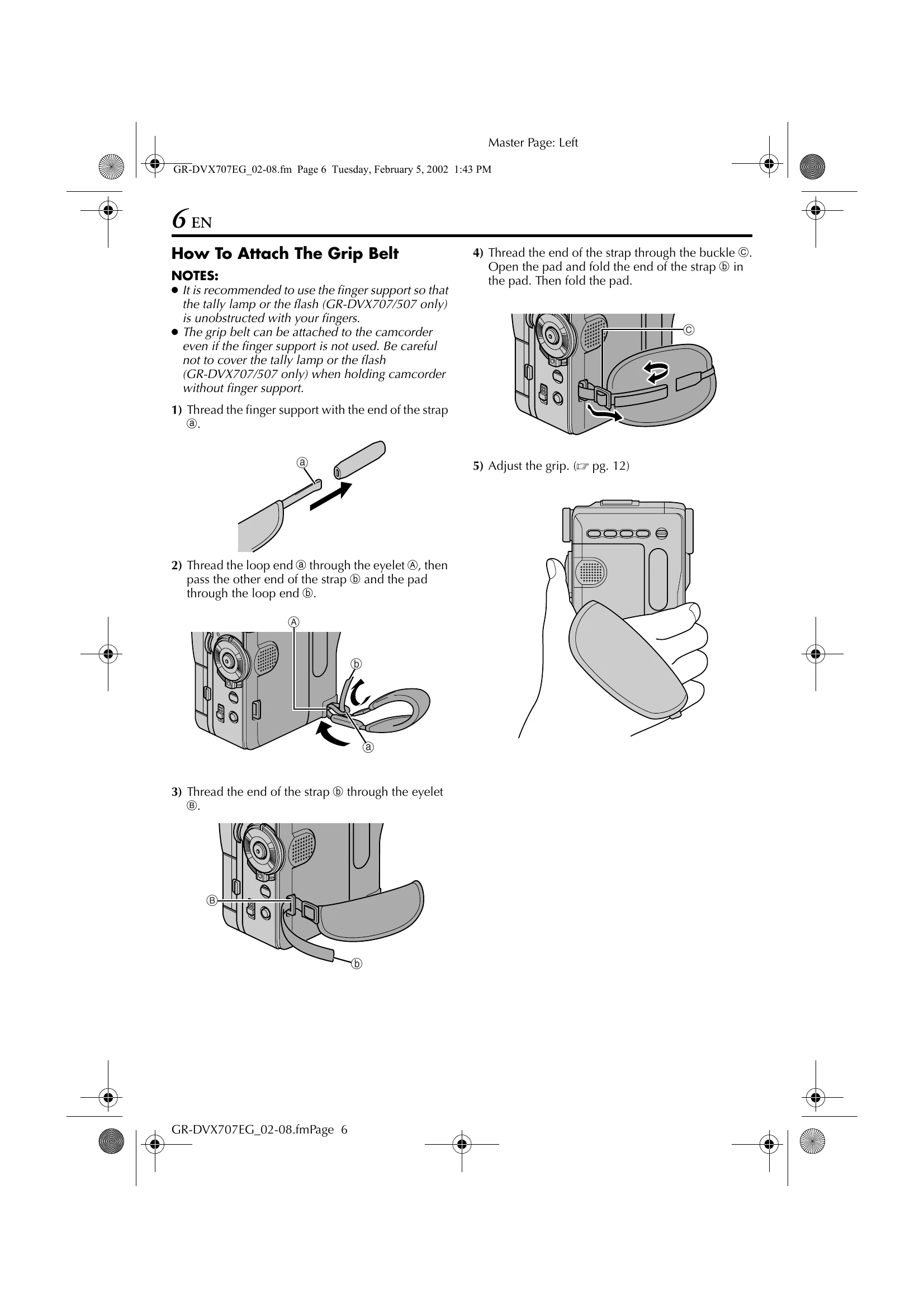
Before use, it is recommended to familiarize yourself with button locations and read the safety precautions. The camcorder can be powered by a battery pack or AC adapter. Adjustments for grip and viewfinder are available for comfortable use. Mounting on a tripod is also supported.
To record, ensure a cassette is loaded and set the VIDEO/MEMORY switch to "VIDEO". Then, set the power switch to "A" (Full Auto) or "M" (Manual). Press the Recording Start/Stop Button to begin recording. The Tally Lamp and "REC" indicator will show recording status. Press the button again to stop.
| Indications | Function |
|---|---|
Displays the battery remaining power. Remaining power level: high Remaining power level: exhausted As the battery power comes close to nil, the battery indicator blinks. When the battery power is exhausted, power turns off automatically. |
|
Appears when no tape is loaded. (☞ pg. 16) |
|
CHECK TAPE'S ERASE PROTECTION TAB |
Appears when the erase protection tab is set to "SAVE" while the Power Switch is set to "A" or "M" and the VIDEO/MEMORY Switch is set to “VIDEO”. (☞ pg. 14) |
|
Appears if dirt is detected on the heads during recording. Use an optional cleaning cassette. (☞ pg. 91) |
CONDENSATION OPERATION PAUSED PLEASE WAIT |
Appears if condensation occurs. When this indication is displayed, wait more than 1 hour until condensation disappears. |
TAPE! |
Appears if a tape is not loaded when the Recording Start/Stop Button or SNAPSHOT Button is pressed while the Power Switch is set to “A” or “M” and the VIDEO/MEMORY Switch is set to "VIDEO". |
TAPE END |
Appears when the tape ends during recording or playback. (☞ pg. 81) |
DIFFERENT FORMATTED TAPE |
Appears if a tape in another format is loaded. |
SET DATE/TIME! |
• Appears when the date/time is not set. (☞ pg. 15)• Appears when the built-in clock (lithium) battery is discharged and the previously set date/time is erased. (☞ pg. 15) |
LENS CAP |
Appears for 5 seconds after power is turned on if the lens cap is attached. |
A. DUB ERROR! |
Appears if Audio Dubbing is attempted on a blank portion of a tape. (☞ pg. 70) • Appears if Audio Dubbing is attempted on a tape recorded in the LP mode. (☞ pg. 70)• Appears if Audio Dubbing is attempted on a tape recorded in 16-bit audio. (☞ pg. 70)• Appears if A. DUB ( • Appears when Audio Dubbing using Digital Sound Effects is attempted when a memory card is not loaded. (☞ pg. 71) |
INSERT ERROR! |
Appears if Insert Editing is attempted on a blank portion of a tape. (☞ pg. 72) • Appears if Insert Editing is attempted on a tape recorded in the LP mode. (☞ pg. 72)• Appears if INSERT ( |
MEMORY IS FULL |
Appears when the memory card's memory is full and shooting is not possible. |
COPYING FAILED |
Appears if dubbing of copyguarded signals is attempted while this camcorder is being used as a recorder. • Appears in the following cases when dubbing from a tape to a memory card (as digital stills or video clips): – when no memory card is loaded. – when the memory card's memory is full. – when the memory card is not formatted. – when a write-protected SD Memory Card is loaded. (☞ pg. 61, 65) |
MEMORY CARD! or PLEASE INSERT CARD |
Appears if there are no sound files stored on the memory card loaded when you attempt to record on a memory card or access data on a memory card. |
PLEASE FORMAT |
Appears when there is a problem with a memory card and its memory is corrupt, or it has not been initialised. Initialise the memory card. (☞ pg. 36) |
NO SOUND FILES |
Appears if there are no sound files stored in the memory card when you attempt to use digital sound effects. |
NO IMAGE STORED |
Appears if there are no image files stored in the memory card when you attempt memory card playback. |
NO E-MAIL CLIP STORED |
Appears if there are no video clip files stored in the memory card when you attempt memory card playback. |
CARD ERROR! |
Appears when the camcorder does not recognise the loaded memory card. Remove the memory card once and insert it again. Repeat these procedures until no indication appears. If the indication still appears, the memory card is corrupted. |
UNSUPPORTED FILES |
Appears when a file in a format other than MP3 is selected. • Appears when playing back a file that is not compatible with DCF or a file with a size that is not compatible with this camcorder. |
CHECK CARD'S WRITE PROTECTION SWITCH |
• Appears when you attempt to shoot digital still images when the write protection tab on the SD Memory Card is set to the “LOCK” position. • Appears when you attempt MEMORY SELECT menu operation with a write-protected SD Memory Card loaded. |
E01, E02 or E06 UNIT IN SAFEGUARD MODE REMOVE AND REATTACH BATTERY |
The error indications (E01, E02 or E06) show what type of malfunction has occurred. When an error indication appears, the camcorder turns off automatically. Remove the power supply (battery, etc.) and wait a few minutes for the indication to clear. When it does, you can resume using the camcorder. If the indication remains, consult your nearest JVC dealer. |
E03 or E04 UNIT IN SAFEGUARD MODE EJECT AND REINSERT TAPE |
The error indications (E03 or E04) show what type of malfunction has occurred. When an error indication appears, the camcorder turns off automatically. Eject the cassette once and re-insert it, then check if the indication clears. When it does, you can resume using the camcorder. If the indication remains, consult your nearest JVC dealer. |