Manual for GR-DF570

Manual for GR-DF570

Brand: JVC

Category: Camcorder

Document Type: Manual

Language: EN
Uploaded: Aug. 10, 2025, 12:37 a.m.

Warranty Information

None

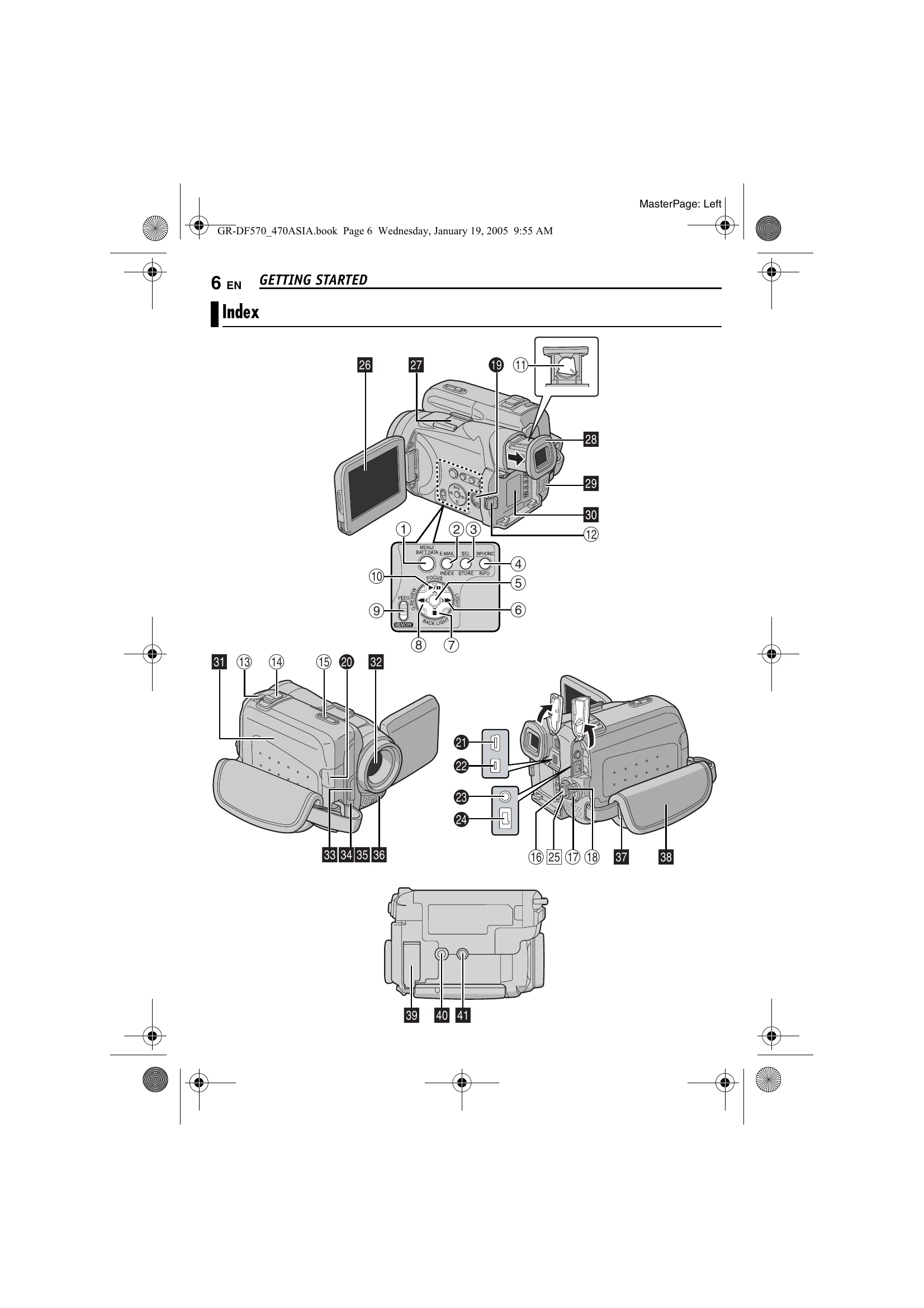
Basic Recording

  1. Remove lens cap.
  2. Open LCD monitor.
  3. Set VIDEO/MEMORY Switch to "VIDEO".
  4. Set Power Switch to "A" or "M" while pressing Lock Button. (Camcorder enters Record-Standby mode; "PAUSE" is displayed.)
  5. Press Recording Start/Stop Button to start recording. ("REC" appears.)
  6. Press Recording Start/Stop Button again to stop recording.

Normal Playback

  1. Load cassette.
  2. Set VIDEO/MEMORY Switch to "VIDEO".
  3. Set Power Switch to "PLAY" while pressing Lock Button.
  4. Press ►/II to start playback.
  5. Press ■ to stop playback.
  6. Press ►► or ◄◄ for fast-forward/rewind.

Still Playback

  1. Press ►/II during playback to pause.
  2. Press ►/II again to resume normal playback.

Shuttle Search

  1. During playback, press ►► for forward search, or ◄◄ for reverse search.
  2. Press ►/II to resume normal playback.

Blank Search

  1. Load cassette.
  2. Set VIDEO/MEMORY Switch to "VIDEO".
  3. Set Power Switch to "PLAY" while pressing Lock Button.
  4. Press MENU.
  5. Select "" (VIDEO Menu).
  6. Select "BLANK SRCH" and press SET.
  7. Select "EXECUTE" and press SET. (Searches for blank portion about 3 seconds before.)
  8. Press ■ to cancel Blank Search midway.

Troubleshooting and error codes

Problem Cause Solution
The camcorder does not turn on. The battery is not attached. Attach the battery pack.
The battery is not charged. Charge the battery pack.
The AC Adapter is not connected properly. Connect the AC Adapter properly.
No image appears on the LCD monitor or viewfinder. The lens cap is attached. Remove the lens cap.
The LCD monitor/viewfinder is turned off. Turn on the LCD monitor/viewfinder.
The battery is exhausted. Charge or replace the battery.
The image is dark. The lens is dirty. Clean the lens.
The backlight is strong. Use the Backlight Compensation function.
The recording is distorted or has noise. The tape is dirty. Clean the video heads with a cleaning cassette.
The tape is low quality. Use a high-quality tape.
Privacy Policy