Brand: JVC
Category: Audio System
Document Type: Manual
Language: EN
Brand: JVC
Category: Audio System
Document Type: Manual
Language: EN
Uploaded: Nov. 21, 2025, 7:43 p.m.
No warranty information is available in the provided pages.
| PROBLEM | POSSIBLE CAUSE | SOLUTION |
|---|---|---|
| Power does not come on. | The power cord is not connected to an AC outlet or the center unit. | Insert the plug into the socket. |
| Power is not supplied to the powered subwoofer. | The power cord of the subwoofer is not connected to an AC outlet. | Press ■/I on the center unit or AUDIO ■/I on the remote control to turn off the system, insert the plug firmly into an AC outlet, and press ■/I on the center unit or AUDIO ■/I on the remote control again. |
| The remote control does not work. | The system cable is not connected. | Connect the system cable. |
| It is too far from the center unit, or is not facing the center unit. | Come closer to the center unit. (Operate the remote control within 7 m from the center unit.) | |
| There is something obstructing the remote sensor. | Avoid any obstacles. (See page 19.) | |
| The remote control is not aimed at the remote sensor on the center unit or components. | Aim the remote control at the remote sensor on each equipment you want to operate. | |
| The remote control mode selector is set at an incorrect position. | Set it to the correct position. | |
| The batteries are exhausted. | Replace the batteries. | |
| The batteries have been inserted the wrong way round (+/-). | Insert the batteries correctly. | |
| The remote control is not set to operate the DVD player, tuner (FM/AM), or sound setting. | For the DVD player, press DVD before you perform the operations. For the tuner, press FM/AM before you perform the operations. For using the sound setting buttons to adjust the output level of the speakers, press SOUND before you perform the operations. | |
| Sunlight is falling directly on the remote sensor. | Cover the remote sensor from direct sunlight. | |
| The remote control signals are not set correctly. | Enter the correct manufacturer's code. (See pages 20, 69, 70.) | |
| No sound. | The system cable and/or speaker cord is not connected. | Check the connection. |
| There is a short in the speaker cord. | Reconnect the speaker cord. | |
| The audio cord is not connected to AUX IN and/or DIGITAL IN correctly. | Connect the cord correctly. (See page 14.) | |
| An incorrect source has been selected. | Select the correct source. (See page 22.) | |
| Muting is on. | Press MUTING to cancel muting. | |
| The decode mode is not set correctly. | Select the proper decode mode. (See page 25.) | |
| Sound from one front speaker only. | The speaker cord is not connected correctly. | Connect the cord correctly. (See page 13.) |
| Left-right balance is not set properly. | Adjust the balance properly. (See pages 59 and 66.) | |
| No sound from the center and/or rear speakers. | The speaker setting is incorrect. | Set the speaker setting properly. (See pages 60 and 66.) |
| The system does not work correctly. | Lightning or electronic noise interferes with operation of the microcomputer. | Switch the power off, and remove and re-insert the power plug in the socket. |
| Immediately after beginning to heat the room, the system was moved to a cold location causing condensation to form inside. | Switch the power off and leave the unit a few hours before switching the power on again. | |
| No picture is displayed on the TV screen. | The video cord is not connected correctly. | Connect the cord correctly. (See page 10.) |
| TV input selection is incorrect. | Select the correct input on the TV. | |
| The disc is not playable. | Use a playable disc. (See page 6.) | |
| No picture is displayed on the TV screen, the picture is blurred, or the picture is divided into two parts. | The scan mode is set to "PROGRESSIVE" though the system is connected to the TV which does not support the progressive video input such as a conventional TV. | Change the scan mode to "INTERLACE." (See page 26.) |
| A disc cannot be played. | The system's and disc's Region Code numbers are incompatible. | Replace the disc. (See page 6.) |
| Parental Lock is in use. | Enter password to change the parental level. (See page 64.) | |
| A disc cannot be played and "0:00" is displayed on the display window. | The disc is inserted with its label and data sides inverted. | Insert the disc correctly. (See page 27.) |
| The unplayable disc is inserted. | Replace the disc. (See page 6.) | |
| The disc is scratched or dirty. | Replace or clean the disc. (See page 71.) | |
| Video and audio are distorted. | A VCR is connected between the center unit and the TV. | Connect the center unit and TV directly. |
| With some discs, a picture may be blurred when setting "PROGRESSIVE MODE" to "FILM" or "AUTO." | Set "PROGRESSIVE MODE" to "VIDEO." (See page 58.) | |
| The picture does not fit the TV screen. | "MONITOR TYPE" is not set correctly. | Set the monitor type correctly. (See page 58.) |
| The TV is not set correctly. | Set the TV correctly. | |
| No subtitle appears on the TV screen though you have selected as your initial subtitle language. | Some DVDs are programmed to always display no subtitle initially. If this happens, press SUBTITLE on the remote control after starting play. (See page 41.) | |
| Audio language is different from the one you have selected as your initial audio language. | Some DVDs are programmed to always use the original language initially. If this happens, press AUDIO on the remote control after starting play. (See page 42.) | |
| A disc cannot be played. | No MP3 files are recorded on the disc. MP3 files do not have the file extension -.mp3, .Mp3, .mP3, or .MP3 in their file names. MP3 files are not recorded in the format compliant with ISO 9660 Level 1 or 2. The different types of files are recorded on a disc. | Replace the disc. Add the file extension-.mp3, .Mp3, .mP3, or .MP3-to their file names. (See page 51.) Replace the disc. (Record MP3 files using a compliant application.) The disc which contains the different types of files may not be played because of its disc characteristics or recording conditions. |
| Not MP3 files but JPEG files are played. | The MP3/JPEG setting is set to "JPEG." | When both MP3 files and JPEG files are recorded on a disc, to play MP3 files, set the setting to "MP3." (See page 58.) |
| The MP3 control display appears on the TV screen, but any operation cannot be performed. | Any MP3 files or JPEG files are not recorded on the disc, or the disc is the unplayable disc (such as CD-ROM). | Replace the disc. (See page 6.) |
| A disc cannot be played. | No JPEG files are recorded on the disc. JPEG files do not have the correct file extension in their file names. JPEG files are not recorded in the format compliant with ISO 9660 Level 1 or 2. | Replace the disc. Add the file extension-.jpg, .jpeg, .JPG, .JPEG or any uppercase and lowercase combination (such as ".Jpg") to their file names. (See page 53.) Replace the disc. (Record JPEG files using a compliant application.) |
| Not JPEG files but MP3 files are played. | The MP3/JPEG setting is set to "MP3." | When both MP3 files and JPEG files are recorded on a disc, to play JPEG files, set the setting to "JPEG." (See page 58.) |
| Hard to listen to broadcast because of noise. | Antennas are disconnected. | Reconnect the antennas correctly and securely. |
| The AM loop antenna is too close to the center unit. | Change the position and direction of the AM loop antenna. | |
| The supplied FM antenna is not properly extended and positioned. | Extend the FM antenna at the best position. | |
| Continuous static during FM broadcasts. | Beat Cut mode is not set properly while listening to an AM broadcast. | Try to change the Beat Cut mode. (See page 32.) |
| The received signal is too weak. | Connect an external FM antenna (see page 11), or contact your dealer. | |
| The station is too far away. | Select another station. | |
| One-touch DVD play does not work though you have connected AV COMPU LINK cord correctly. | AV COMPULINK MODE setting is incorrect. | Set it correctly according to the video input jack on the TV you use. (See page 67.) |
| Suddenly, the system turns off by itself. | The Sleep or Auto Standby function is activated. | Turn the functions off. (See pages 24 and 62.) |
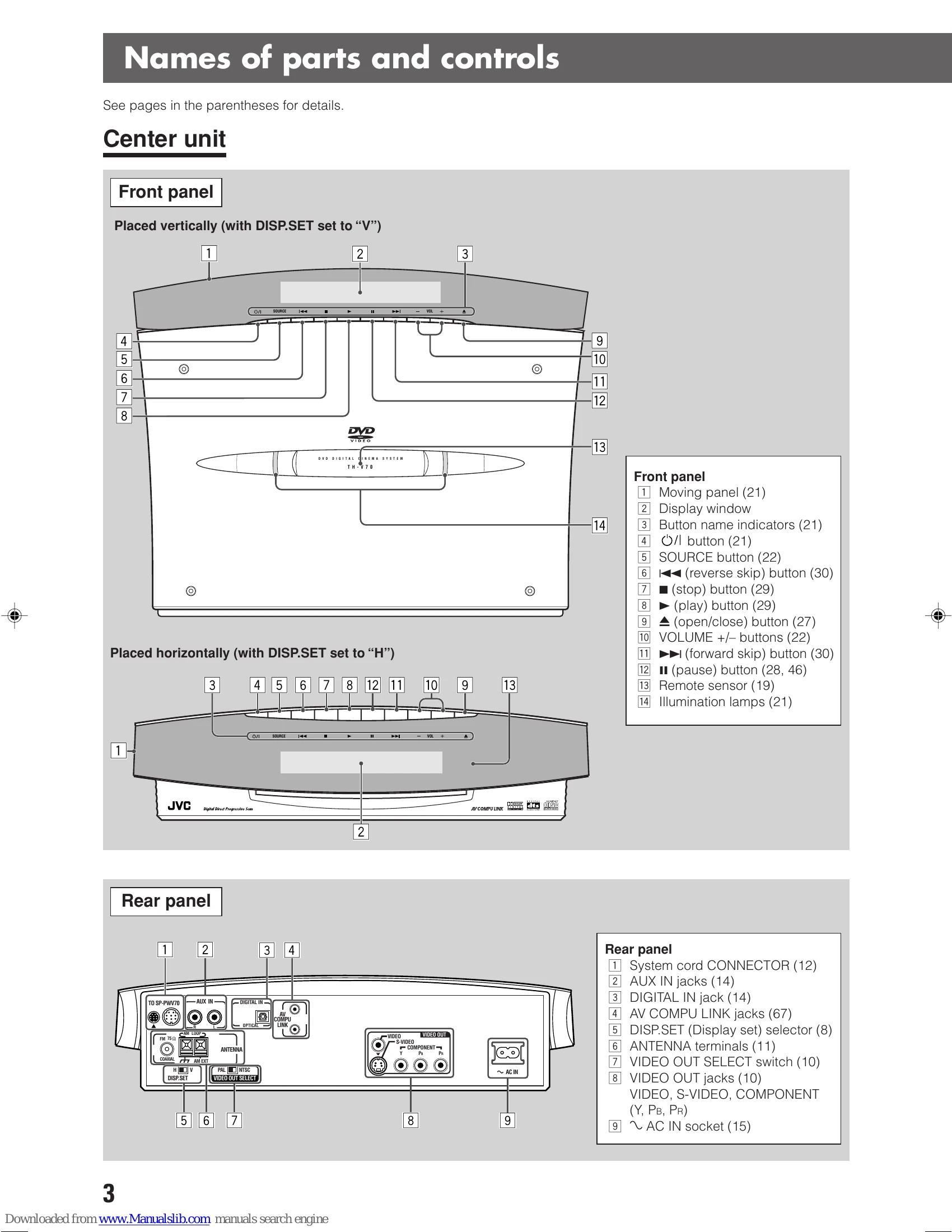
| The indications on the moving panel is displayed upside-down. | DISP.SET selector is not set correctly. | Set it correctly. (See page 8.) |