Manual for Legend

Manual for Legend

Brand: HTC

Category: Smartphone

Document Type:

Language: EN
Uploaded: Aug. 10, 2025, 12:04 a.m.

Getting Started:
  • Charge the battery: Ensure the battery is charged before first use.
  • SIM Card Installation: Insert the SIM card into the designated slot.
  • microSD Card Installation: Insert the microSD card for extra storage.
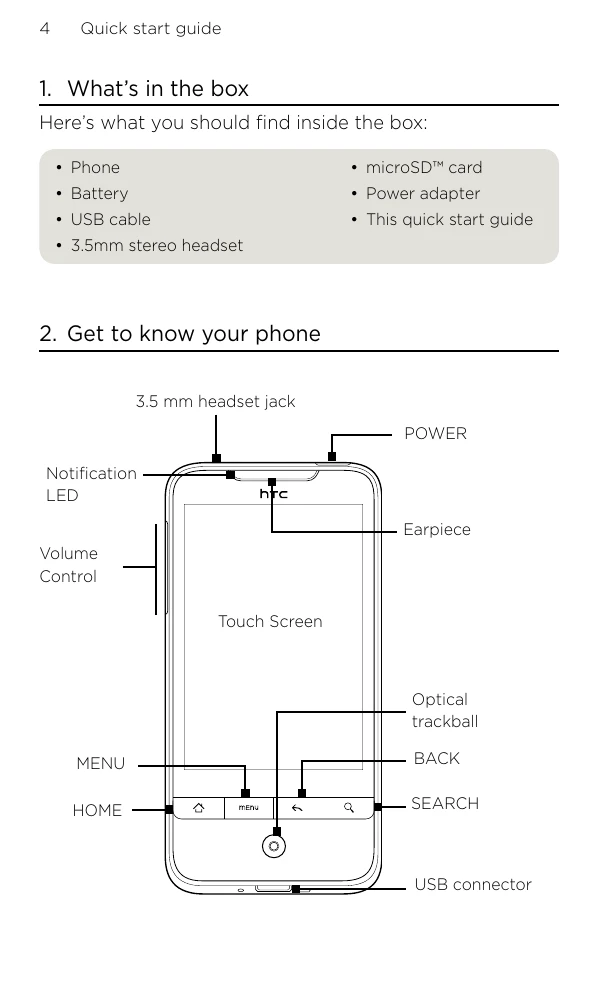
  • Powering On: Press the POWER button to turn on the phone.
  • Initial Setup: Follow on-screen instructions to set language, connect to the internet, and set up accounts (email, social media).
Basic Operations:
  • Navigation: Use the touchscreen, Home, Menu, Back, and Search buttons. The optical trackball is also available for navigation.
  • Making Calls: Tap the Phone icon, dial the number, and tap Call.
  • Adding Contacts: Import from SIM card or add manually through the People app.
  • Internet Connectivity: Connect via data connection or Wi-Fi.
  • Messaging: Access email accounts and send messages.
  • Social Networks: Use Friend Stream to connect with social media.
Advanced Features:
  • File Transfer: Connect to a computer via USB to transfer files.
  • HTC Sync: Sync contacts and calendar with your computer.
  • Backup: Utilize the automatic backup feature to the microSD card.
  • Factory Reset: Reset the phone to its original settings if needed.

Troubleshooting and error codes

Problem Solution
Phone becomes unresponsive Remove battery, wait 3 seconds, reinsert battery, and turn on. Alternatively, back up data and factory reset.
Application issues / Not enough free space Check free space (Settings > SD card & phone storage), clear app data/cache (Settings > Applications > Manage applications), or uninstall third-party apps.
Cannot connect to data service Check if data connection is turned on (Settings > Wireless & networks). Ensure the correct mobile network is selected (Settings > Wireless & networks > Mobile network settings > Network operators or Access Point Names).
Cannot connect to Wi-Fi Ensure Wi-Fi is turned on (Settings > Wireless & networks). Tap Wi-Fi settings to connect to available networks.
HTC Sync not recognized by computer Disconnect and reconnect the USB cable, then repeat the HTC Sync setup step. Ensure USB debugging is enabled (Settings > Applications > Development).
Privacy Policy