Manual for ChaCha

Manual for ChaCha

Brand: HTC

Category: Smartphone

Document Type:

Language: EN
Uploaded: Aug. 10, 2025, 12:04 a.m.

Warranty Information

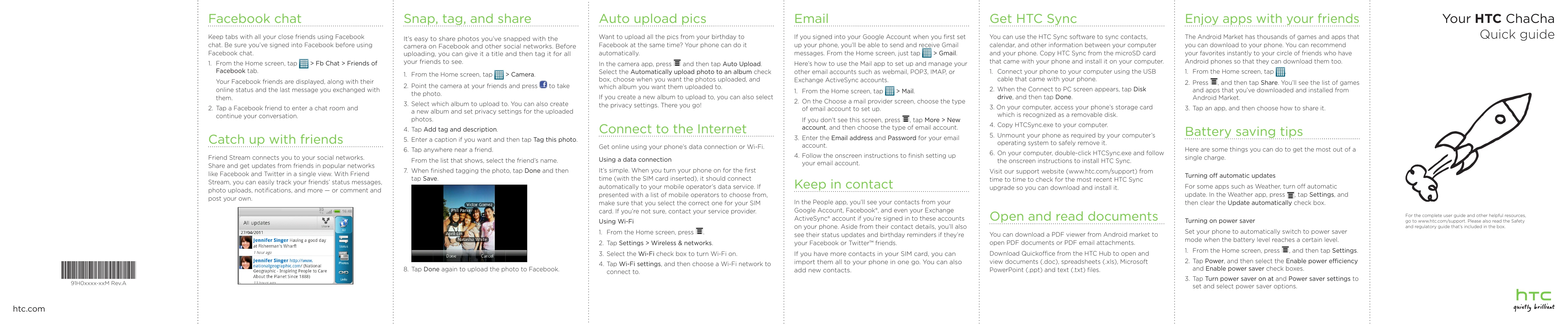
For the complete user guide and other helpful resources, go to www.htc.com/support. Please also read the Safety and regulatory guide that's included in the box.

Facebook chat

Keep tabs with all your close friends using Facebook chat.

  1. From the Home screen, tap > Fb Chat > Friends of Facebook tab.
  2. Tap a Facebook friend to enter a chat room and continue your conversation.

Snap, tag, and share

It's easy to share photos you've snapped with the camera on Facebook and other social networks.

  1. From the Home screen, tap > Camera.
  2. Point the camera at your friends and press to take the photo.
  3. Select which album to upload to.
  4. Tap Add tag and description.
  5. Enter a caption if you want and then tap Tag this photo.
  6. Tap anywhere near a friend.
  7. When finished tagging the photo, tap Done and then tap Save.
  8. Tap Done again to upload the photo to Facebook.

Auto upload pics

Want to upload all the pics from your birthday to Facebook at the same time?

  1. In the camera app, press and then tap Auto Upload.
  2. Select the Automatically upload photo to an album check box, choose when you want the photos uploaded, and which album you want them uploaded to.

Connect to the Internet

Get online using your phone's data connection or Wi-Fi.

Using a data connection

When you turn your phone on for the first time, it should connect automatically to your mobile operator's data service.

Using Wi-Fi

  1. From the Home screen, press.
  2. Tap Settings > Wireless & networks.
  3. Select the Wi-Fi check box to turn Wi-Fi on.
  4. Tap Wi-Fi settings, and then choose a Wi-Fi network to connect to.

Email

If you signed into your Google Account when you first set up your phone, you'll be able to send and receive Gmail messages.

  1. From the Home screen, tap > Gmail.
  2. On the Choose a mail provider screen, choose the type of email account to set up.
  3. Enter the Email address and Password for your email account.
  4. Follow the onscreen instructions to finish setting up your email account.

Keep in contact

In the People app, you'll see your contacts from your Google Account, Facebook®, and even your Exchange ActiveSync® account.

  1. You can import all contacts from your SIM card.
  2. You can also add new contacts.

Get HTC Sync

You can use the HTC Sync software to sync contacts, calendar, and other information between your computer and your phone.

  1. Connect your phone to your computer using the USB cable.
  2. When the Connect to PC screen appears, tap Disk drive, and then tap Done.
  3. On your computer, access your phone's storage card.
  4. Copy HTCSync.exe to your computer.
  5. Unmount your phone as required by your computer's operating system to safely remove it.
  6. On your computer, double-click HTCSync.exe and follow the onscreen instructions to install HTC Sync.

Enjoy apps with your friends

The Android Market has thousands of games and apps that you can download to your phone.

  1. From the Home screen, tap.
  2. Press, and then tap Share.
  3. Tap an app, and then choose how to share it.

Battery saving tips

Here are some things you can do to get the most out of a single charge.

Turning off automatic updates

For some apps such as Weather, turn off automatic update.

Turning on power saver

Set your phone to automatically switch to power saver mode when the battery level reaches a certain level.

  1. From the Home screen, press, and then tap Settings.
  2. Tap Power, and then select the Enable power efficiency and Enable power saver check boxes.
  3. Tap Turn power saver on at and Power saver settings to set and select power saver options.

Troubleshooting and error codes

Header 1 Header 2 Header 3 Header 4
Row 1 Data 1 Row 1 Data 2 Row 1 Data 3 Row 1 Data 4
Row 2 Data 1 Row 2 Data 2 Row 2 Data 3 Row 2 Data 4
Row 3 Data 1 Row 3 Data 2 Row 3 Data 3 Row 3 Data 4
Privacy Policy