Brand: HP
Category: Digital Camera
Document Type:
Language: EN
Brand: HP
Category: Digital Camera
Document Type:
Language: EN
Uploaded: Aug. 9, 2025, 11:53 p.m.
Getting to know your camera: This digital camera features an 8-megapixel sensor, digital still and video capabilities, a built-in flash, 4x digital zoom, a 2.7+1.8" TFT color display, Micro SD card support, and uses 2 x AAA alkaline batteries.
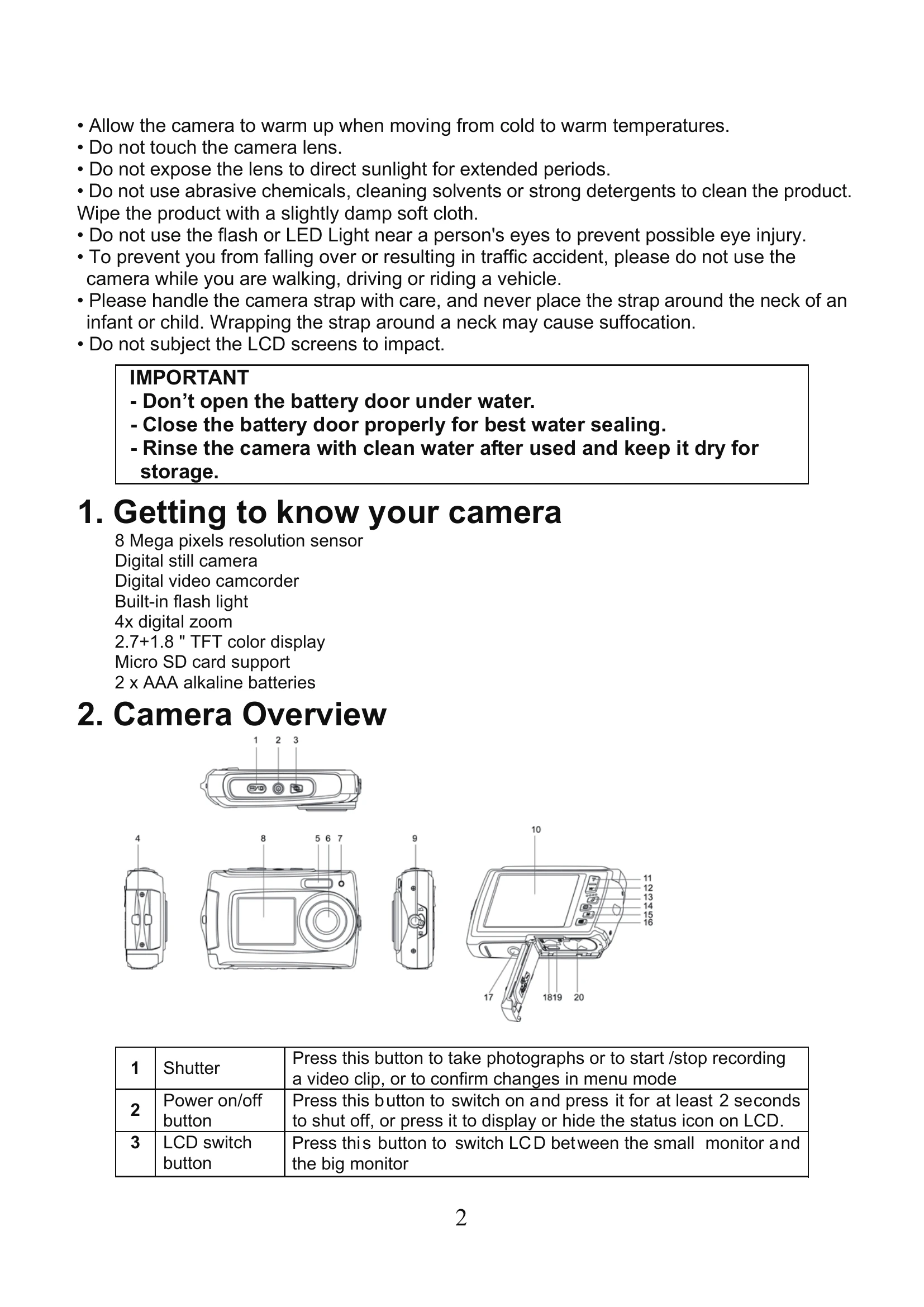
Camera Overview: Familiarize yourself with the camera's buttons and features, including the Shutter, Power/On-Off, LCD Switch, Strap Hook, Flash, Lens, Busy Indicator, Small Monitor, Macro/Normal Switch, LCD Screen, Up/Tele, Down/Wide, Left/Flash Light, Right/Playback, Mode Switch, and Menu/Delete buttons. Also, identify the Tripod Connector, USB Interface, Micro SD card slot, and Battery compartment.
Using the Camera: Learn how to install batteries, insert a memory card, format the SD card, set the resolution, take photographs (including zoom, self-timer, and macro modes), record video clips, and play back/manage your photos and videos.
Connecting to a PC: Connect the camera to your computer using the USB cable to transfer photos and videos.
| Problem | Cause | Solution |
|---|---|---|
| Cannot power on the camera | Low battery power. Battery placed at wrong polarities. |
Replace or install the battery correctly. |
| Photos can not be saved when taking pictures. | The memory card hasn't been formatted properly. | Format the memory in setup mode of the camera. Please refer to section 5.3. |
| Cannot find removable disk after connecting the camera to the computer. | Connection failure. | Make sure all cable connections are secured and restart the computer if necessary. |
| Flash does not work. | Battery power is too low. | Replace with new 2 x AAA alkaline batteries |
| The batteries used up very fast. | Incorrect or old, used up, battery | Replace with new 2 x AAA alkaline batteries. This camera can take up to 100 photos or 25 minutes of video |
| The photos are blurry | 1. The camera is not held steadily 2. The lens of camera is dirty. |
1. Hold the camera steadily until it beeps when taking video photo. 2. Clean the lens with soft dry cloth. |