Brand: HP
Category: Computer
Document Type: Manual
Language: EN
Brand: HP
Category: Computer
Document Type: Manual
Language: EN
Uploaded: Nov. 21, 2025, 6:36 p.m.
Manual Publish Date: 2021-05-01
No explicit warranty period is stated in the provided sections.
| Component | Description |
|---|---|
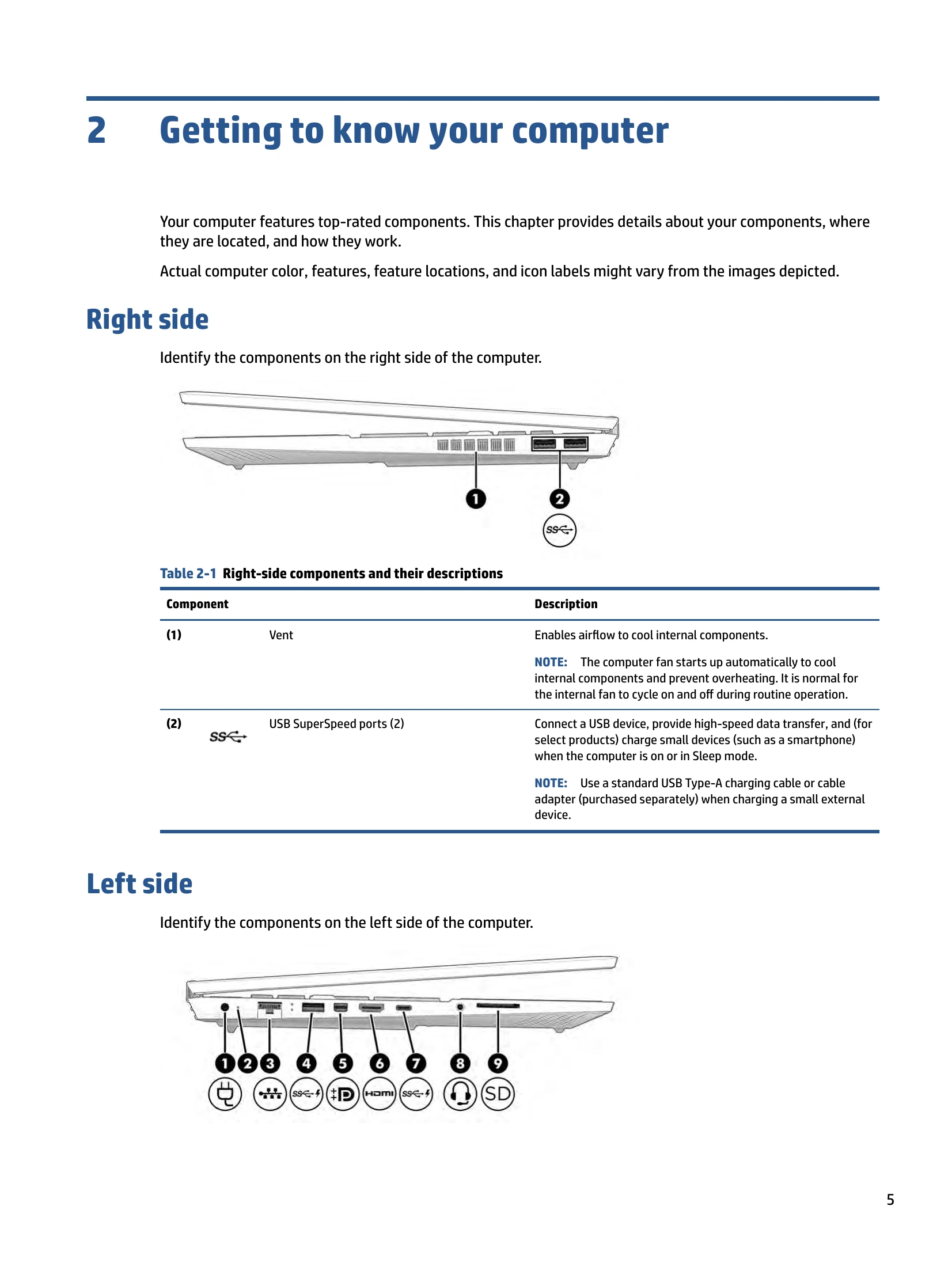
| Vent | Enables airflow to cool internal components. The computer fan starts up automatically to cool internal components and prevent overheating. It is normal for the internal fan to cycle on and off during routine operation. |
| (2) USB SuperSpeed ports (2) | Connect a USB device, provide high-speed data transfer, and (for select products) charge small devices (such as a smartphone) when the computer is on or in Sleep mode. NOTE: Use a standard USB Type-A charging cable or cable adapter (purchased separately) when charging a small external device. |
| (1) Power connector | Connects an AC adapter. |
| (2) AC adapter and battery light | White: The AC adapter is connected and the battery is fully charged. Blinking amber: The AC adapter is disconnected and the battery has reached a low battery level. Amber: The AC adapter is connected and the battery is charging. Off: The battery is not charging. |
| (3) RJ-45 (network) jack/status lights | Connects a network cable. White: The network is connected. Amber: Activity is occurring on the network. |
| (4) USB SuperSpeed port with HP Sleep and Charge | Connects a USB device, provides high-speed data transfer, and charges small devices (such as a smartphone), even when the computer is off. NOTE: Use a standard USB Type-A charging cable or cable adapter (purchased separately) when charging a small external device. |
| (5) Dual-Mode DisplayPort™ connector | Connects an optional digital display device, such as a high-performance monitor or projector. |
| (6) HDMI port | Connects an optional video or audio device, such as a high-definition television, any compatible digital or audio component, or a high-speed High-Definition Multimedia Interface (HDMI) device. |
| (7) USB Type-C® SuperSpeed port with HP Sleep and Charge | Connects a USB device, provides high-speed data transfer, and charges small devices (such as a smartphone), even when the computer is off. NOTE: Use a standard USB Type-C charging cable or cable adapter (purchased separately) when charging a small external device. -and- Connects a display device that has a USB Type-C connector, providing DisplayPort output. |
| (8) Audio-out (headphone)/Audio-in (microphone) combo jack | Connects optional powered stereo speakers, headphones, earbuds, a headset, or a television audio cable. Also connects an optional headset microphone. This jack does not support optional standalone microphones. WARNING! To reduce the risk of personal injury, adjust the volume before putting on headphones, earbuds, or a headset. For additional safety information, see the Regulatory, Safety, and Environmental Notices. To access this guide: Type HP Documentation in the taskbar search box, and then select HP Documentation. |
| (9) Memory card reader | Reads optional memory cards that enable you to store, manage, share, or access information. To insert a card: 1. Hold the card label-side up, with connectors facing the computer. 2. Insert the card into the memory card reader, and then press in on the card until it is firmly seated. To remove a card: Press in on the card, and then remove it from the memory card reader. |
| Vent | Enables airflow to cool internal components. NOTE: The computer fan starts up automatically to cool internal components and prevent overheating. It is normal for the internal fan to cycle on and off during routine operation. |
| (1) WLAN antennas* | Send and receive wireless signals to communicate with wireless local area networks (WLANs). |
| (2) Internal microphones (2) | Record sound. |
| (3) Camera | Allows you to video chat, record video, and record still images. Some cameras also allow a facial recognition logon to Windows, instead of a password logon. NOTE: Camera functions vary depending on the camera hardware and software installed on your product. |
| (4) Camera light | On: The camera is in use. |
| (1) Caps lock light | On: Caps lock is on, which switches the key input to all capital letters. |
| (2) Mute light | On: Computer sound is off. Off: Computer sound is on. |
| (3) Touchpad light | On: The touchpad is off. Off: The touchpad is on. |
| (4) Power light | On: The computer is on. Blinking (select products only): The computer is in the Sleep state, a power-saving state. The computer shuts off power to the display and other unnecessary components. Off: Depending on your computer model, the computer is off, in Hibernation, or in Sleep. Hibernation is the power-saving state that uses the least amount of power. |
| (1) esc key | Displays system information when pressed in combination with the fn key. |
| (2) fn key | Executes specific functions when pressed in combination with another key. |
| (3) Windows key | Opens the Start menu. NOTE: Pressing the Windows key again will close the Start menu. |
| (4) Action keys | Execute frequently used system functions when pressed in combination with the fn key. Action keys are defined by the icon symbols on f1 through f12 function keys. |
| (5) Windows application key | Displays options for a selected object. |
| (6) OMEN key | Opens the OMEN Gaming Hub software. See HP OMEN Gaming Hub on page 13 for more information. |
| (7) Calculator key | Opens the calculator. |
| (2) Speakers (2) | Produce sound. |
| Vent | Enables airflow to cool internal components. NOTE: The computer fan starts up automatically to cool internal components and prevent overheating. It is normal for the internal fan to cycle on and off during routine operation. |