Manual for 1450g/1452g/1450g2DHR Series

Manual for 1450g/1452g/1450g2DHR Series

Brand: Honeywell

Category: Scanner

Document Type: Manual

Language: EN
Uploaded: Nov. 21, 2025, 6 p.m.

Warranty Information

Refer to www.honeywellaidc.com/warranty_information for product warranty.

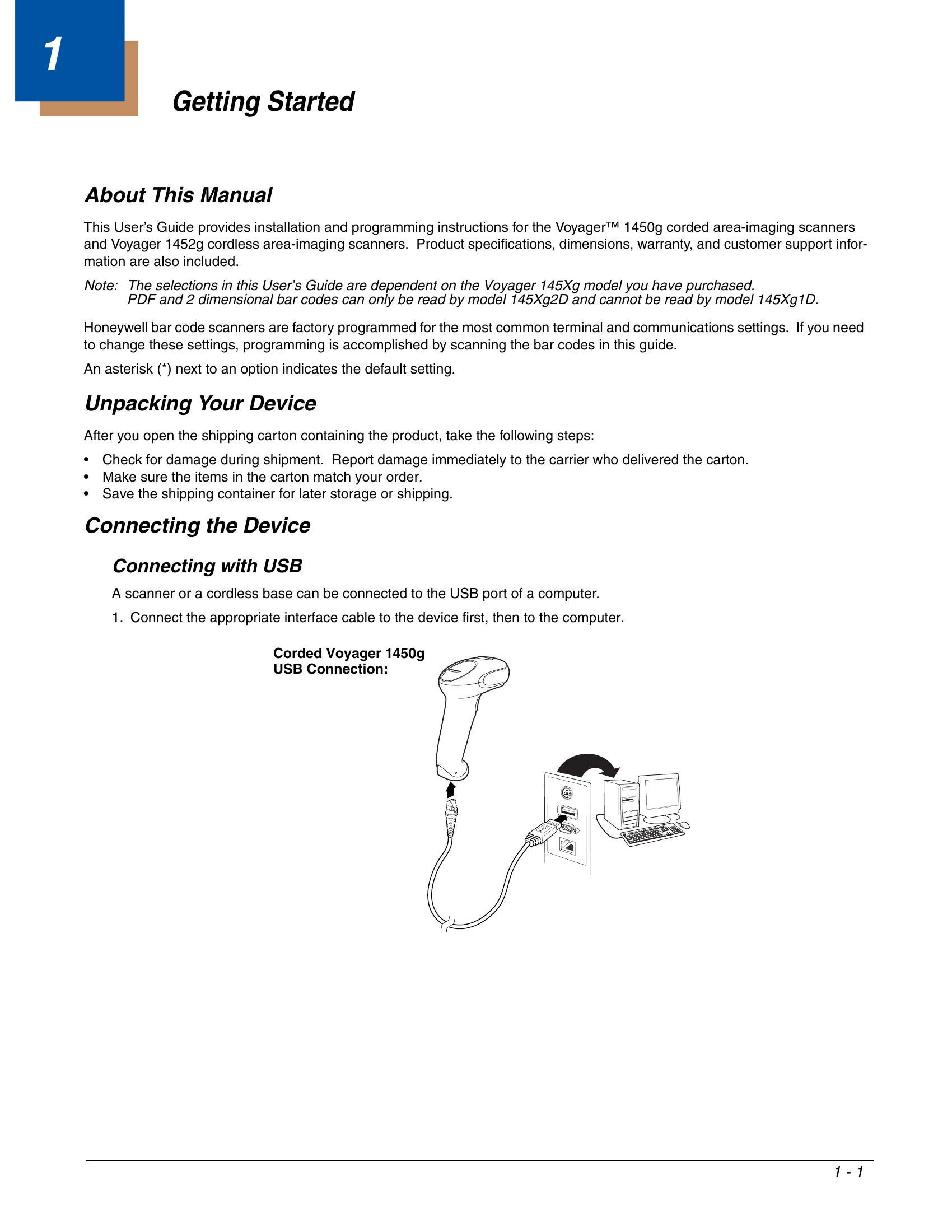
  • Getting Started: Includes unpacking and connecting the device via USB, Keyboard Wedge, RS232 Serial Port, and RS485.
  • Programming the Interface: Covers various interface configurations like Keyboard Wedge, RS232 Serial Port, RS485, and USB connections, along with specific terminal settings.
  • Cordless System Operation: Details linking scanners to bases/access points, battery information, LED/beeper sequences, and managing cordless system behavior.
  • Input/Output Settings: Manages beeper and LED indicators, trigger behavior, and illumination settings.
  • Data Editing & Formatting: Allows customization of prefixes, suffixes, and data formats.
  • Symbologies: Configuration for various barcode types, including message length and check digit settings.
  • Utilities: Options for showing revisions, data formats, and resetting defaults.
  • Serial Programming Commands: Provides details on using serial commands for programming.
  • Maintenance & Troubleshooting: Covers cleaning, inspections, cable/battery replacement, and troubleshooting steps for common issues.

Troubleshooting and error codes

Issue Solution
Is the power on? Is the aimer on? If the aimer isn’t illuminated, check that:
  • The cable is connected properly.
  • The host system power is on (if external power isn’t used).
  • The trigger works.
Is the scanner having trouble reading your symbols? If the scanner isn’t reading symbols well, check that the symbols:
  • Aren’t smeared, rough, scratched, or exhibiting voids.
  • Aren’t coated with frost or water droplets on the surface.
  • Are enabled in the base or Access Point to which the scanner connects.
Is the bar code displayed but not entered into the application? The bar code is displayed on the host device correctly, but you still have to press a key to enter it (the Enter/Return key or the Tab key, for example).
  • You need to program a suffix. Programming a suffix enables the scanner to output the bar code data plus the key you need (such as “CR”) to enter the data into your application. Refer to Prefix/Suffix Overview beginning on page 5-1 for further information.
The scanner won’t read your bar code at all.
  • Scan the sample bar codes in the back of this manual. If the scanner reads the sample bar codes, check that your bar code is readable.
  • Verify that your bar code symbology is enabled (see Chapter 7).
  • If the scanner still can’t read the sample bar codes, scan All Symbologies on page 7-1.
  • If you aren’t sure what programming options have been set in the scanner, or if you want the factory default settings restored, refer to Resetting the Custom Defaults on page 10-3.
Privacy Policy