Brand: Haier
Category: Mobile Phones
Document Type: Manual
Language: EN
Brand: Haier
Category: Mobile Phones
Document Type: Manual
Language: EN
Uploaded: Nov. 21, 2025, 8:54 p.m.
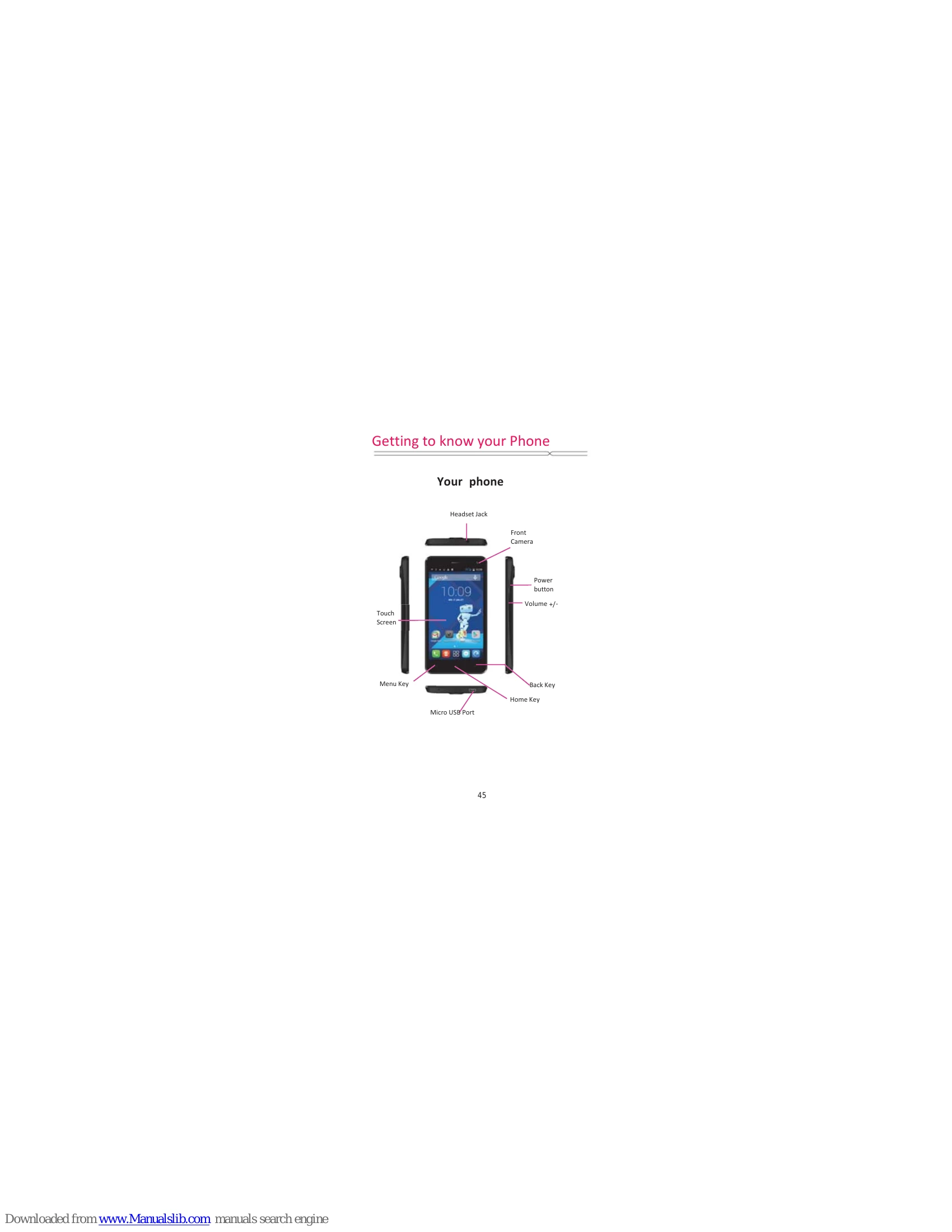
Familiarize yourself with the physical buttons and ports of your HaierPhone G31. The phone features a Touch Screen, Menu Key, Back Key, Home Key, Micro USB Port, Headset Jack, Front Camera, Power button, and Volume controls. The rear of the phone includes the Camera Lens, LED flash, and Loud speaker.
The status bar displays icons for network signal strength, call status, battery level, new messages, USB connection, flight mode, and more. Swipe down from the status bar to open the notification panel for details.
The Home screen serves as the main gateway to your phone's features. You can access applications from the Favorite Tray or the Main menu. Swipe left or right to view additional panels. Long-press the Home Screen for customization options like changing wallpapers or adding widgets.
Make calls using the dial pad or by accessing contacts from the People application. Incoming calls can be answered or rejected. The phone also displays missed calls on the status bar.
Connect to the internet via Wi-Fi by navigating to Settings > Wi-Fi. You can set up email accounts and download applications from the Google Play Store by logging in with your Gmail account.
Use the Camera app to take pictures and record videos. Options include panorama mode, flash settings, and switching between front and back cameras. Photos and videos can be viewed and edited in the Gallery.
Access the Music Player to listen to songs. You can categorize music by genres, artists, or albums, and control playback with options like play/pause, next song, shuffle, and repeat.
The phone's keyboard offers automatic word correction and suggestions. You can also use cut, copy, and paste functions for text.
Explore other features such as Messaging, Clock (alarms, world clock, stopwatch), Calculator, Calendar, File Manager, and Google settings.
The settings menu provides access to various configurations including SIM management, Wi-Fi, Bluetooth, Audio profiles, Display, Storage, Apps, Location, Security, Language, Backup & reset, and About phone.
| Troubles | Cause and Solution |
|---|---|
| Fail to turn on | Press the Power Key for over 1 second. Check if the battery is properly connected. Please remove and install it again, retry to turn it on; Check if battery is appropriately charged. |
| Fail to connect network | Weak signal. Please try and move to a location with strong signal and try connecting to the network again; Please ensure that you are not beyond the network coverage of service providers; Please ensure you have a valid SIM card. Please contact your network provider for further information; |
| Poor quality of calling | Please check if the sound volume is tuned improperly In an area with poor receiving condition, example: basement, the signal might be weak. Try searching a location with stronger signal reception and call again. While using the mobile phone in the peak period of communication, like commute time, you may be unable to call because of line congestion. |
| SIM Card Error | Dirt on the metal surface of an SIM card. Use clean cloth to wipe the metal touch point on an SIM card. The SIM card is not installed. The SIM card is damaged. Please contact your network service provider. |
| Callers cannot contact you | Please check if the mobile phone is on and connected with the network. Please check if the Call barring or call divert is activated. Please check if the SIM card is valid. |
| Fail to set some functions | Wrong operation. The network provider does not support the function, or you have not applied for it. |