Manual for HERO7 White

Manual for HERO7 White

Brand: GoPro

Category: Electronics

Document Type: Manual

Language: EN
Uploaded: Aug. 10, 2025, 12:49 a.m.

Warranty Information

No warranty information found in the document.

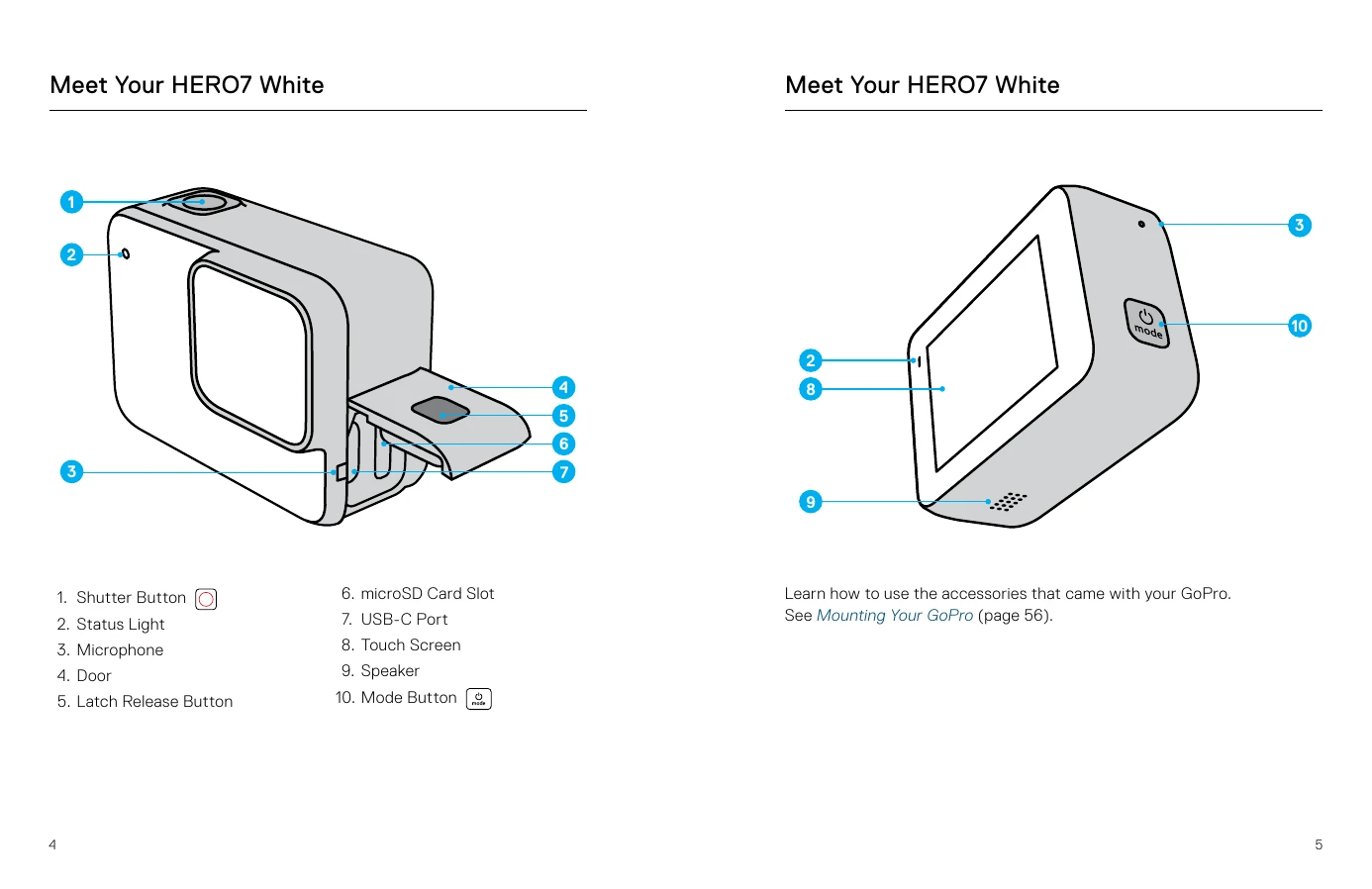
  • Powering On/Off: Press the Mode button to turn on the HERO7 White. Press and hold the Mode button to turn it off.
  • Capture Modes: Switch between Video, Photo, and Time Lapse Video by swiping left or right on the screen or by pressing the Mode button.
  • Recording Video: Swipe to Video mode, press the Shutter button to start recording, and press it again to stop.
  • Taking Photos: Swipe to Photo mode and press the Shutter button to take a single photo. Press and hold the Shutter button for continuous photos or use the timer for group shots.
  • Time Lapse Video: Swipe to Time Lapse mode, press the Shutter button to start recording, and again to stop.
  • Touch Screen Navigation: Tap to select, swipe left/right to change modes, swipe down from the edge to access the Dashboard, and swipe up to access the Media Gallery.
  • Voice Control: Use voice commands like "GoPro start recording" or "GoPro take a photo" for hands-free operation.
  • Connecting to GoPro App: Download the app, follow on-screen instructions to connect your camera for controlling, sharing, and creating QuikStories.
  • Transferring Media: Transfer videos and photos to your phone via the GoPro app or to a computer using a USB-C cable or SD card reader.

Troubleshooting and error codes

Issue Solution
My GoPro won't power on Ensure the GoPro is charged. If charging didn't work, try restarting the camera.
My GoPro won't respond when I press a button Restart your GoPro by pressing and holding the Mode button for 10 seconds.
Playback on my computer is choppy Ensure your computer supports H.264 files. Download the latest Quik desktop app or ensure your computer meets the software's minimum requirements for playback.
Forgot camera username or password Swipe down to access the Dashboard, then tap Preferences > Connections > Camera Info.
Don't know software version Swipe down to access the Dashboard, then tap Preferences > About > Camera Info.
Can't find camera serial number The serial number is inside the door. You can also find it by swiping down to access the Dashboard, then tapping Preferences > About > Camera Info.
Privacy Policy