Brand: Fujitsu
Category: Storage Systems
Document Type: Manual
Language: EN
Brand: Fujitsu
Category: Storage Systems
Document Type: Manual
Language: EN
Uploaded: Nov. 21, 2025, 9:13 p.m.
Manual Publish Date: 2017-04-01
The standard maintenance support period for ETERNUS DX is five years from the date of purchase.
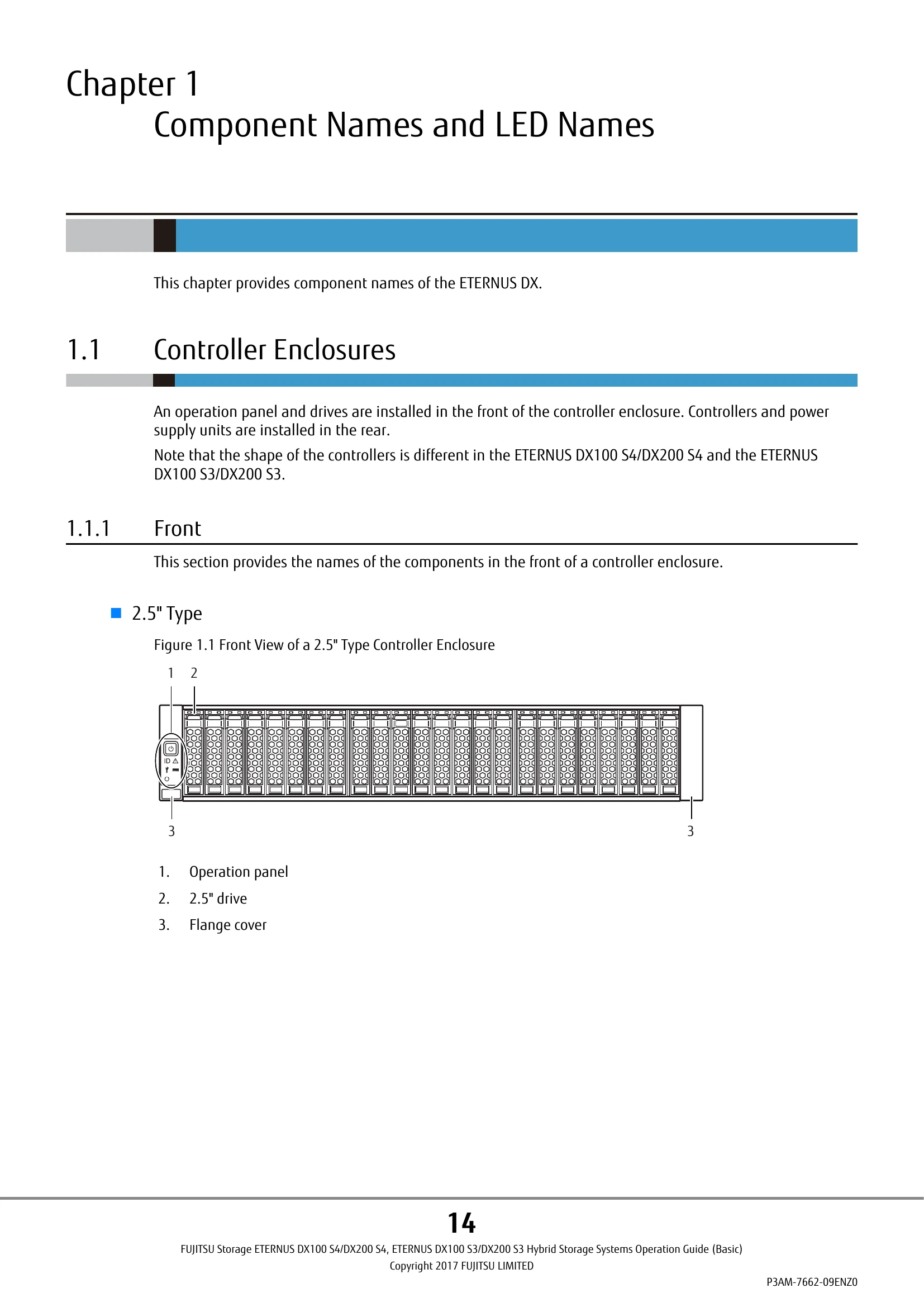
This manual describes the operation management and maintenance of the ETERNUS DX. It is intended for users in regions other than Japan. Key chapters cover component identification, basic power on/off procedures, and the use of the FUNCTION button. It also details storage system monitoring, estimated process times for operations like volume formatting and rebuilds, component expansion procedures, maintenance guidelines, and troubleshooting steps for common errors.
| Symptom | Check Points and Actions |
|---|---|
| ETERNUS DX Is Turned Off | Check power cord, PSU switch, server power, main line switch, and power failure. If a synchronized unit is used, server power off affects ETERNUS DX. Check Power Resume function status. |
| ETERNUS DX Refuses to Turn On | Check power cord, PSU switch, main line switch, power failure, and mini SAS HD cable connections. |
| READY LED Is Not On | Wait up to 11-50 minutes depending on configuration. If still not on, contact maintenance engineer. |
| FAULT LED Is On | Check ETERNUS Web GUI for general status and messages. If error persists, contact maintenance engineer. Check mini SAS HD cable connections if GUI shows 'Error'. |
| FAULT LED Blinks | Check ETERNUS Web GUI for Warning status indicating preventive maintenance. Check component details and contact maintenance engineer. |
| DRIVE FAULT LED Is On | Check drive status. May be temporarily on during Protection (Shield) function. If persists, contact maintenance engineer. |
| ETERNUS DX Cannot Be Connected via Network Service | Check ETERNUS DX power, LAN cable, MASTER LED status (dual-controller), network devices, IP address, and firewall settings. Procedures for switching Master CM and restoring default network/firewall settings are provided. |
| I/O Access Is Slow | Check battery status, ambient temperature, ETERNUS DX component status via Web GUI, path status (Multipath Driver), load balance, FC port transfer rate, server command queues, OS logs, RAID group status, and cache parameter settings. |
| Server Does Not Recognize Volumes | Check ETERNUS DX status, connected devices, and path errors using management tools. Contact maintenance engineer if unresolved. |
| Server HBA Fails and Needs Replacement | Procedures for replacing FC/FCoE, LAN, and SAS cards are provided, including checking WWNs, host affinity, and reconfiguring settings. |