Brand: FUJITSU
Category: Computers
Document Type: Manual
Language: EN
Brand: FUJITSU
Category: Computers
Document Type: Manual
Language: EN
Uploaded: Nov. 21, 2025, 6:07 p.m.
Manual Publish Date: 2019-11-01
No warranty information found in this section. Refer to the Operator's Guide for details.
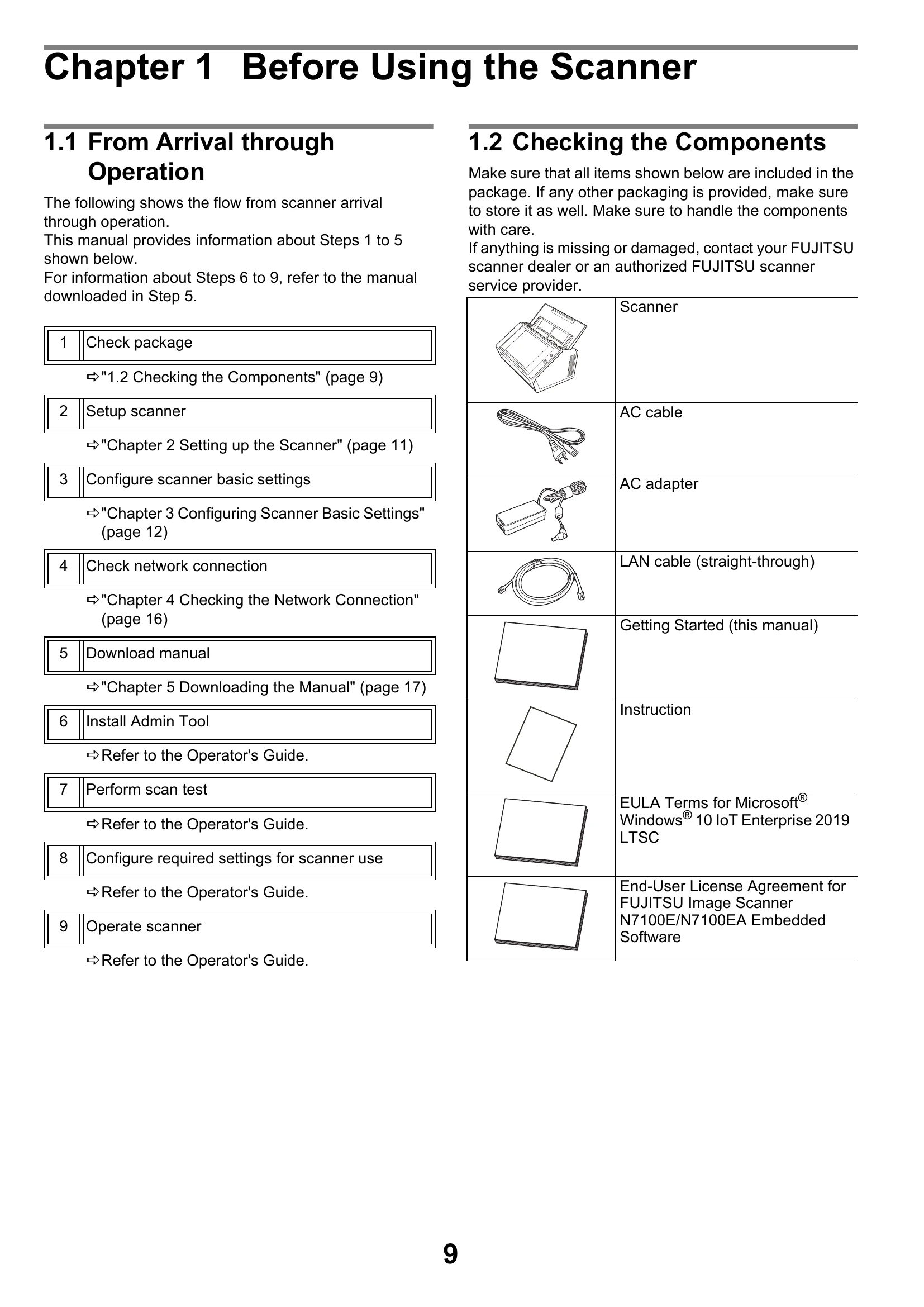
This manual provides information about the initial steps for using the FUJITSU Image Scanner N7100E, from arrival through operation. It covers checking the package contents, setting up the scanner, configuring basic settings, and checking the network connection.
Key steps include:
| Section | Details | Action | |
|---|---|---|---|
| A.1 Network Connection Troubleshooting | Checking Basic Network Operation with a Ping Test | ||
| Response from ping test: Reply from (destination IP address): bytes=32 time<(time)ms TTL=(TTL value) |
The response from the ping destination address is normal. | ||
| [Ping statistics] shows "Lost=4 (100% loss)" | Communication with the device is unavailable. Possible hardware issues or incorrect settings. |
|
|
| [Ping statistics] shows "Lost=N (1 to 99% loss)" | Communication is unstable. Possible hardware issues or incorrect settings. |
|
|
| "Ping request could not find host XXXXXXXXX..." | Name-resolution or address-resolution failed. |
|
|
| Failure to Connect to a Server Using Its IP Address | |||
| Connection error between server and scanner. Problem with LAN cable. | None |
|
|
| The settings specified on the [IP Address] window are invalid. | None |
|
|
| When using DHCP, the DHCP server does not operate normally. | None |
|
|
| Another host or communication device is connected using the same IP address as the scanner. | |||
| None | Duplicate IP address detected. |
|
|
| Access is denied due to the establishment of a firewall between the server and the scanner. | |||
| None | Firewall is blocking access. |
|
|
| The network [Link Speed/Duplex Mode] for the scanner and server are different, or "Auto-Negotiation" is not supported by the server. | |||
| None | Network settings mismatch. |
|
|
| Failure to Connect to a Server Using Its Host Name or FQDN | |||
| None | Scanner cannot connect to a server by host name or FQDN. |
|
|
| The scanner's DNS server or WINS server settings are invalid. | None |
|
|
| The DNS or WINS server does not operate normally. Or an error occurred on the network path to the DNS or WINS server. | None |
|
|
| Failure to Access the Scanner Using Internet Explorer, the Admin Tool, the Central Admin Server, or User Editor | |||
| None | Scanner not accessible. |
|
|
| The DNS or WINS server does not operate normally. Or the scanner name is not registered in the DNS or WINS server. | None |
|
|
| A misconfigured firewall between the scanner and the computer is denying access. | None |
|
|
| The URL of the target scanner is not registered as a trusted site. | None |
|
|
| In Internet Explorer, the security level for the target zone is set to [High]. | None |
|
|
| The scanner is in standby mode. | None |
|
|
| A proxy server is being used. | None |
|
|
| There is an error with the connection protocol setting. (Scanner) | SSL is not enabled on the [Admin Connection] window. |
|
|
| There is an error with the connection protocol setting. (Computer) | Incorrect SSL/TLS settings. |
|
|
| There is an error with the port number setting. | Incorrect port number. |
|
|
| A.2 Power Troubleshooting | Scanner cannot be turned on. | ||
| Has the power button been pressed? | None |
|
|
| Are the AC cable and AC adapter properly connected? | None |
|
|
| A.3 Login Troubleshooting | Cannot login with administrator password. | ||
| Was the Caps Lock on when the password was entered? | None |
|
|
| Has the password been changed? | Password lost or forgotten. |
|
|