Brand: FUJITSU
Category: Computers
Document Type: Manual
Language: EN
Brand: FUJITSU
Category: Computers
Document Type: Manual
Language: EN
Uploaded: Nov. 21, 2025, 6:19 p.m.
Manual Publish Date: 2007
No warranty information available in the provided document excerpt.
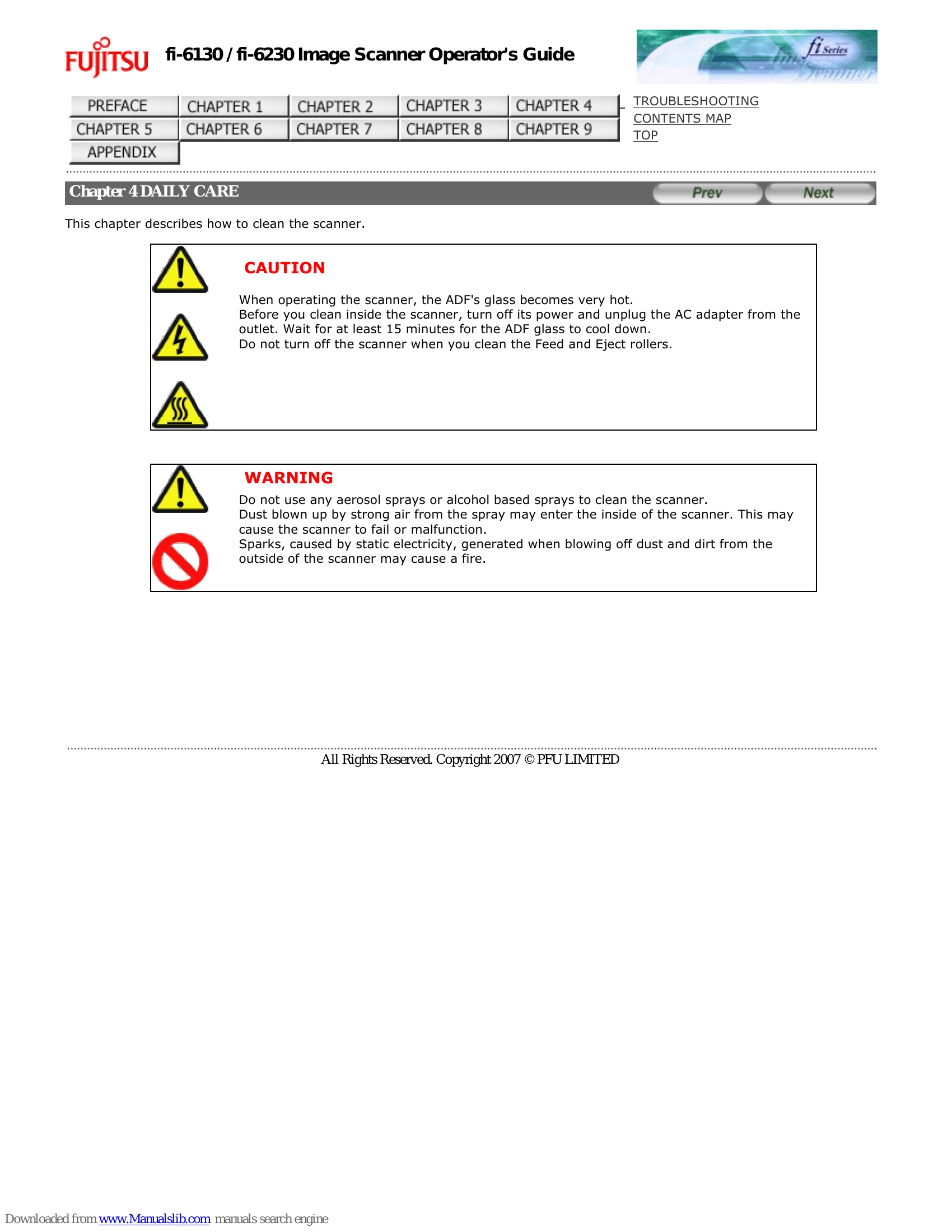
This chapter describes how to clean the scanner.
The table below shows the cleaning materials that are used on this scanner.
| Cleaning Materials | Part No. | Remarks |
|---|---|---|
| Cleaner F1 | PA03950-0352 | 1 bottle (100 ml) Moisten cloth with this fluid and wipe the scanner clean. (*1) |
| Cleaning wipe | PA03950-0419 | 24 sheets per pack (*1)(*2) |
| Soft, dry cloth | Commercially available. |
*1: For details on Cleaner F1, consult the agent where you bought your scanner or an authorized FUJITSU service provider.
*2: Pre-moistened with Cleaner F1, Cleaning Wipes are used instead of moistened cloths.
| Location | Standard Cleaning Cycle |
|---|---|
| Brake roller | Clean every 5,000 scanned sheets. |
| Pick roller | |
| Feed roller | |
| Plastic roller | |
| Eject roller | |
| Glass | |
| Ultrasonic sensor |
The scanner must be cleaned more frequently when the following documents are used:
Detergent for cleaning windows or glass cleaner can be used instead of Cleaner F1. However, do not use paint thinner or other organic solvents.
Do not allow moisture to get inside the device during cleaning.
As a Guideline, clean the ADF every 5,000 scanned sheets. Note that this guideline varies according to the type of documents you scan. For example, it may be necessary to clean the ADF more frequently if documents are scanned when the toner is not sufficiently fixed on the printout.
Be careful, the ADF may close and pinch your finger.
| No. | Item |
|---|---|
| 1 | Brake rollers (x 2) |
| 2 | Feed rollers (x 2) |
| 3 | Eject rollers (x 2) |
| 4 | Glasses (x 2) |
| 5 | Pick rollers (x 2) |
| 6 | Plastic rollers (x 4) |
| 7 | Ultrasonic sensors (x 2) |
To avoid damaging the document sensors, take care that the cloth does not get hooked into them when cleaning the inside of the ADF.
Lightly clean the Brake roller along the grooves on the roller taking care not to scratch the roller surface. When cleaning the Brake roller, remove it from the scanner. For how to remove the Brake Roller, see Section "5.3 Replacing the Brake Rollers."
Lightly clean the Pick roller along the grooves on the roller taking care not to scratch the roller surface. Take particular care in cleaning this roller as black debris on it adversely affects the pickup performance.
Lightly clean the Plastic roller taking care not to damage the roller surface. Take particular care when cleaning this roller as black debris on it affects document pick performance. Be careful not to damage the sponges attached around the middle of the roller.
Clean lightly.
HINT: If the glass is dirty, vertical streaks may apper in the scanned images.
Clean lightly with a dry cloth.
In step 2, all the Feed rollers/Eject rollers turn at the same time. When cleaning the Feed rollers or Eject rollers, be careful not to touch the other rotating Feed rollers/Eject rollers.
When the ADF has returned to its original position, make sure that it is completely closed. Feeding errors may occur if the ADF is not closed completely.
| Symptom | Troubleshooting Steps |
|---|---|
| The scanning does not start. |
|
| Quality of scanned pictures or photos is not satisfactory when scanning in black and white. |
|
| Quality of scanned text or lines is unsatisfactory. |
|
| Images are distorted or blurred. |
|
| Vertical lines appear in the scanned image. |
|
| The Function Number Display indicates alarm (with [E] or other alphabetical letter plus a number) after the scanner is turned ON. |
|
| Multifeed errors occur frequently. |
|
| Pickup errors occur frequently. |
|
| Paper jams occur frequently. |
|
| The scanned images are elongated when scanned from the ADF. |
|
| There is a shadow on the leading edge of the scanned images. |
|