Brand: Fujifilm
Category: Camera
Document Type:
Language: EN
Brand: Fujifilm
Category: Camera
Document Type:
Language: EN
Uploaded: Aug. 9, 2025, 11:50 p.m.
FUJIFILM warrants that Media is free from any defect in material and workmanship under normal use for ninety (90) days from the date of your receipt of Media.
1. Getting Ready:
2. Using the Camera:
3. Advanced Features:
4. Settings:
5. Software Installation:
6. Viewing Images:
| Troubleshooting | Possible causes | Solutions |
|---|---|---|
| The camera does not emit any sound. | The camera volume is set too low. The microphone was blocked during shooting/recording. There is something covering the speaker during playback. |
Adjust the volume. Take care not to block the microphone during shooting/recording. Make sure that the speaker is uncovered. |
| Frame erase does not erase the frame. | Some frames may be protected. | Unprotect frames using the camera on which the protection was first applied. |
| The ERASE ALL function does not erase all the frames. | --- | --- |
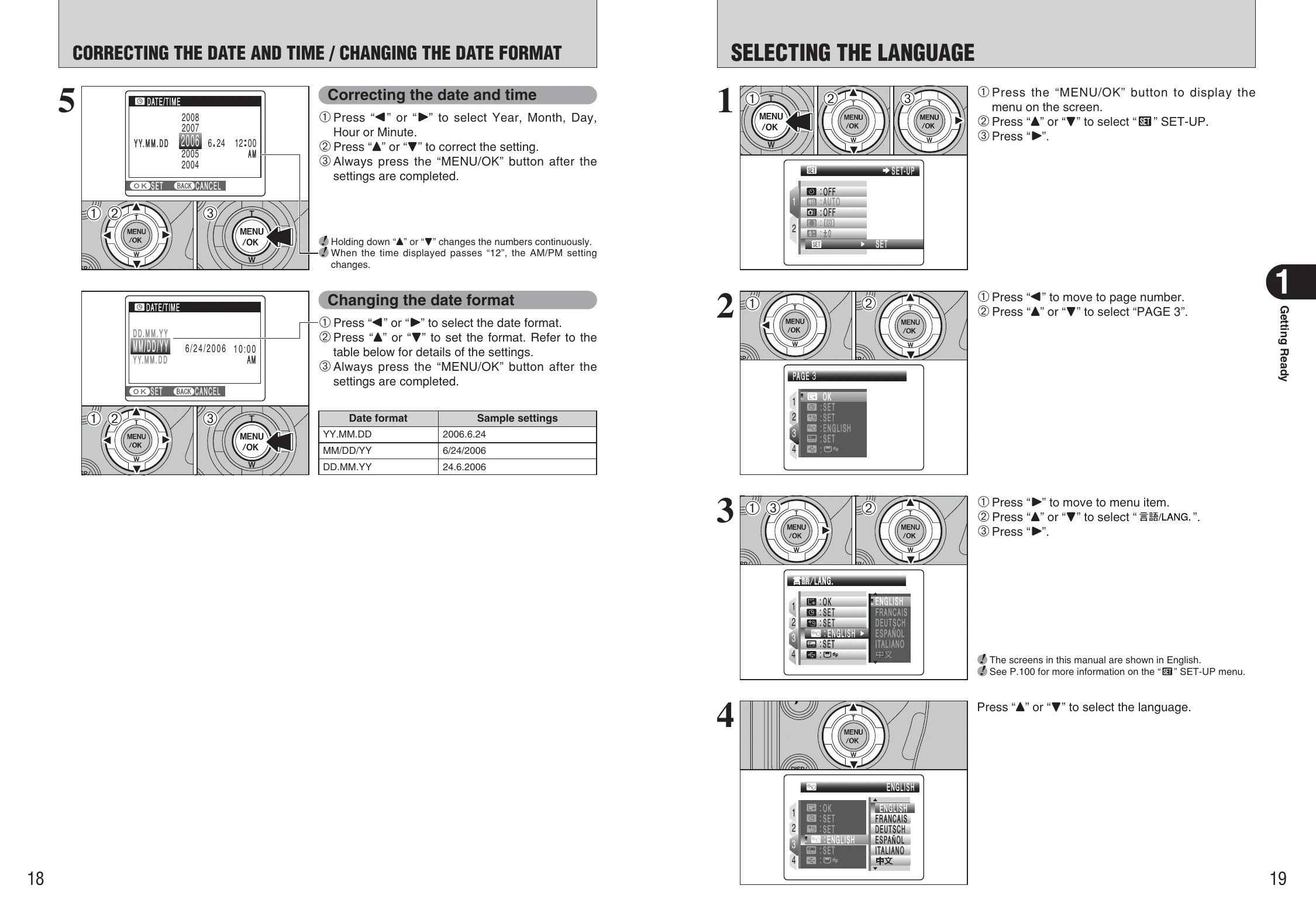
| Screens are displayed in English. | A language other than English is selected in the "言語/LANG." setting in the "SET-UP" menu (P.100). | Press the "MENU/OK" button to display the menu. ②Press "▲" or "▼" to select "SET-UP" and press "►". ③Press "▲" or "▼" to select "言語/LANG..". ④ Press "►". ⑤Press "▲" or "▼" several times to select "ENGLISH". Press the "MENU/OK" button. |
| There is no image or sound on the TV. | The included A/V cable was connected during movie playback. The camera is not connected to the TV correctly. "TV" is selected as the TV input. The "TV output" setting is incorrect. The TV volume is turned down. |
After the movie playback mode is stopped, connect the camera and TV correctly. Connect the camera and TV correctly. Set the TV input to "VIDEO". Change the setting to "NTSC" or "PAL" (P.100). Adjust the volume. |
| The TV image is black and white. | The "TV output" setting is incorrect. | Change the setting to "NTSC" or "PAL" (P.100). |
| When connecting the camera to a PC, the photographed image or playback image appears on the camera's screen. | The USB cable (mini-B) is not correctly connected to the PC or camera. The PC is not turned on. |
Set up the camera, and connect the USB cable (mini-B) correctly. Turn the PC on. |
| Nothing happens when using the Mode dial. | Camera malfunction. The batteries have run out. |
Briefly remove the batteries or disconnect the AC power adapter. Then reload the batteries or reconnect the AC power adapter and try again. Load new or fully charged batteries. |
| The camera no longer works correctly. | The camera has suffered an unforeseen problem. | Briefly remove the batteries or disconnect the AC power adapter. Then reload the batteries or reconnect the AC power adapter and try again. If you think the camera is faulty, contact your FUJIFILM dealer. |
| Cannot print with PictBridge. | PICTBRIDGE is not selected in "USB mode" in the "SET-UP" menu. The camera was connected to a PC when the USB mode was set to "". |
Select "PICTBRIDGE" in "USB mode" in the "SET" SET-UP menu. Perform steps 1 to ③ to remove the camera from the PC. Windows The "New Hardware Found" wizard or "Scanner and Camera" wizard appears. If the wizard does not appear, proceed to step 3. ②Click the [Cancel] button. ③ Disconnect the camera from the PC. Macintosh The window for locating the driver appears. If the window does not appear, proceed to step 3. ② Click the [Cancel] button. ③Disconnect the camera from the Macintosh. |