Brand: EPSON
Category: Projector
Document Type: Manual
Language: EN
Brand: EPSON
Category: Projector
Document Type: Manual
Language: EN
Uploaded: Sept. 12, 2025, 4:23 a.m.
None
This chapter explains the projector's features and the part names.
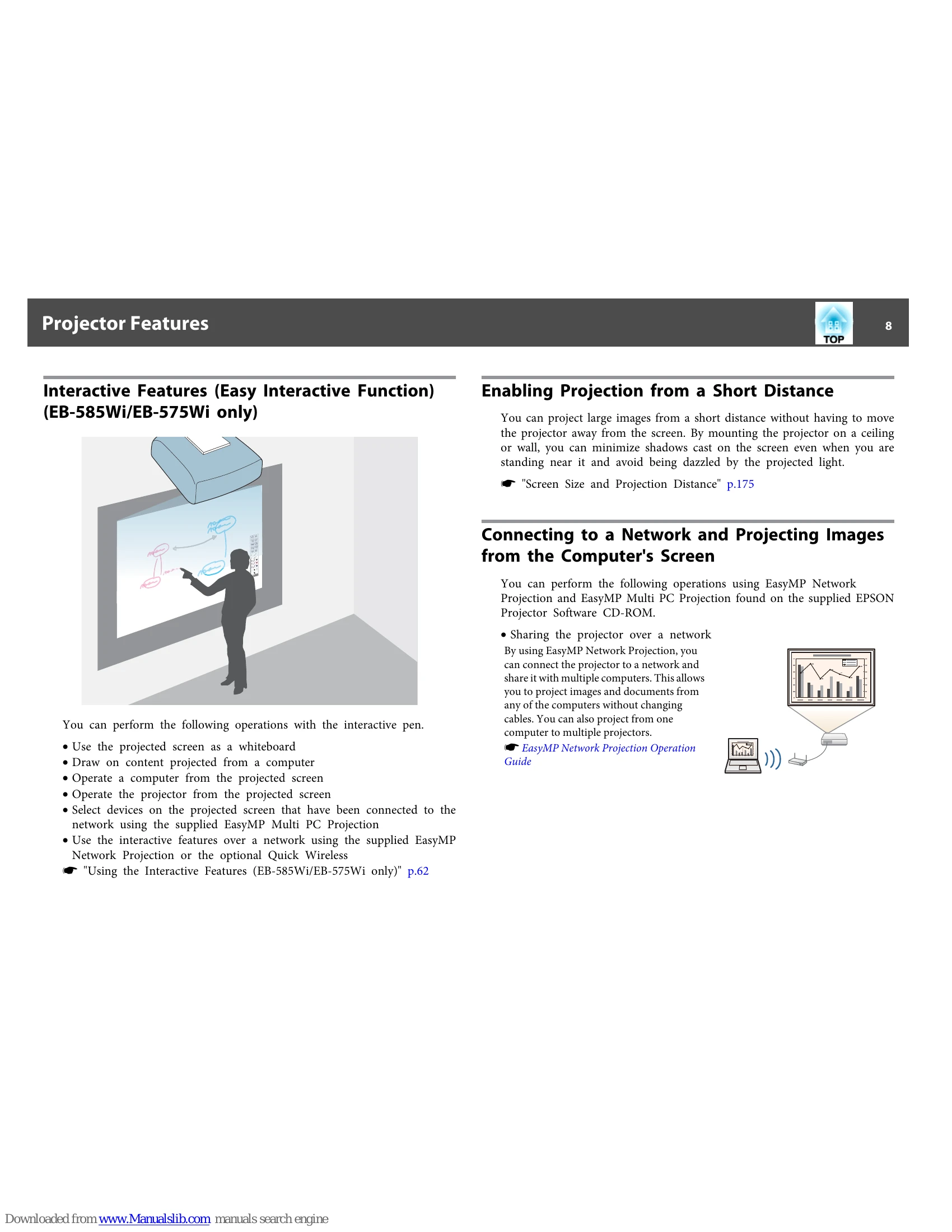
You can perform the following operations with the interactive pen:
You can project large images from a short distance without having to move the projector away from the screen. By mounting the projector on a ceiling or wall, you can minimize shadows cast on the screen even when you are standing near it and avoid being dazzled by the projected light.
You can perform the following operations using EasyMP Network Projection and EasyMP Multi PC Projection found on the supplied EPSON Projector Software CD-ROM.
You can perform the following operations using optional products and applications.
You can project paper documents and objects using the optional Document Camera. By connecting to a computer and using the software supplied, you can make full use of the projector's capabilities.
| Name | Function |
|---|---|
| Indicators | Indicates the projector's status using color, and by being lit or flashing. "Reading the Indicators" p.141 |
| [Source Search] button | Switches to the image from the input port where video signals are being input. "Automatically Detect Input Signals and Change the Projected Image (Source Search)" p.45 |
| [Enter] button |
|
| [←][→] button |
|
| [User] button | Select any frequently used item from the Configuration menu items, and assign it to this button. By pressing the [User] button, the assigned menu item selection/adjustment screen is displayed, allowing you to make one-touch settings/adjustments. "Settings Menu" p.122 The following item is assigned by default.
|
| [Page] buttons [◀][▶] |
Changes pages in files such as PowerPoint files when using the following projection methods.
|
| [E-Zoom] buttons [Zoom +][Zoom -] |
Enlarges or reduces the image without changing the projection size. "Enlarging Part of the Image (E-Zoom)" p.94 |
| [A/V Mute] button |
|
| Strap attachment hole | Allows you to attach a commercially available strap to the remote control. |
| [Help] button | Displays and closes the help screen which shows you how to deal with problems if they occur. "Using the Help" p.140 |
| [Freeze] button | Pauses or resumes image playback. "Freezing the Image (Freeze)" p.93 |
| [Volume] buttons [VOL -][VOL +] |
|
| [Pointer] button | Displays the on-screen pointer. "Pointer Function (Pointer)" p.94 |