Brand: EPSON
Category: Printer
Document Type: Manual
Language: EN
Brand: EPSON
Category: Printer
Document Type: Manual
Language: EN
Uploaded: Nov. 21, 2025, 7:37 p.m.
No specific warranty information found within the provided pages.
Learn about the basic features of your product, including its parts, control panel, power saving settings, and mobile app integration.
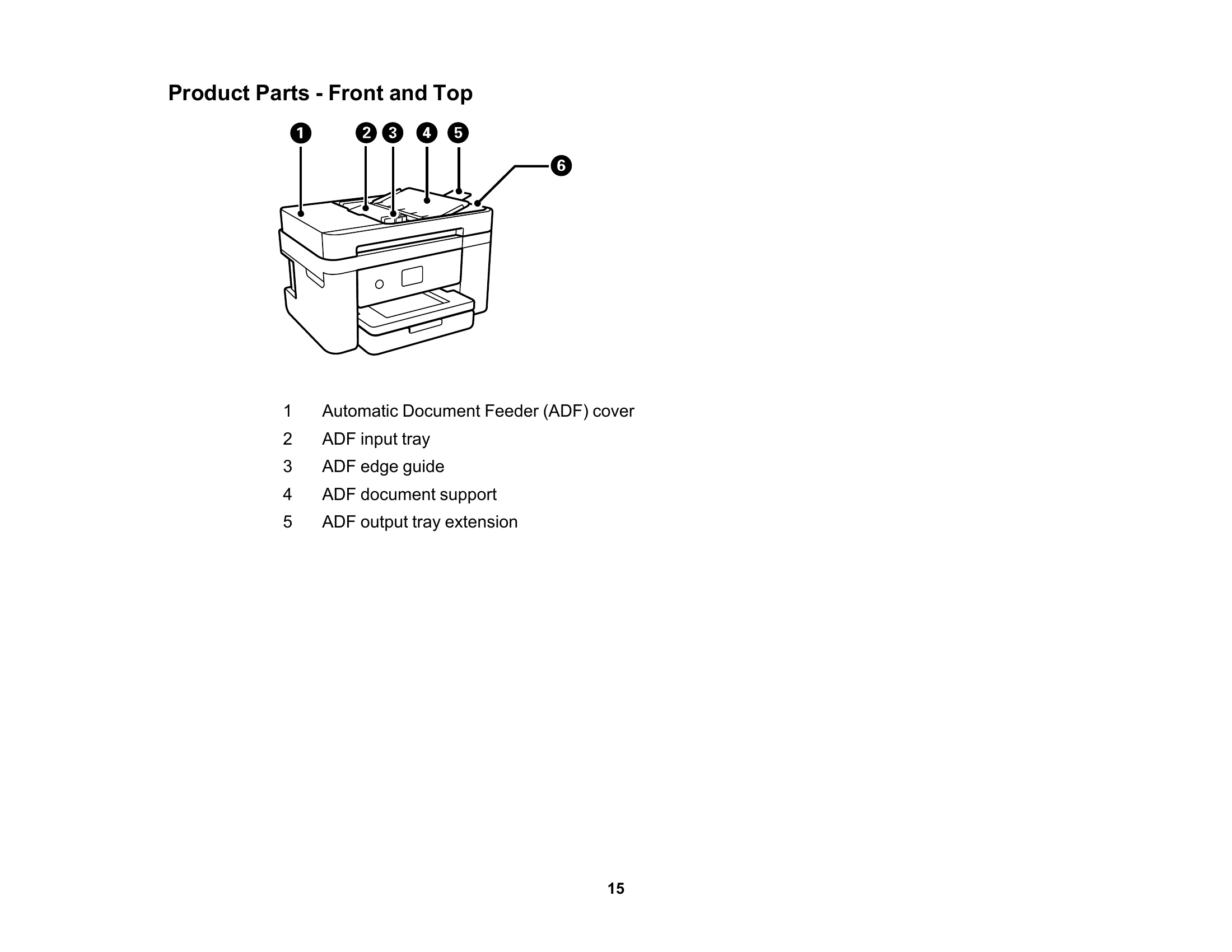
Identify all the parts of your product, from the front and top to the inside and back.
Understand how to use the control panel, including buttons, lights, and the LCD screen. Learn to navigate menus, enter characters, and adjust settings like date and time.
Instructions on how to load paper into the cassette and adjust settings related to paper type and source.
Learn how to copy documents and photos, including options for ID cards and borderless photos.
Detailed guides for printing from Windows and Mac operating systems, covering basic settings, print quality, layout options, and advanced features.
Instructions on how to start and perform scans using the product control panel, connected computer, or mobile devices. Includes scanning to various destinations like cloud services and email.
Guidance on setting up and using fax features, including sending and receiving faxes, managing contacts, and setting up fax utilities.
Step-by-step instructions for replacing ink cartridges and maintenance boxes, along with safety precautions.
Information on maintaining print quality through print head maintenance and nozzle checks.
Instructions on how to clean your product, including paper rollers and the print head path, as well as guidelines for transporting the product.
A comprehensive troubleshooting section covering software updates, product status messages, setup issues, network problems, copying errors, printing issues, and scanning problems.
| Icons | Description |
|---|---|
| Ink and maintenance box status; select the icon to view the ink and maintenance box levels | |
Network connection status; select the icon to set up or change your network connection
|
|
| Indicates whether the Mute and Quiet Mode settings are enabled or disabled. Select the icon to change the settings. When Quiet Mode is enabled and depending on the selected paper type and print quality, noise is reduced during printing at the cost of print speed. When Mute is enabled, sounds from the product (such as button presses) are muted. | |
| Displays the Fax Data Information screen |