Brand: EPSON
Category: Printer
Document Type: Manual
Language: EN
Brand: EPSON
Category: Printer
Document Type: Manual
Language: EN
Uploaded: Nov. 21, 2025, 7:41 p.m.
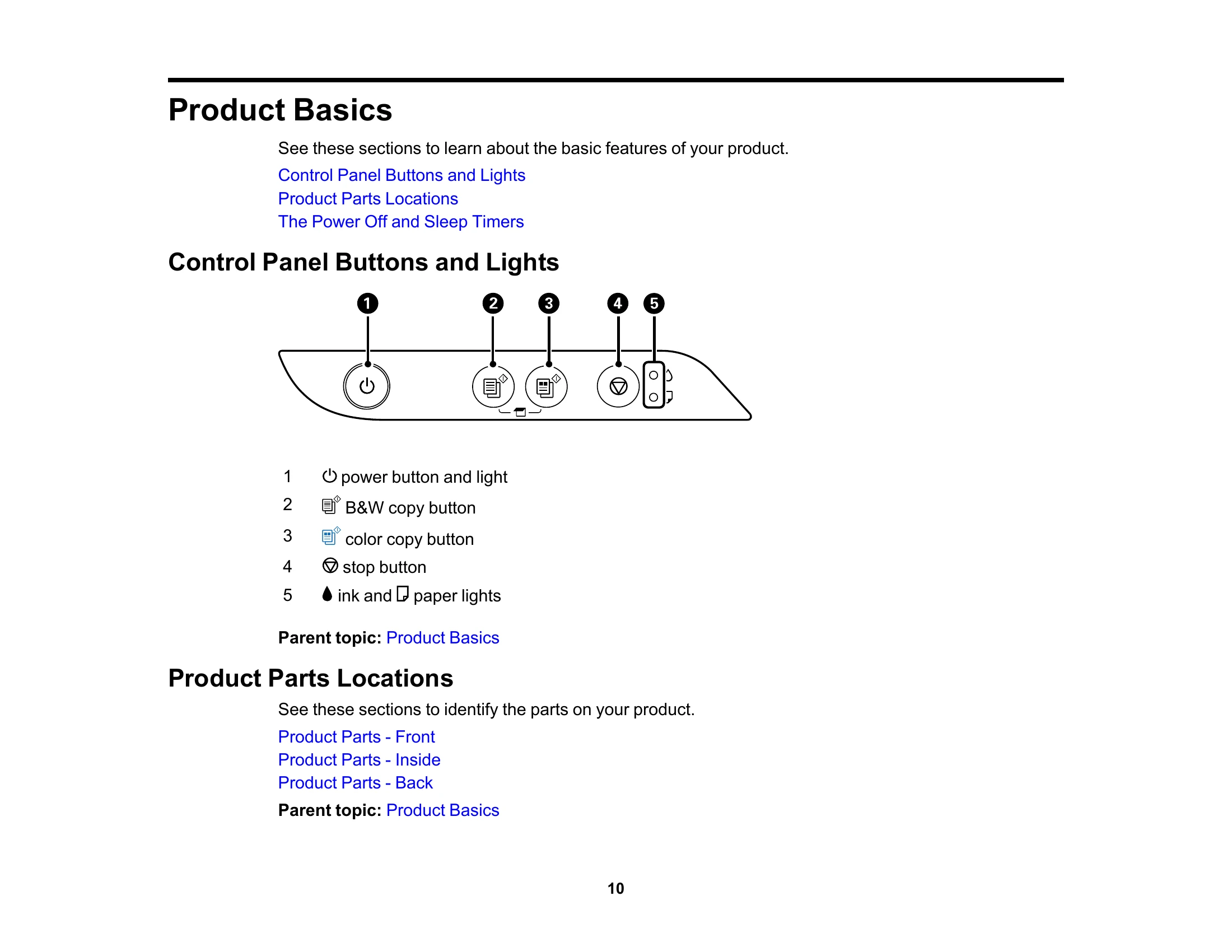
Understand your printer with sections on control panel buttons, lights, and part locations. Learn to manage power and sleep timers for energy efficiency.
Follow step-by-step instructions for loading various paper types and sizes into the sheet feeder. Includes guidelines on capacity, double-sided printing, and paper compatibility.
Instructions on how to place documents or photos on the scanner glass for copying or scanning.
Learn to change default paper sizes and copy documents or photos using the control panel.
Detailed guides for printing from both Windows and Mac operating systems. Covers basic print settings, quality options, multi-page printing, double-sided printing, layout options, and managing color settings.
Instructions on how to start scanning using the product buttons or Epson ScanSmart/Scan 2 software. Includes saving scans, emailing, cloud services, and image format options.
Safety precautions, checking ink levels, purchasing ink, and step-by-step instructions for refilling the ink tanks.
Procedures for print head maintenance, nozzle checks, and cleaning.
Troubleshooting common issues related to software, light status, setup, copying, paper handling (feeding, jams, ejection), and printing from a computer. Also covers print quality problems and scanning issues.
Details on system requirements, paper, printable area, scanning, ink, dimensions, electrical, environmental, and interface specifications.
Important safety instructions, FCC compliance statements, binding arbitration information, trademarks, copyright notices, and software acknowledgments.
| Problem | Possible Cause | Solution |
| Nothing Prints | Printer is off. | Press the power button to turn on the printer. |
| Printing is slow. | Too much data to print. | Print data in smaller blocks. Check the printer driver settings. |
| Product Icon Does Not Appear in Windows Taskbar | Printer driver not installed correctly. | Reinstall the printer driver. |
| Product Makes Noise, But Nothing Copies | Incorrect print settings. | Check the print settings in the application and printer driver. |
| Copies are Cut Off | Incorrect paper size setting. | Ensure the paper size setting matches the loaded paper. |
| Copies Have Incorrect or Faint Colors | Ink levels are low or print quality settings are incorrect. | Check ink levels and adjust print quality settings. |
| Paper Feeding Problems | Paper is not loaded correctly or is creased. | Reload the paper, ensuring it is aligned correctly and not creased. |
| Paper Jam Problems | Paper is jammed inside the printer. | Follow the on-screen instructions or refer to the manual for jam removal. |
| Scanning Software Does Not Operate Correctly | Software conflict or corruption. | Restart the computer and the scanning software. Reinstall the software if necessary. |
| Scanning is Slow | Scanner resolution is set too high or document is large. | Reduce the scanner resolution or scan in sections. |
| Scanned Image Quality Problems | Incorrect settings or dirty scanner glass. | Adjust scan settings and clean the scanner glass. |