Manual for ET-2980

Manual for ET-2980

Brand: EPSON

Category: Printer

Document Type: Manual

Language: EN
Uploaded: Sept. 12, 2025, 4:14 a.m.

Warranty Information

No specific warranty period is mentioned in the provided pages.

  • Product Basics: Learn about basic features, control panel, power saving, Epson Smart Panel app, Epson Connect solutions, and AirPrint.
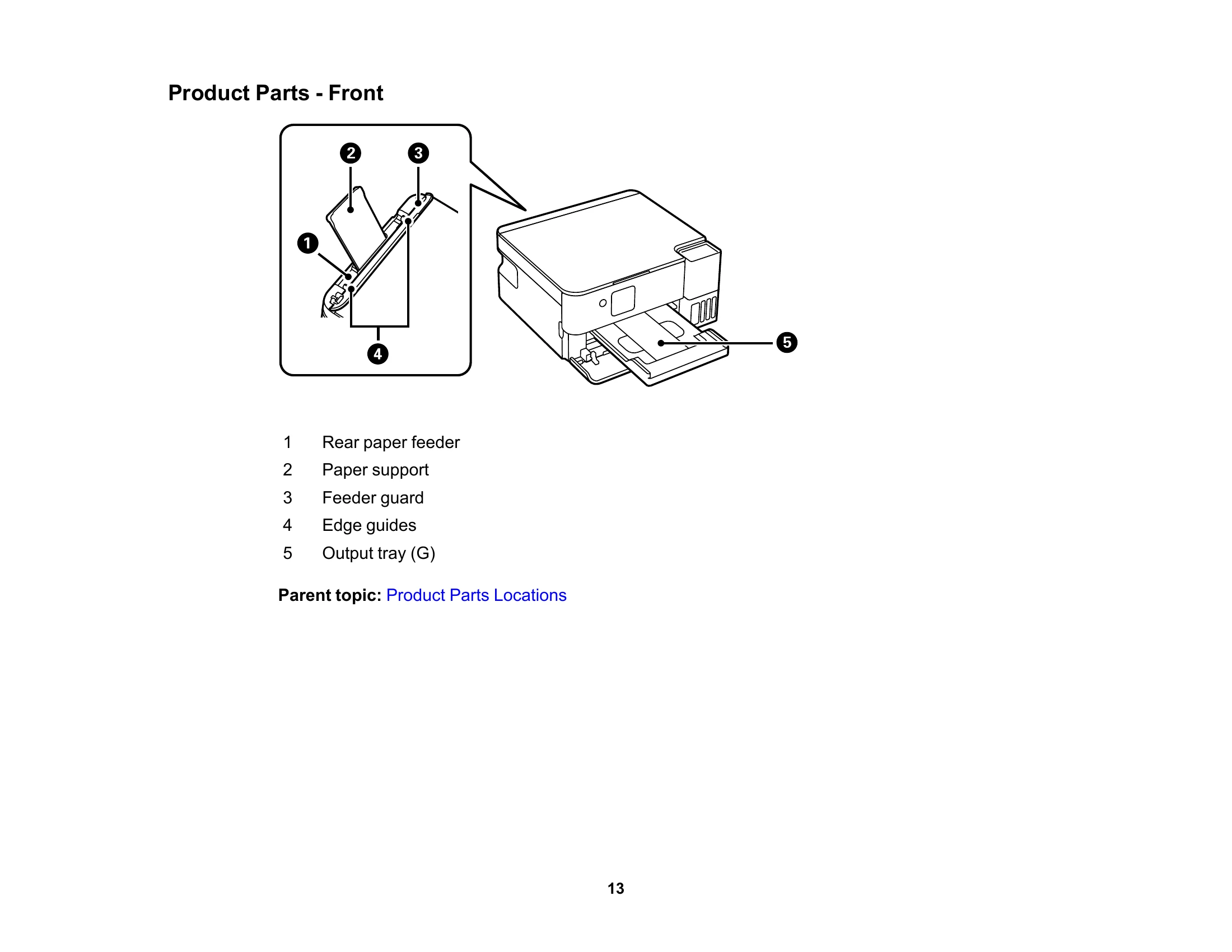
  • Product Parts Locations: Identify front, inside, and rear parts of the product.
  • Using the Control Panel: Navigate buttons, lights, and the LCD screen, including status icons and character entry.
  • Using Power Saving Settings: Configure sleep and power-off timers for energy efficiency.
  • Loading Paper: Instructions on loading paper in the rear feeder, capacity, and type compatibility.
  • Placing Originals on the Product: How to place documents on the scanner glass.
  • Copying: Steps for copying documents and photos with various options.
  • Printing from a Computer: Guides for printing from Windows and Mac, including basic settings, quality options, and layout.
  • Scanning: Detailed instructions for starting scans using the control panel, Epson ScanSmart, Epson Scan 2, or from a smartphone/tablet. Includes saving, emailing, and cloud services.
  • Refilling Ink: Safety precautions, checking ink levels, and refilling ink tanks.
  • Adjusting Print Quality: Procedures for print head maintenance, alignment, and cleaning.
  • Cleaning and Transporting Your Product: Instructions for cleaning and safely transporting the device.
  • Solving Problems: Troubleshooting common issues related to setup, network, copying, paper feeding, printing quality, and scanning.
  • Technical Specifications: Details on system requirements, paper, scanning, ink, dimensions, electrical, environmental, interface, and network specifications.
  • Notices: Important safety instructions, FCC compliance, arbitration, trademarks, and copyright information.

Troubleshooting and error codes

Icons Description
The product is not connected to a wireless network.
The product is searching for an SSID or experiencing a wireless network connection issue.
The product is connected to a wireless network. The number of bars indicates the connection's signal strength.
Wi-Fi Direct is not enabled.
Wi-Fi Direct is enabled.
Privacy Policy