Brand: EPSON
Category: Document Camera
Document Type: Manual
Language: EN
Brand: EPSON
Category: Document Camera
Document Type: Manual
Language: EN
Uploaded: Sept. 12, 2025, 4:17 a.m.
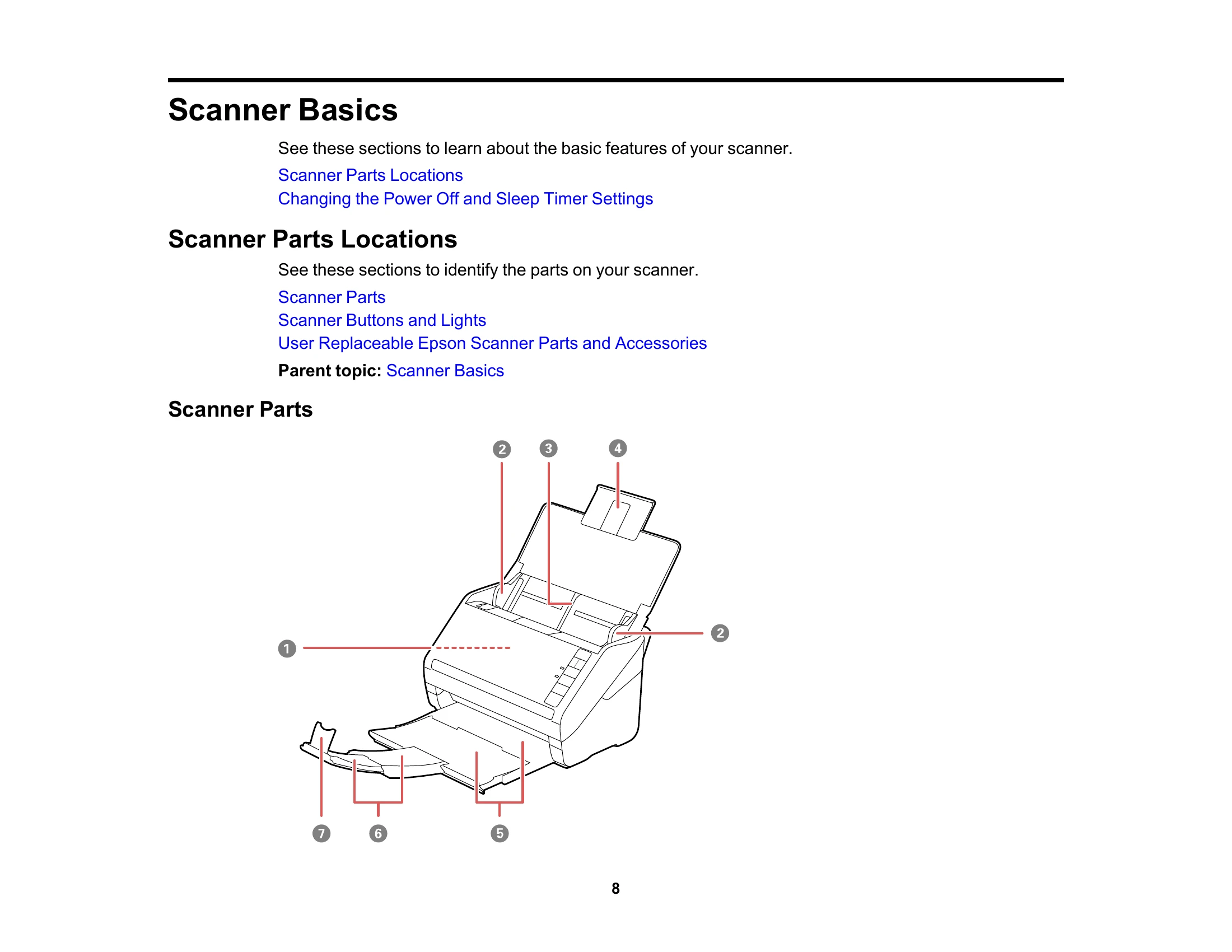
Familiarize yourself with the scanner's features, including parts locations, buttons, lights, and replaceable components. Learn how to adjust power off and sleep timer settings.
Connect your scanner to a Wi-Fi network. This includes security recommendations, connecting to an existing network, using WPS, setting up network scanning, and managing Wi-Fi features.
Prepare and load various types of originals, including photos, documents, plastic cards, and special documents, into the input tray with specific capacity guidelines.
Initiate scans using scanner buttons or software. Learn about scanning photos with Epson FastFoto, sharing, uploading, and accessing preferences.
Maintain your scanner through cleaning procedures and learn how to safely transport it.
Troubleshoot common issues related to scanner status, scanning problems, network scanning, and image quality.
Review detailed specifications for electrical, environmental, and network interfaces.
Read important safety instructions, restrictions on copying, and information regarding trademarks and compliance.
| Problem | Possible Cause | Solution |
|---|---|---|
| Scanner Does Not Turn On or Turns Off Unexpectedly | Power cable is not connected properly. | Ensure the power cable is securely connected to the scanner and a working outlet. |
| Scanner Button Does Not Work as Expected | Software issue or button malfunction. | Restart the scanner and computer. Check software settings. Contact support if the issue persists. |
| Scanning Software Does Not Operate Correctly | Outdated or corrupted software. | Reinstall the latest version of the Epson scanner software. |
| Original Feeds Incorrectly in Scanner | Improperly loaded original or dirty rollers. | Ensure originals are loaded correctly and align edge guides. Clean the scanner rollers. |
| Original Jams in Scanner | Overloaded input tray or wrinkled/folded original. | Remove the jammed original carefully. Do not force it. Reduce the number of items in the input tray. Ensure originals are flat. |
| Scanning is Slow | Scan settings are too high (resolution, color depth) or network issues. | Adjust scan settings. If network scanning, check network speed and stability. |
| Cannot Scan Over a Network | Incorrect network settings or scanner not connected. | Verify Wi-Fi connection and network settings. Restart the scanner and router. |
| Scanner Cannot Connect to a Wireless Router | Incorrect SSID or password, or router issue. | Double-check SSID and password. Restart the router. Ensure WPS is enabled if using WPS. |
| Streaks Appear in All Scanned Images | Dirty scanner glass or rollers. | Clean the scanner glass and rollers according to the manual's instructions. |