Manual for P3424WE

Manual for P3424WE

Brand: Dell

Category: Monitor

Document Type: Manual

Language: EN
Uploaded: Nov. 21, 2025, 6:32 p.m.

  • Firmware Update Overview: The firmware update tool is an application designed to update the monitor's firmware.
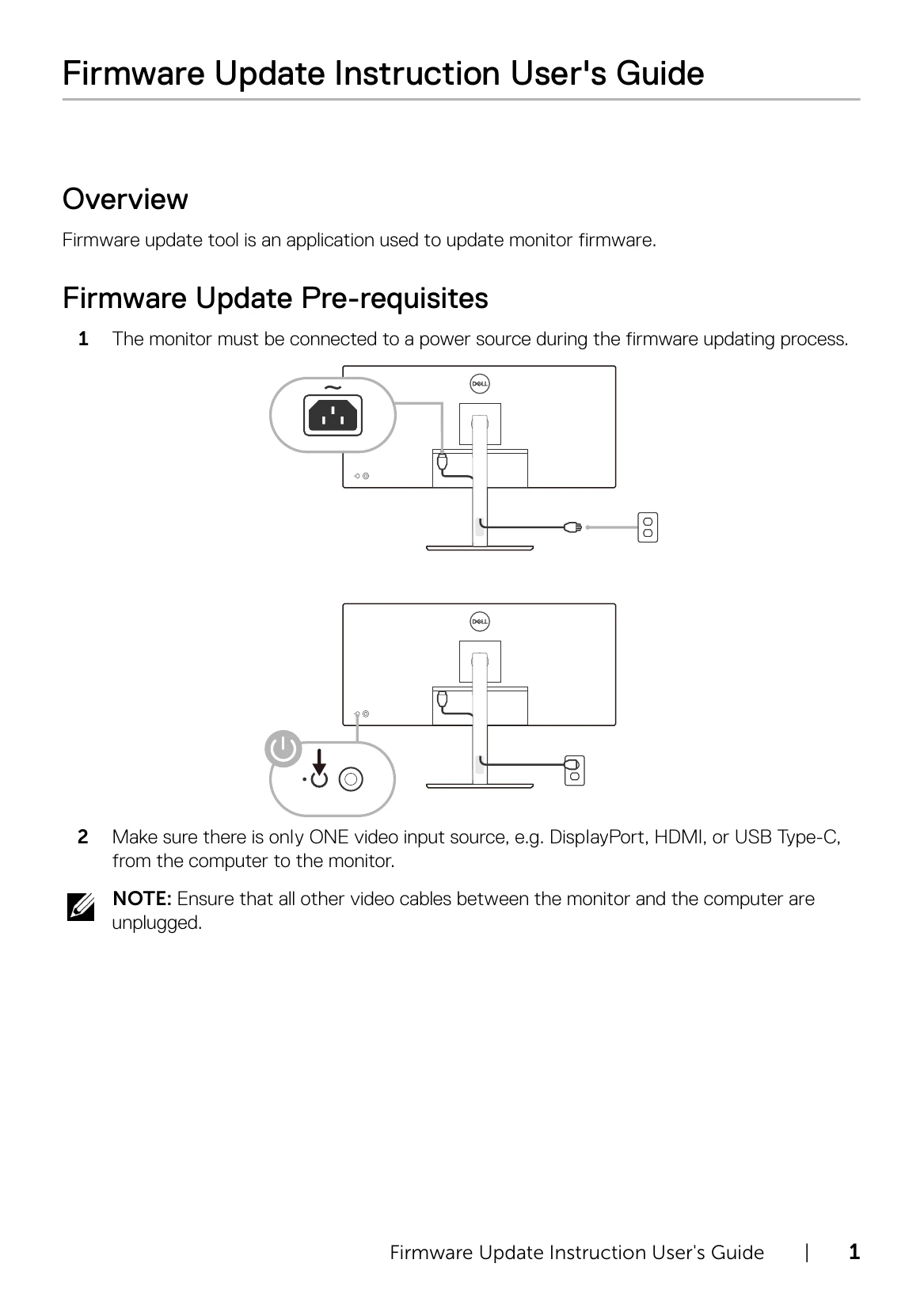
  • Pre-requisites: Ensure the monitor is connected to a power source, only one video input source is active, and the USB upstream or USB Type-C cable is directly connected between the monitor and the computer. Disconnect all other monitors and disable sleep mode. Update one monitor at a time.
  • Installation via GUI: Double-click the .deb file and follow the prompts in the Ubuntu Software Center, including authentication.
  • Installation via Command Line: Copy the .deb file to the desktop, open a terminal, and use the `sudo dpkg -i` command.
  • Updating Process: Launch the firmware update tool, allow it to load the firmware file automatically or select it manually, and click 'Update'. The process takes up to 12 minutes. Do not power off or disconnect cables during the update.
  • Completion: Follow on-screen instructions to restart the monitor.
  • Uninstallation: Use the `sudo dpkg -P` command in the terminal.

Troubleshooting and error codes

Errors Possible Solutions
File permission error
  • Try saving the firmware file in another location.
  • Check if the firmware file has read permission.
  • Check if you have owner rights for the firmware file.
  • Or, run this utility with administrator privileges.
Monitor not detected
  • Follow Firmware Update Pre-requisites to check if the power and USB cables are properly connected to your computer and reopen the Monitor Firmware Update Utility.
  • In USB of the OSD menu, make sure the USB port is set to the corresponding input signal.
Write protection error Re-try updating with the following steps:
  • 1 Close the Monitor Firmware Update Utility.
  • 2 Turn off the monitor by pressing the power button.
  • 3 Re-plug the power cord.
  • 4 Turn on the monitor.
  • 5 Try updating again with the Monitor Firmware Update Utility.
Flash erase error Re-try the updating steps from 1 to 4 as stated above.
Update error Re-try updating the monitor's firmware. Do not turn off the ISP tool until the update is complete.
Monitor firmware checksum error
USB device inactive after new firmware installation.
A warning message appears: "Firmware update was not completed. Please update the monitor firmware again.” Re-try updating the monitor's firmware. Do not turn off the ISP tool until the update is complete.
Privacy Policy